
It’s not an uncommon incident for your computer’s mouse to behave unnaturally. You may observe it either not picking up on your commands or doing so, but with a delay. While this may not seem like an issue on paper, a dysfunctional mouse can greatly hamper your work. A mouse orchestrates a major portion of all that we do on our computer and it. There are several things you can do in a situation like this, one of which is to revert to the default settings for your mouse, the ones it was packaged with. Fortunately, it’s a very straightforward procedure. In this article, we will show you how you can reset your mouse’s settings to default on your Windows computers.

Reset Mouse settings to default in Windows 11/10
To reset Mouse settings to default in Windows 11/10, here’s what you have to do:
- Open the Windows Settings
- Click on the Bluetooth and Devices option to open its respective settings
- Select Mouse from the list of options on the right side
- Click on Additional mouse settings toopen Mouse Properties
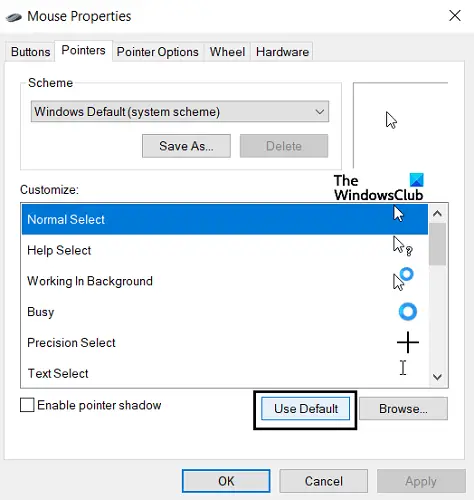
- Under the Pointers tab, click on Use Default and save the change
Open the Windows settings by pressing the Windows and ‘I’ keys together. Here, select the Bluetooth and Devices option. From the options pane to your right, click on Mouse.
On this options window, you’ll see some additional options on the right side. There, click on Additional Mouse options.
Once you click on the Additional Mouse Options, it will open a separate dialog box named Mouse Properties.
Here, select the Pointers tab. If you have customized your mouse pointer to make it look different, click on Use Default to revert to the original settings. Save these settings by clicking on the Apply button on the bottom right.
Alternatively, you could completely uninstall your Mouse software and driver, then reinstall them.
Related: No Cursor movement, Mouse Cursor moves erratically or slowly.
Why do mouse settings keep changing in Windows?
Another very common issue many Windows users face is their mouse settings reverting to the default setup every time the computer is rebooted. This can be very annoying for those who like things a certain way. The most common cause behind this issue is the presence of corrupt or outdated drivers. Similarly, a common solution for the issue is to update your mouse drivers. You can also try re-inserting the USB cable of your mouse (if you use a mouse with a USB cable connector) or you can perform a clean boot on your PC.
Related: Cursor jumps or moves randomly while typing.
How do I reset my mouse DPI (sensitivity) settings?
One issue that has several people concerned is the Mouse’s sensitivity levels, which is a measure of its DPI. You can adjust your mouse sensitivity in the Mouse settings. Here’s what you need to do:
- Open the Control Panel and click on the Mouse option
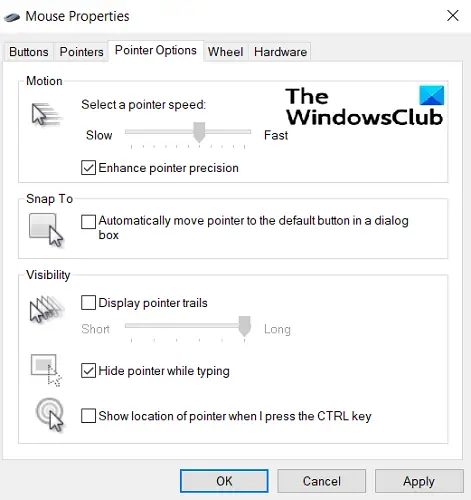
- Here, click on the Pointer Options tab
- Under the motion head, adjust the speed and sensitivity of your mouse.
- Going towards Fast would mean that your mouse reacts quicker than your commands, and the opposite for slowing it down
- Click on Apply to save these settings
We hope this post was helpful and that you can now use your mouse without difficulty with the settings you prefer.
TIP: These posts will show you how to reset your Touchpad settings and how to reset the keyboard on your PC.
