
The System applet in the Control Panel gives information about your computer hardware and operating system. Since Microsoft is phasing out the Control Panel applets and gradually moving them to the Settings app, the System applet also appears to have gone missing in Windows 11/10.
When you launched the Control Panel, the System applet looked like this.
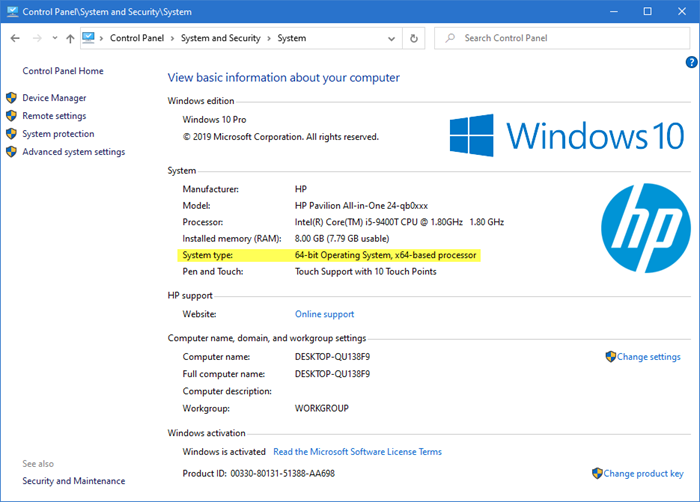
Now if you were to open the Control Panel, select System and Security, and then click on System, you will not see the classic System applet appear.
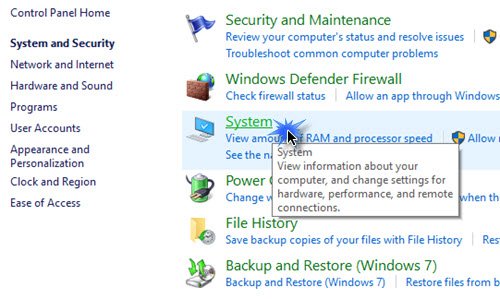
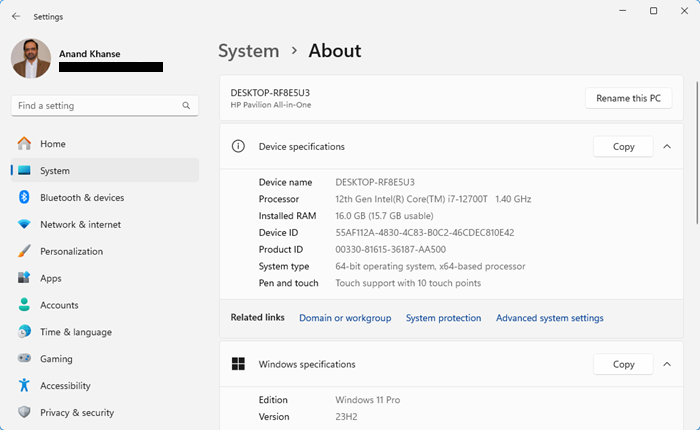
Instead, you will see the following About page of Windows Settings appear:
Windows 11
Windows 10
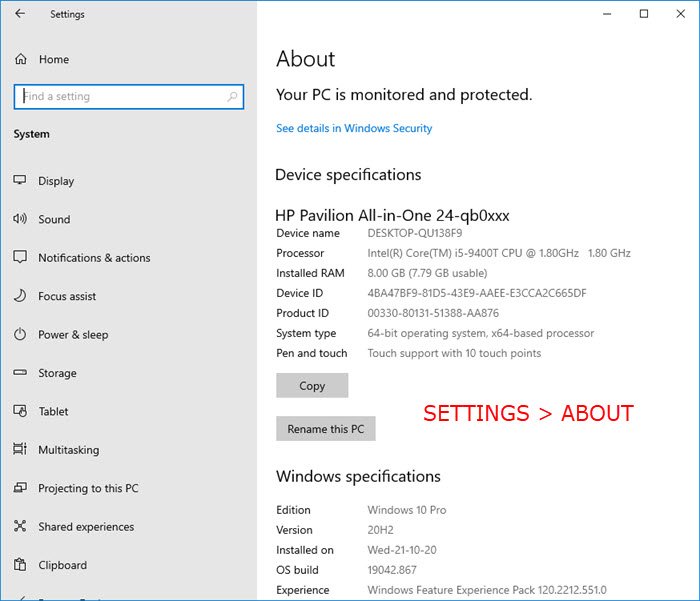
In the About section, you will find basic information about your PC’s protection and security, as well as device specifications, such as device name, processor, product ID, system type, device ID, etc. You will also see information regarding Windows specifications, such as the edition, version, OS build, and installed date.
How to open System Properties in Control Panel in Windows 11
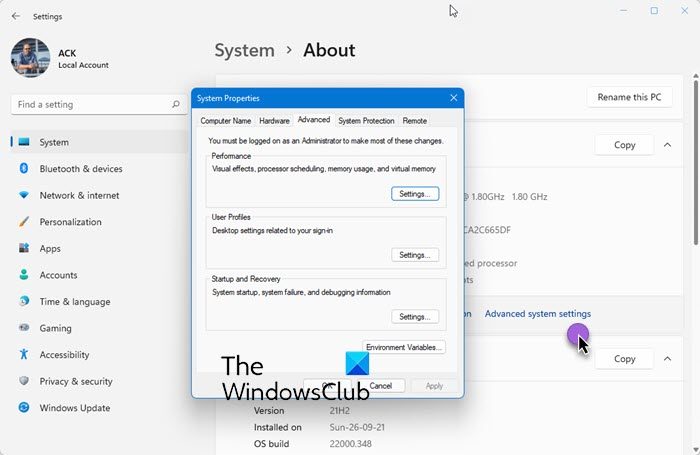
- Open Windows 11 Settings,
- Select System
- On the left side, click on About
- Then on the right side click on Advanced systems settings
- The System Properties box will open.
How to open System Properties in Control Panel in Windows 10
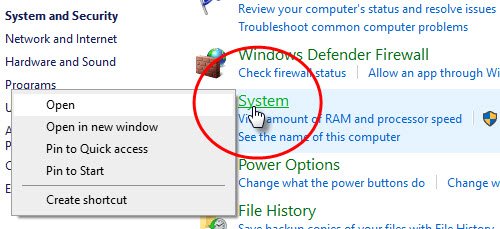
- Open the Control Panel,
- Select System and Security,
- Then right-click on System and then select Open.
- If you want to open System Properties now, you need to right-click on System and then select Open.
- The classic System Properties applet will appear!
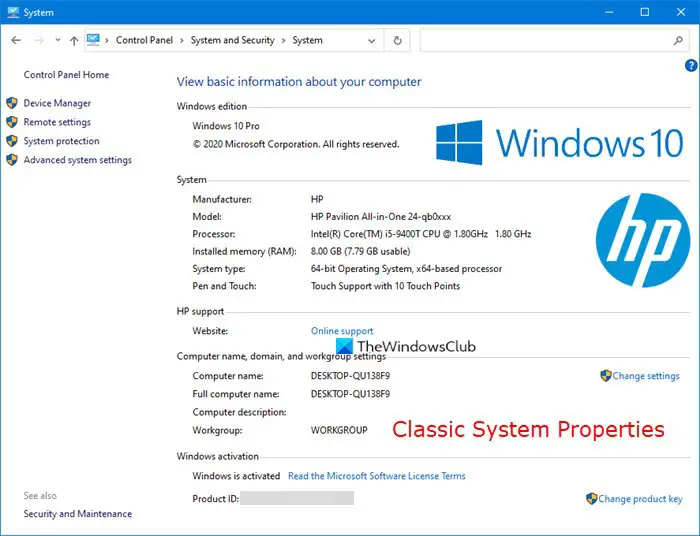
Open System Control Panel applet via This PC
Open This PC folder and right-click anywhere in the empty space.
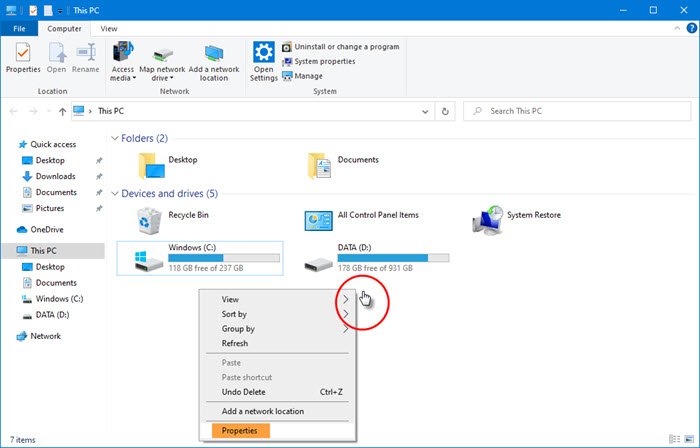
Select Properties and the classic System Properties applet will appear.
Open System Properties via Run
Open the Run box, type any of the following commands, and hit Enter to directly open the System Properties box:
sysdm.cpl
OR
SystemPropertiesAdvanced
Open System Control Panel applet using Run box
Open the Run box, type the following command, and hit Enter:
explorer shell:::{BB06C0E4-D293-4f75-8A90-CB05B6477EEE}
If you wish, you could also create a desktop shortcut using this path.
How to open Advanced System Settings in Windows 11
To open the Advanced System Settings in Windows 11, press Win+R on your keyboard, type SystemPropertiesAdvanced or sysdm.cpl into the Run box, and hit Enter. This launches the classic System Properties window where you can configure performance, environment variables, and startup settings. Click the Advanced tab and you will see Advanced System Settings.
Update the Advanced Settings component to get the latest features
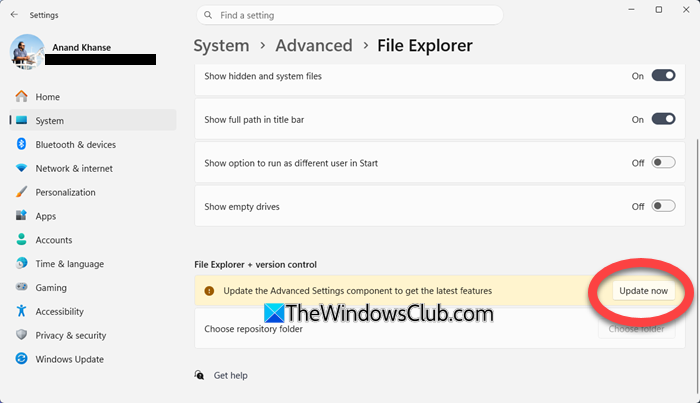
If you see Update the Advanced Settings component to get the latest features in Windows Settings, you need to click on the Update now button. This will open a Microsoft Store link where you can download and install the update.
Advanced Windows Settings provides additional functionality to the Advanced page inside Windows Settings, such as File Explorer with version control integration. File Explorer with version control integration lets you view Git information directly in your source folder.
Pin System Properties to Taskbar
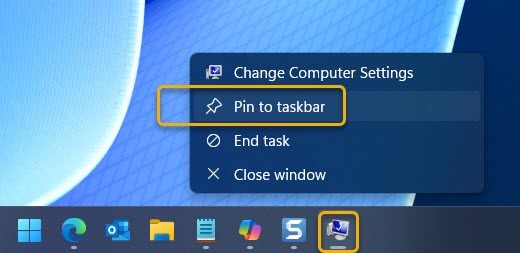
Open System Properties using sysdm.cpl in the Run box and then right‑click the icon on the taskbar and choose Pin to taskbar.
The Settings app is more touch-friendly, with a proper layout that helps avoid accidental taps. Having two centers for customizing the computer and the operating system will mean more code and, hence, more memory usage. This is the opposite of the Windows motto, which wants the latest operating system to run smoothly even on low-resource computers, tablets, etc.
I hope this helps.
Where did the Control Panel System applet go in Windows?
The Control Panel System applet has been removed in Windows 11/10, so to get system information, you will now have to open Windows Settings > About > Advanced system settings.
Which Control Panel applet gives the information of computer?
You can use any one of these five built-in System Information Tools in Windows. Microsoft has removed the System Properties box from the Control Panel in Windows 11/10.
