
The Chromium-based Microsoft Edge browser allows users to customize the permissions granted to a particular website. This includes using different APIs to access the user data needed to make the page work. It also includes the use of various plugins installed on the computer or embedded in the browser’s code.
Manage Site permissions on Microsoft Edge
There are two main areas that we need to take a look at if we want to manage Site permissions in the Edge browser:
- Manage Site permissions as a whole for all websites.
- Manage Site permissions for a particular website.
1] Manage Site permissions as a whole
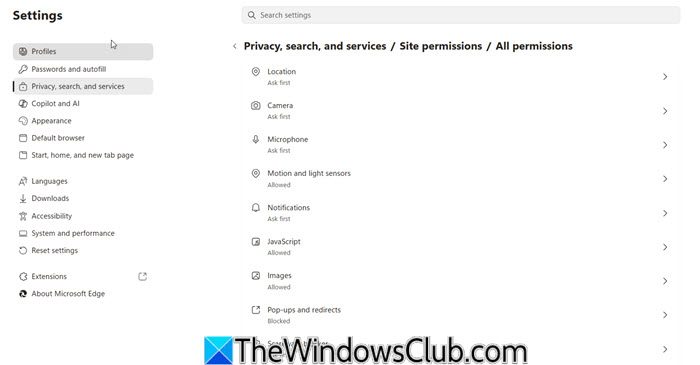
Open the new Microsoft Edge browser and select the menu button denoted by three horizontal dots on the top right portion of the window.
Select Settings. From the navigation panel on the left side, select Privacy, search and permissions.
Alternatively, type this in the Address bar and hit Enter:
edge://settings/privacy/sitePermissions
You will see a list of permissions the browser can offer a website. It includes the following:
- Cookies.
- Location.
- Camera.
- Microphone.
- Motion or light sensors.
- Notifications.
- JavaScript.
- Flash.
- Images.
- Pop-ups and redirects.
- Background sync.
- Automatic downloads.
- Unsandboxed plugin access.
- Handlers.
- MIDI devices.
- Zoom levels.
- USB devices.
- PDF documents.
- Protected content.
- Clipboard.
- Payment handlers.
This is a huge list of permissions that Microsoft Edge has to offer.
You can select each option to hardcode permissions for any website a user accesses using the browser.
2] Manage Site permissions for a particular website
Open the website that you need to customize the permissions for and select the lock icon on the left side of the address bar.
You will see a panel like this:
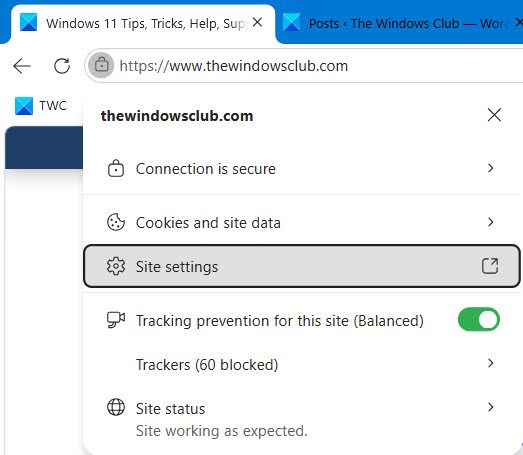
You can now toggle the permissions the website is currently demanding or just select Site permissions.
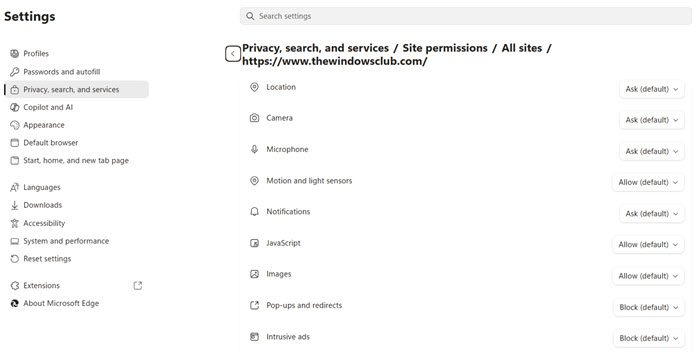
It will open a new tab, and for that particular website, you can select custom permissions.
You can even select the Reset permissions button on the bottom of the screen to reset all the permissions for the particular website to their defaults.
Benefits of managing Site Permissions in Microsoft Edge:
- You control which sites can access your camera, microphone, or location
- Block suspicious sites from using permissions to avoid malicious activity
- Allow only trusted sites to use features like notifications or media playback
- Set permissions per site, depending on your needs
- Manage permissions to stop spammy sites from sending pop‑ups or notifications.
I hope you find this guide useful.
Read next: How to add Trusted Sites in Edge.
