
Roku users are experiencing some errors as of late. In this guide, we will be discussing two of those errors, 003 and 0033, and ways to resolve this. In this article, we will see ways to fix Roku Error Codes 003 and 0033.
Fix Roku Error Code 003, Unable to update software
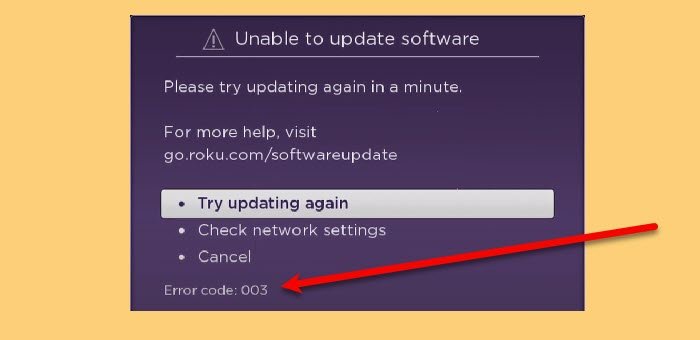
Roku Error Code 003 is seen while updating the Roku application. Sometimes, a poor Internet connection can be the culprit, but more often than not, users have reported that they are experiencing this error even if the Internet is working fine.
After researching a bit, there are two possible reasons. The server may be down, or Roku may not be able to connect to the Internet. The following is the exact error message.
Unable to update software
Please try updating again in a message.
For more help, visit
go.roku.com/softwareupdate
These are the things you can do to fix Roku Error Code 003, Unable to update software.
- Check if Roku is down
- Switch to TKIP
- Allow Roku through Firewall
- Use Wired Network
Let us talk about them in detail.
1] Check if Roku is down
There are a few steps we will take later in this article to rectify the issue, but first, ensure that Roku is not down. You can use a website down detector and check if the website is down.
If the server is down or under maintenance, you need to wait for it to be fixed. It may take hours or sometimes days, so keep checking to keep streaming.
2] Switch to TKIP
Roku is not compatible with AES, but it works perfectly with TKIP. So, you need to make sure that your “Security Options” is not set to WPAK2-PSK (AES). To do that, you can follow the given steps.
- Go to your Router’s settings. The easiest way to do that is by pasting one of these IP-address “192.168.0.1, 192.168.1.1, 192.168.2.1, 10.0.1.1, 10.0.0.1, 10.10.1.1” in your Browser’s search bar.
- Go to the Security tab and change Security Options to WPAK2-PSK (TKIP).
- Now, close the Settings and restart your device.
Finally, check if the issue is fixed.
3] Allow Roku through Firewall
If you are using Roku on a Windows device and facing the issue, try allowing Roku through Firewall and see if the issue persists. To do that, you can follow the given steps to do the same.
- Open Settings by Win + I.
- Click Update & Security > Open Windows Security.
- Go to Firewall & network protection > Allow an app through firewall.
- Click Change Settings and allow Roku through your current network.
Now, restart your computer and see if the issue persists.
4] Use Wired Network
Roku or any other streaming service works better with a wired network than with a wireless network. Setting up the connection is fairly easy; you just have to take an ethernet cable, plug it one end into your Router, and another end into the device you are streaming on. Now, retry updating Roku; hopefully, it will work this time.
Hopefully, you can fix the Roku Error with the help of the solutions mentioned here.
Fix Roku Error Code 0033, The customer is not authorized for the content requested
You may get Error Code 0033 “The customer is not authorized for the content requested” in Roku because of various reasons, but usually, they are a result of package shift. If your billing location is different from the location of your ISP, you will see this error. However, we have accumulated a list of different solutions to rectify this error.
These are the things you can do to fix Roku Error Code 0033, The customer is not authorized for the content requested.
- Update Roblox
- Sign Out and Sign In
- Clear Cache
- Authenticate Channel
- Use Mobile Internet
Let us talk about them in detail.
1] Update Roblox
The first thing you need to do is to update Roblox. The easiest way to update Roblox is by following the given steps.
- Press the home button of your remote 5-6 times.
- Tap the Fast Forward button-3 times and the Rewind button-2 times.
- Go to Update Software and confirm the action by clicking “OK”.
It will fix the issue; if it doesn’t, continue reading.
2] Sign Out and Sign In
Another solution that you can do to fix the issue is to Sign Out and Sign back Into your Roku account. You need to ensure that you are providing the correct credentials.
If this is unsuccessful, try changing your password as well.
3] Clear Cache
Sometimes, Signing out and Signing in is not enough to start from scratch. So, you need to make sure that you are clearing Cache and see if the issue persists.
To do that, you can go to Settings > Application option > Clear Cache. This will resolve the “the customer is not authorized for the content requested” for you
4] Authenticate Channel
Authenticating the channel with the help of the correct activation code will resolve the issue. To do that, you can follow the given steps.
- In Roku devices, from the list of channels, you need to select a channel.
- A window will ask you to enter the correct activation code.
- Click Ok to confirm your action.
- Now, sign in using your credentials, and you will be good to go.
Now, check if the issue is fixed.
5] Use Mobile Internet
This might sound a bit counterintuitive but bear with me on this one. If you are at a location different from your billing address, ensure you use Mobile Internet instead of WiFi. This will fix the issue.
Hopefully, you will be able to fix Roku Error Code 0033, “the customer is not authorized for the content requested” with these solutions.
Why is my Roku not connecting to the Internet?
There can be multiple reasons why Roku is not connecting to the Internet. However, to troubleshoot the error, ensure your router is functioning properly. You can also use an Ethernet cable.
However, if the issue persists, try checking if it is a global issue affecting all devices connected to your network. For that, you can go to a browser, search “Internet Speed test”, and use them to check your Internet speed with it.
If your Internet is fine, but Roku is not connecting to it, try restarting Roku. To do that, you can go to Settings and click System > System Restart. This will restart Roku. Along with it, you should restart the device on which you are streaming on.
Finally, verify that the issue is resolved.
If the issue persists, change your “Security Options” to WPAK2-PSK (TKIP) (as mentioned above).
How to perform Factory Reset on TCL Roku TV?
Sometimes, you want to perform Factory Reset to fix an error on Roku TV. You can follow the given steps to perform Factory Reset on TCL Roku TV.
- Press the “Home” button on your Remote.
- Go to Settings.
- Now, use the arrow key to navigate to System > Advanced System Settings.
- Click Factory Reset and confirm your action by clicking Factory Reset everything > Ok.
Finally, restart your device and see if the issue persists.
Hopefully, with the help of this guide, you can fix Roku Error Codes 003 and 0033.
