
In this post, we’ll show you how to create progress bars in Excel on a Windows 11/10 PC. Progress bars are quite popular in Excel. They’re often used to display task completion percentages, monitor progress toward targets, track budgets, and visualize other similar metrics.
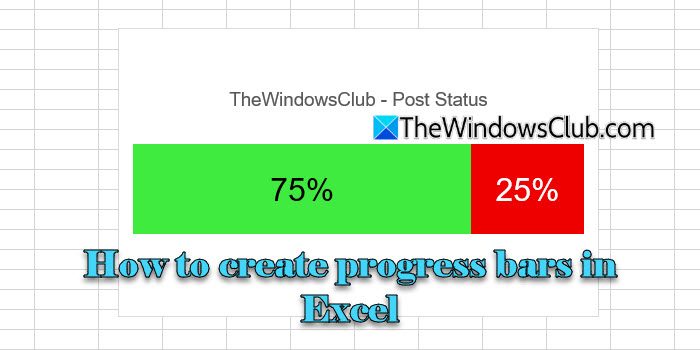
If you’re not sure how to create a progress bar in Excel and want to learn it the easy way, you’re at the right place. In this post, we’ll show you how to create progress bars that automatically adjust as your data updates.
How to make a Progress Bar in Excel?
Excel doesn’t have a built-in tool for creating progress bars, but you can still make them using existing features like conditional formatting and bar charts. While conditional formatting offers a quick and simple way to create effective progress bars, bar charts provide more customization options, allowing you to design cleaner and more professional-looking progress bars.
How to create Progress Bars in Excel
As mentioned above, you can create progress bars in Excel using the following methods:
- Using Bar Charts
- Using Conditional Formatting
Let us see this in detail.
1] Create progress bars using Bar Charts
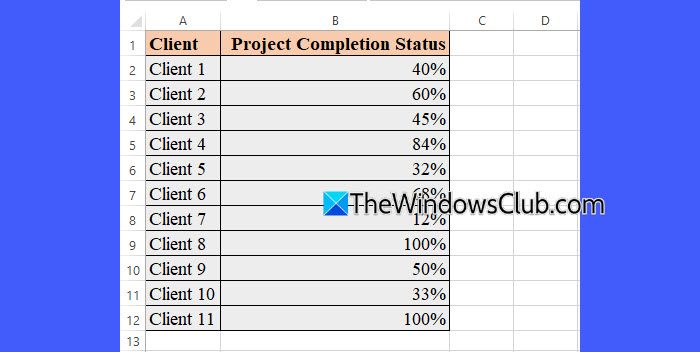
Let us suppose we have a sample worksheet wherein we are tracking the project completion status for multiple clients, as shown in the image below. The worksheet contains two columns: Column A displays the client numbers, and Column B displays the completion status, in percentage, for each client’s project.
To convert the data in Column B into progress bars using Bar Charts, follow these steps:
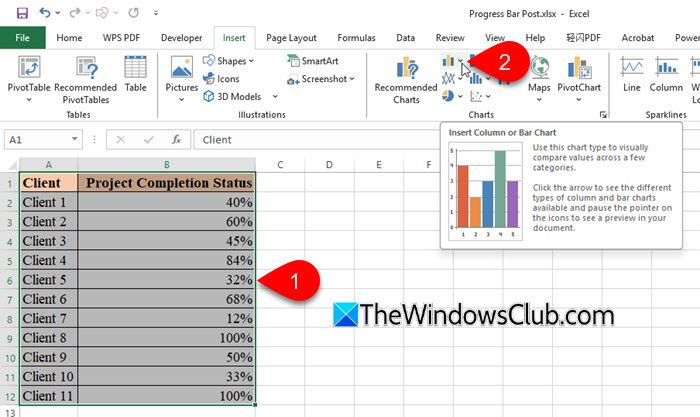
Highlight the data in cells A1 to B12. Go to the Insert tab in the top ribbon. Click on the Insert Column or Bar Chart dropdown under the Charts section.
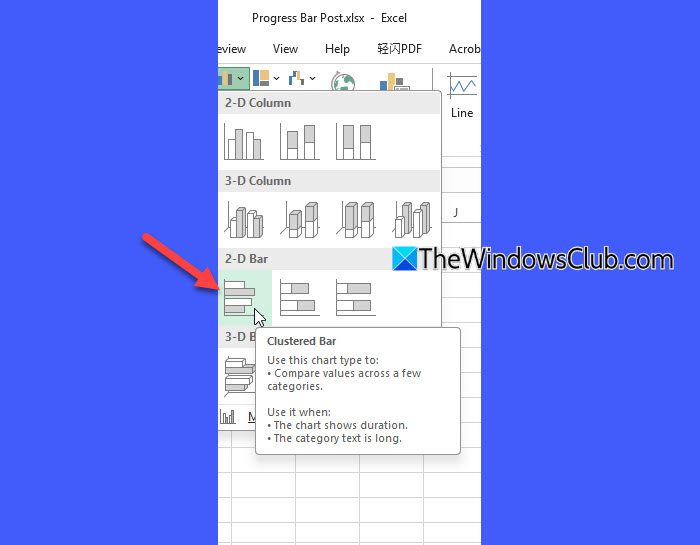
Under 2-D Bar, choose Clustered Bar.
A Bar Chart will appear on your screen. Double-click on one of the bars in the chart to select the data series. A Format Data Series panel will appear on the right. Under Series Options, adjust the Gap Width according to your data. For example, we’re reducing the gap width to 30% to minimize spacing and give the bars a thicker, progress bar type appearance.
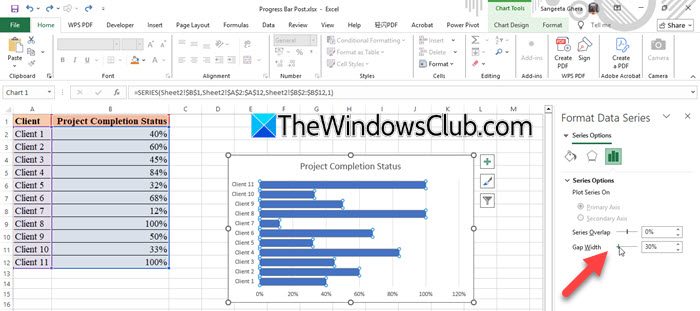
Remove any extra elements, such as gridlines, for a cleaner look (click on the element > you’ll see them selected > press Delete on your keyboard).
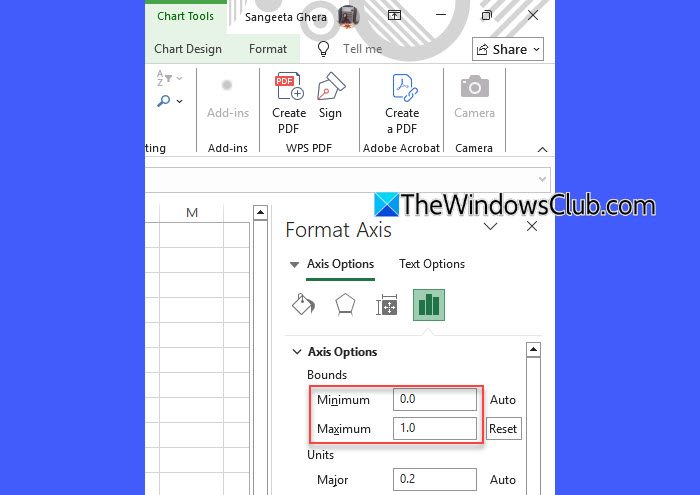
Note: When creating bar charts with percentage data, Excel often sets the axis maximum to 1.2 by default, so it’s best to manually set it to 1.0 for accurate progress bars.
Take your cursor towards the upper edge of the chart and click on it. In the right panel (Format Chart Area), select Horizontal (axis) Value from the Chart Options dropdown. Click on the Bar Chart icon on the right, then enter 0.0 in the Minimum field and 1.0 in the Maximum field (Excel reads percentages as decimals, so 100% = 1.0).
Now, select the horizontal axis (showing values like 0%, 20%, etc.) and press Delete. Then, right-click on any of the bars and choose Add Data Labels. This will display the exact percentage value next to each bar.
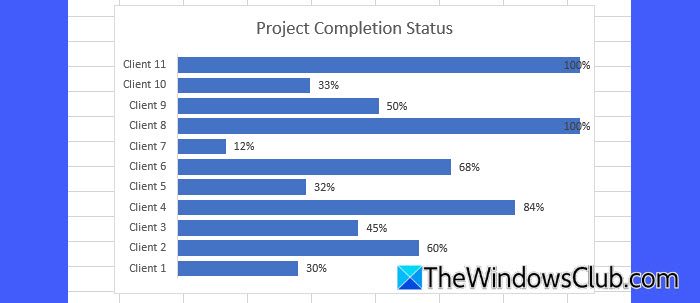
Your progress bars now visually represent the completion status of each client’s project and update automatically as the data changes.
2] Create progress bars using Conditional Formatting
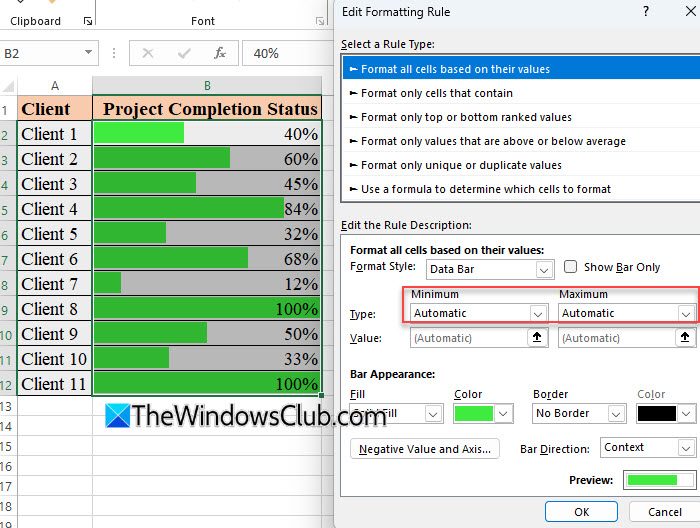
Suppose we have the same worksheet, where Column A contains client names and Column B contains project completion percentages. To convert the numeric data in Column B into visual progress bars using Conditional Formatting, follow these steps:
Click and drag to select the cells in Column B that contain the completion percentages (B2 to B12). Go to the Home tab on the top ribbon. Click the Conditional Formatting dropdown under the Styles section and hover over Data Bars.
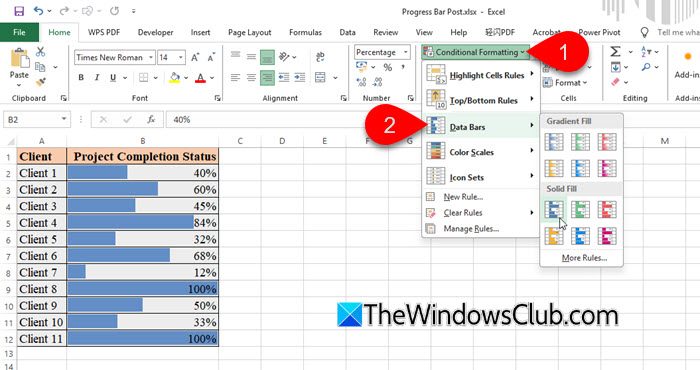
You’ll see two sections: Gradient Fill and Solid Fill. Choose a style you like (Solid Fill is usually better for clean progress bars).
Again, click Conditional Formatting, then select Manage Rules.
A Conditional Formatting Rules Manager window will appear. Click Edit Rule. In the Edit Formatting Rule window, ensure the Minimum and Maximum values are set to Automatic. You can also choose a custom bar color if needed. Once you’re satisfied with the settings, click OK, then Apply, and close the Rule Manager. Your progress bars are now ready!
That’s it. I hope you find this useful.
Read: How to create a Funnel Chart in Excel.
How do I track progress in Excel?
You can track progress in Excel using several built-in tools and methods. For example, you can use a column to enter percentage values that represent how much of a task or project is done, and then convert those percentage values into visual progress bars using Conditional Formatting or Bar Charts. Or, you can add checkboxes for task lists and track progress by marking tasks as complete.
Read Next: How to create a Pictograph in Excel.
