
Microsoft Teams is a powerful tool for collaborating with co-workers and whoever else. We can say for certain that this tool is packed with tons of features, many of which many people may never use. One of these features is the ability to create tabs. In this post, we show you how to create & add custom configurable Tabs in Microsoft Teams for desktop and the web.
How do I create a custom tab in MS Teams?
The ability to create custom tabs makes it easier for users to access files, apps, and other tools from within Microsoft Teams. Not only that, but team members can also access the files and applications located within these custom tabs.
How to create Tabs in Microsoft Teams
The following information will aid you in creating custom tabs in Microsoft teams with relative ease:
- Launch Microsoft Teams app
- Open your channel or chat
- Create an app tab
- Rename or remove the app from the tab
- Create a file tab.
1] Launch Microsoft Teams app
The first thing you should do here is to fire up the Microsoft Teams desktop app on Windows 11/10 or the web version through Microsoft Edge. You can use an alternative web browser if you prefer, so don’t worry about it.
2] Open your channel or chat
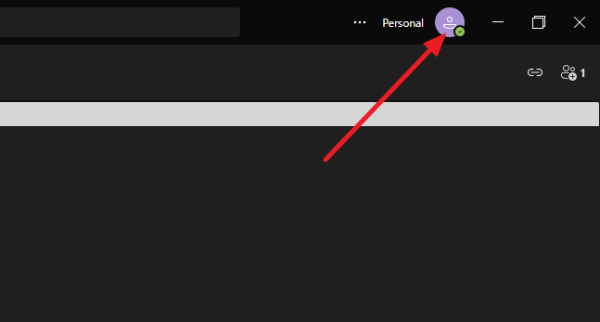
After launching the Teams app, you will likely be shown the Personal space. To switch to the preferred channel, click on the profile icon located in the top-right section of the app, then select the channel from the dropdown menu.
3] Create an app tab
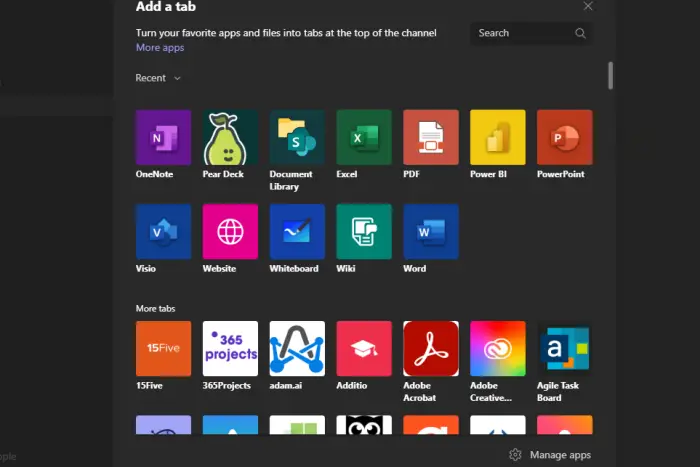
When creating an app tab, click the plus icon and choose or search for the app you want to add to the channel. If the app has not been added, click Add and follow any prompts that require you to proceed.
Once the app is created, it will appear as a tab at the top, and you can select it at any time.
4] Rename or remove the app from the tab
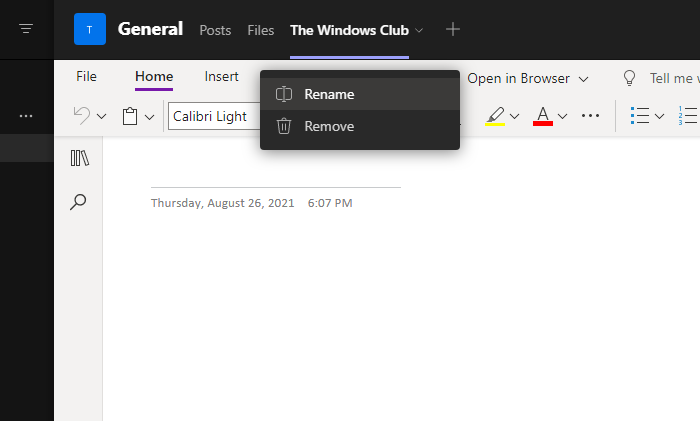
If you want to rename the app’s name, simply click the arrow on the name to showcase a dropdown menu. From there, click on Rename to change the name of the app. Alternatively, you could select Remove to get rid of it.
5] Create a file tab
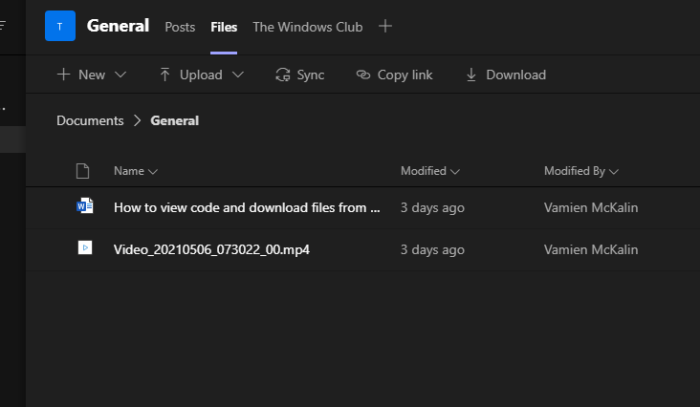
File tabs are cool to have. Folks can use them for references, instructions, guidelines, among other things. For quick access by employees, you can create a file tab for each.
To begin, you must add the file you want to transform into a tab. Do this by clicking on the Upload button, then choose which file should be added.
Finally, click on the three-dotted button beside the file, then select Make this a tab, and right away, it will appear on the tab area above.
How do I edit tabs in Microsoft Teams?
Above, we’ve explained how to rename a tab. In terms of editing, you can change the contents of a tab by clicking on it, then use the editor to make changes if there is one.
What apps can you add as a tab in Microsoft Teams?
Users have the option to choose from several apps to add to a tab. These include Microsoft apps such as Word, Excel, Planner, SharePoint, GitHub, Forms, and OneNote. You can add Trello, Wikipedia, Asana, Evernote, and much more in terms of third-party apps.
Now read: How to Lock Meetings in Microsoft Teams?
