
There are so many persons that you want to thank for doing some great deeds. Persons that may have done something and you want to congratulate. It may be at work, school, at home or wherever it may be, Microsoft Publisher has something for the occasion. Publisher is great for making certificates for these persons and occasions. The Publisher certificate can be for adults or children, for professional use or something more relaxed.
These Publisher certificates can be used for birthdays, anniversaries, achievements at school or work, a great way to say thank you, great for employee recognition and so many more. Publisher certificates can be used for so many occasions and they are cheap and easy to make. This makes them an easy go-to for that person or occasion. Publisher certificates are also very customizable and can be used for multiple persons and occasions. Below are just a few of the occasions that Publisher calendars can be used for.
- Sports achievement
- Employee of the month
- School achievement
- Graduation certificate
- Anniversary certificate
- Gift certificate.
Create a Certificate with Publisher
- Purpose of the certificate
- How many persons will receive the certificates?
- Decide on the best paper to print on
- Gather photos and digitize if needed
- Creating the Publisher certificate
- Printing Publisher certificates
- Conclusion
Let us explore these steps on how to make these awesome certificates.
1] Purpose of the certificate
Deciding on the purpose of the certificate will make everything else fall into place much easier. The purpose of the certificate will also determine the color, wording, paper, font, and many other aspects. Will you make it for professional graduation or for a child who scored high in school, for an employee who made or exceeded a sales target, or for a child who did the dishes? A professional graduation certificate will require a more professional look. A certificate for a child who did well may have a more colorful, playful look. The purpose of the certificate will also help determine the paper on which it will be printed.
2] Make a note of how many persons will receive the certificate
Make careful note of the information for the certificate. Be sure to get the correct spelling for names and other information. It is quite embarrassing to give a certificate with the wrong information. Have an accurate list with the information and have the information checked over by someone else, fresh eyes might pick up errors.
Read: Best Microsoft Publisher Tips and Tricks
3] Decide on the best paper to print on
The purpose of the certificate will sometimes dictate the type of paper. The paper may seem simple, but the type of paper used can convey a message, especially for professional certificates. For print-at-home certificates, the type of paper used will determine the appearance, which may vary depending on the type of printer. An inkjet or laser printer will give a different quality print on different paper. Choose paper that will best match your printer.
4] Gather photos and digitize if needed
Some certificates might be personalized with a picture of the receiver. There might be other things placed on the certificate as well. Gather all items and whatever needs to be digitized should be. Use a camera or scanner, or search online to find these items to add to the certificate. If you are skilled, graphic software can be used to edit photos or to even create a custom border for the certificate. The graphic software can also be used to create a nice background for the certificate. The certificate will require the signatures of the authorized persons, you may choose to digitize signatures or print certificates then have authorized person sign.
5] Creating the Publisher certificate
Now to get to the fun part of creating the Publisher certificate. With all the preparation done, creating the certificate should be a breeze.
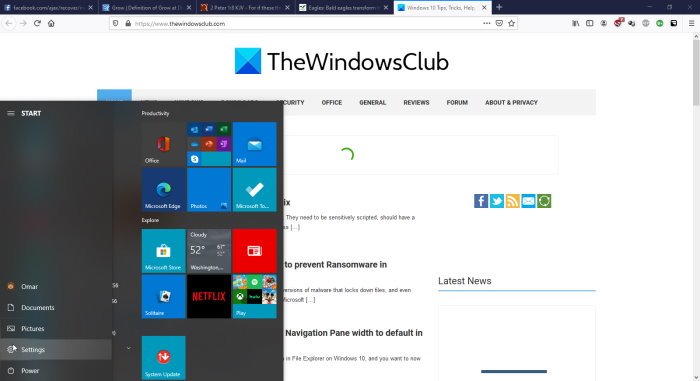
Click start go to the Microsoft Office icon and click it.
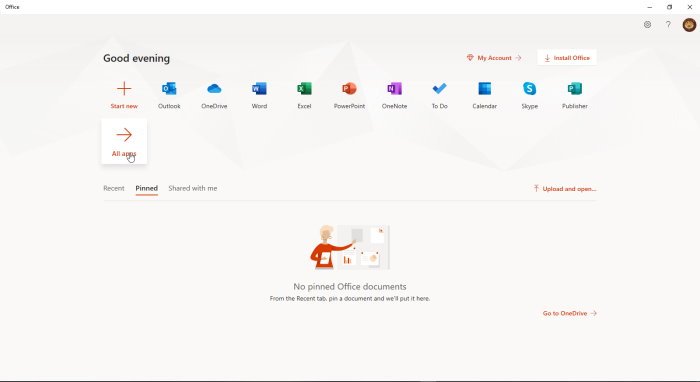
Click Publisher if it is displayed or just click All apps then click Publisher.
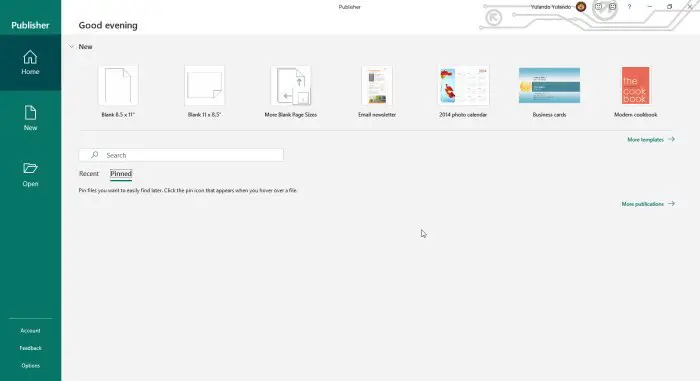
Click “More templates” to view additional templates and see the options for Office online templates or Built-in templates located on your computer.
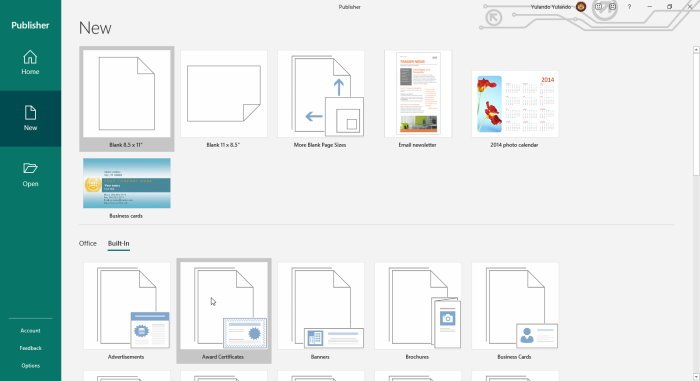
Click Built-in and then click Award Certificates, this will bring up a lot of options for styles of certificates.
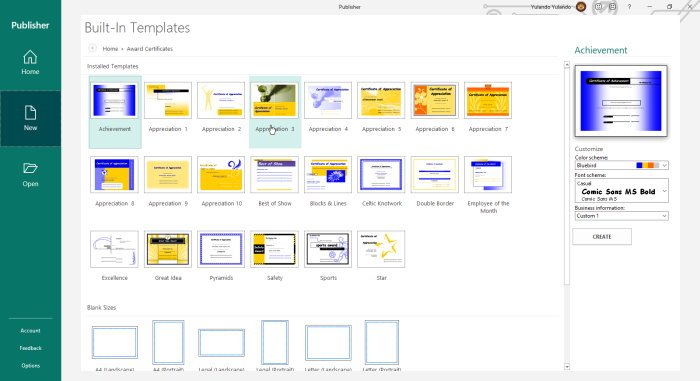
Choose the style certificate you like and modify it further by choosing the color scheme, font scheme, and adding business information. When this is all done just Click Create to start working on your certificate of choice.
You will notice that the choices of certificates fall under different categories and each has a different design. You may modify the template and if you have graphics skills, you could build background and other artwork to enhance the certificate. Remember to save as you go along just in case of any eventualities, you would not have to start all over.
Read: How to create awesome Calendars with Microsoft Publisher.
6] Printing Publisher certificates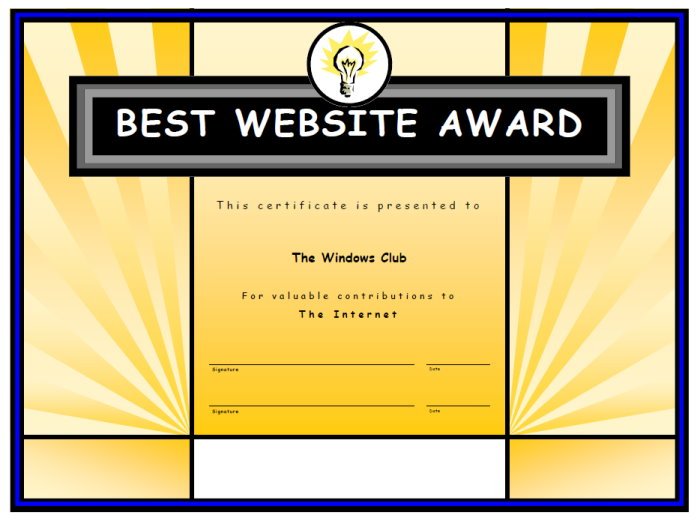
Remember that the certificate will need to be authenticated so you will need to decide if you will use a digital copy of the signatures, or if you will print then have them signed. The type of paper is very important if the certificates are for professional use. Thick papers with some gloss will make the certificates stand out. For cases where there are multiple certificates for different persons of occasions, you may choose to save them separately or change the details one by one and print at the same time.
If you print at home and the printer is an inkjet, it is best to use matte or semi-gloss paper. High-gloss paper may cause the ink to be runny or rub off. High-gloss paper is best suited for laser printers, while low-gloss and matte papers are ideal for inkjet printers.
Publisher certificates are suitable for any occasion you can think of. They can be done at home and don’t have to cost much. Be sure to explore the different options, no professional skills are needed to create awesome certificates. The Publisher certificates can be customized by adding custom graphics and backgrounds.
