
If you can’t share Microsoft Publisher files with colleagues or friends who don’t have Office Publisher, don’t fret. It’s quite easy to convert a Publisher (.PUB) file to PDF or Word using the application itself or an online tool. Moreover Microsoft has now cut Publisher out of the Microsoft 365 subscription,so if you want to convert PUB files to PDF or Word, this post will help you.
What is a PUB file?
The PUB file extension is the Microsoft Publisher document file format. It typically contains everything you may expect to see in a leaflet, flyer or poster, i.e. a mix of text, images and other objects.
How to convert a Publisher (.PUB) file to PDF
First, let us see the method to convert Publisher PUB file to PDF using the Microsoft Publisher application itself.
- Click the File tab.
- Scroll down to the Export option.
- Choose Create PDF/XPS Document option.
- Click Create PDF/XPS icon.
- Type a name for the publication.
- Save as PDF or XPS Document.
- Configure other options.
- Hit the Publish button.
How do I convert a PUB file to PDF using Publisher?
Open the Publisher file you would like to convert into a PDF.
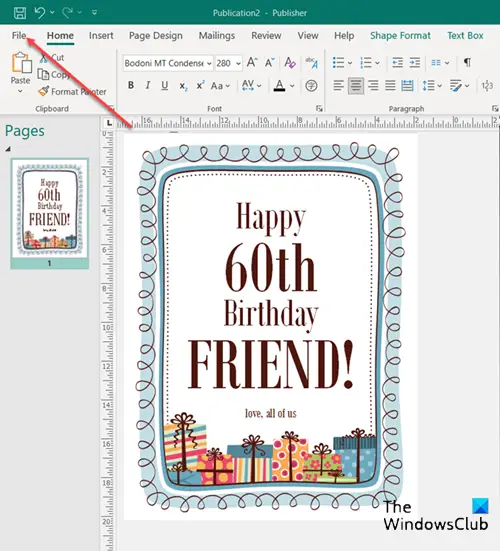
Then, choose the File tab from the Ribbon menu.
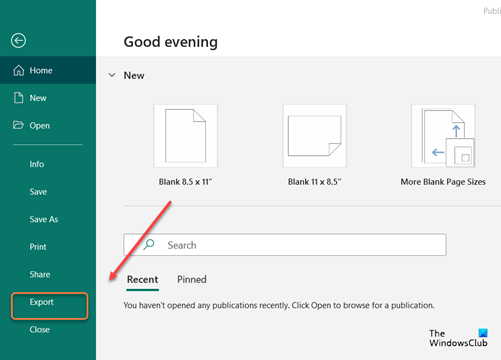
Scroll down to Export option in the Sidebar and click it.
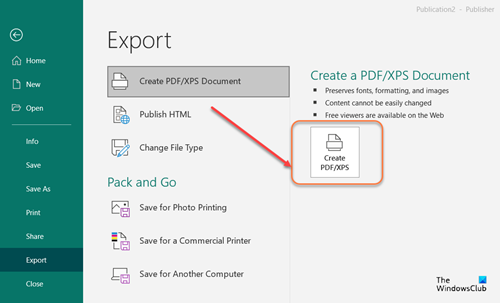
Under Export screen, click the Create PDF/XPS Document tile and select the Create PDF/XPS icon as shown in the image above.
For File name, type a name for the publication. Similarly, for Save as type, select either PDF or XPS Document.
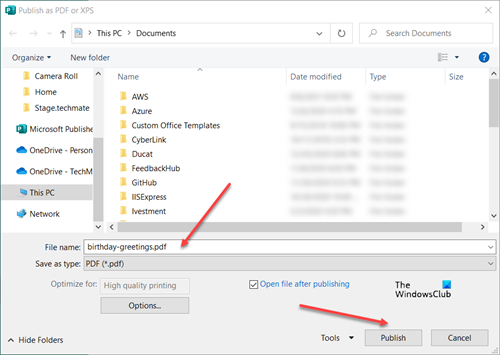
In the end, hit the Publish button for online or print viewing of your publication.
Apart from the above, you can use a free tool or an online tool to convert the .pub file into a .pdf file.
How to convert Publisher file to Word?
You can convert Publisher to Word.
- Open the Publisher publication that you want to save as a Word document.
- Hit the File tab in the upper-left corner of the screen.
- Then, go to Save As option in the sidebar, and browse to the location where you want to save the Word document.
- In the File name box, type a name for the Word document.
- Similarly, in the Save as type list, select the version of Word you want to save for.
How to open Publisher files without Publisher?
To open Microsoft Publisher (.pub) files without having Microsoft Publisher installed, you can use any one of these methods:
- Convert the PUB file to PDF or DOCX format as explained above and then open it.
- Use LibreOffice Draw. Right-click your .pub file, select Open With, and choose LibreOffice Draw.
- LibreOffice has created the libmspub library. This lets you read PUB files for free by converting them to OpenDocument Format (ODF). Saving it as an ODF will make sure that you will be able to read it using an open-source app.
- Use Univik PUB Viewer, a free, offline Windows software built specifically to open, read and print Publisher files.
- Use Scribus, a free open-source desktop publishing program that supports PUB content.
Convert Publisher to PDF Online free
Publishertopdf.com is a good online tool that lets you turn any Publisher file into PDF for free.
All you must do is click Upload button to select a Publisher file from your computer, or choose among the following cloud storage options:
- Dropbox
- Google Drive
- OneDrive
The tool will convert files of any size and download the converted file directly on the website.
Depending on the file’s length, the process may take a minute or two to complete.
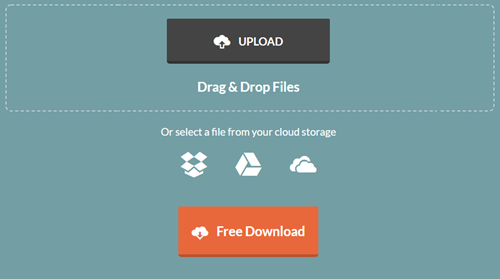
Once done, hit the Free Download button to download the file and save it on your computer or share it with others, readily.
The converted file is available for download for up to six hours only. After which the service deletes files from its servers automatically.
Lastly, you can use applications like Libre Office to open the Publisher files with .pub file format. it is a popular free and open-source office productivity software suite.
That’s all there is to it!
