
If your Xbox Series X or Xbox Series S is experiencing issues, clearing the cache is one of the best ways to resolve them. However, not every Xbox Series owner knows how to clear the cache. But luckily, we have an idea of what we’re doing. Clearing the cache isn’t something you can do with just a few taps on the controller, but it’s not difficult either. Let us explain everything to improve your understanding.

How to clear cache in Xbox Series X
Strangely enough, Microsoft did not add an easy way for users to clear the cache in the Xbox Series family of consoles. We hope the company fixes this problem in a future update, but for now, we have to get the job done the hard way. Follow these steps:
- Power on the Xbox Series X
- Open the Guide menu
- Navigate to the Profile and System tab
- Go to Devices and Connections
- Persistent storage
1] Power on the Xbox Series X
To begin, you must first turn on the Xbox Series X. Simply press the Xbox button on the controller, or the console itself. Once done, it should take a few seconds for the console to boot due to the SSD inside.
2] Open the Guide menu
After the console is up and running, press the Xbox button on the controller to launch the Guide.
3] Navigate to the Profile and System tab
In the next step, go directly to the Profile and System tab. You should now see additional options.
4] Go to Devices and Connections
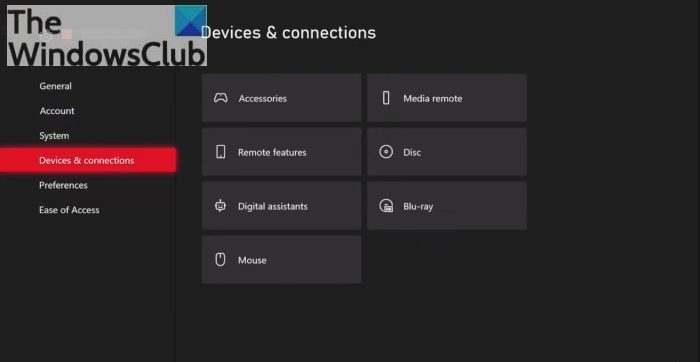
Next, go to Settings, then select Devices and Connections. After loading that section, please select the Blu-Ray option.
5] Persistent storage
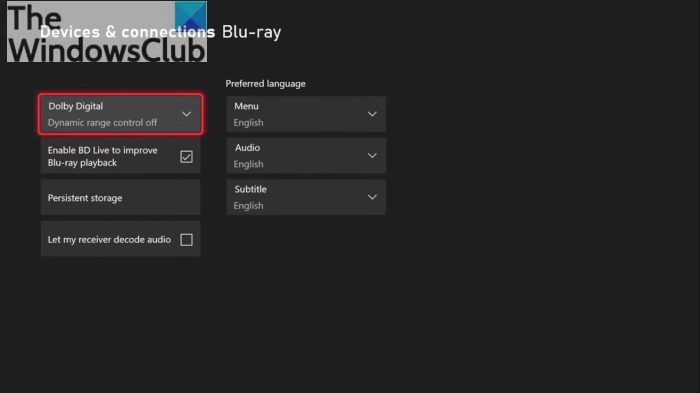
In the Blu-Ray settings, you will see a button labeled “Persistent storage”. Tap on it, then select Clear Persistent Storage. This should clear the cache of your Xbox Series X.
How to clear cache in Xbox Series S
In terms of the Xbox Series S, you might think the procedure to clear the cache is the same, but that is not the case, for some strange reason. Follow these steps:
- Go to the Profile and System tab
- Console Info
- Reset your Xbox Series S
1] Go to the Profile and System tab
After you’ve booted the Series S, which is the same procedure as the Series X so read above to learn how, you must then tap on the Xbox button on the controller, and then select the Profile and System tab.
2] Console Info
When you see Console Info, don’t tap it right away.
3] Reset your Xbox Series S
Finally, select Reset and Keep My Games & Apps to reset the console. If you fail to do this, the console will undergo a factory reset, which will remove all your video games and apps.
Complete the task by restarting the console, and that’s it, you’re done.
Read: Is 8K gaming on the Xbox Series X worth it?
Why clear the cache of the Xbox Series X/S?
Usually, a person would want to clear their cache if the Xbox Series operating system is not performing optimally. These features were uncommon on consoles of the past, but things have changed because modern consoles are increasingly similar to PCs.
Read: How to clear the Cache in Windows?
What is a Cache?
A cache is a special storage area that temporarily stores files, making a device, browser, or app perform faster and more efficiently. Like any other storage, the cache is limited in capacity; once it reaches its limit, it can no longer store temporary files, which can slow the operating system.
