
We are slowly witnessing the rise of solid-state drives (SSDs) as they overtake traditional hard drives in the market. Prices are falling across the board, and several manufacturers are prioritizing SSDs in their latest computer products. A shift is underway, and it will only accelerate in the years to come. Now, if you have an SSD drive tucked away inside your computer, you will want to learn how to perform a health check of the SSD because you may require this service in the distant future.

Many computer users believe SSDs are immune to corruption or damage, but that is far from the truth. Yes, SSDs are usually more rigid than hard drives, but things can still go wrong, especially with older models. The good news is that Microsoft has made it possible for users to check the health of their SSDs from within Windows 11/10 without needing to download a third-party application. So, without further delay, let us take a look at how to accomplish this with ease.
Check the lifespan of your Solid State Drive
Checking the lifespan of your SSD on Windows 11/10 is quite easy. You can use the command line or these free tools to check your SSD Health in Windows 11/10:
- Use the Windows Terminal to get drive status
- CrystalDiskInfo and Crystal Disk Mark Tools
- Use SeaTools (Seagate)
- Check your Warranty
1] Use the Windows Terminal
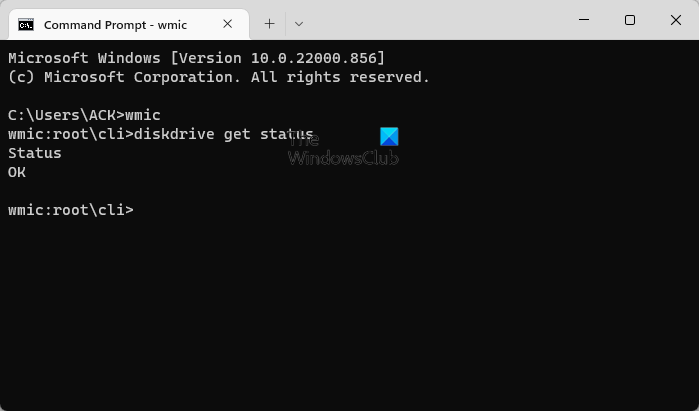
First, we will look at how to use the Windows Terminal to determine the health of your solid-state drive.
- Right-click on the Start button, or the Windows icon.
- From the context menu, please select Windows Terminal.
- Wait for the Windows Terminal to open.
- Once up and running, please type wmic
- Hit the Enter key on your keyboard.
- Finally, then, you should type diskdrive get status.
- Finally, hit the Enter key once more.
If the drive is fine, then you’ll see Status OK. But if not, then Status Pred Fail will appear instead.
Read: Warning signs that tell if your SSD is failing in Windows
2] Use CrystalDiskInfo and Crystal Disk Mark Tools
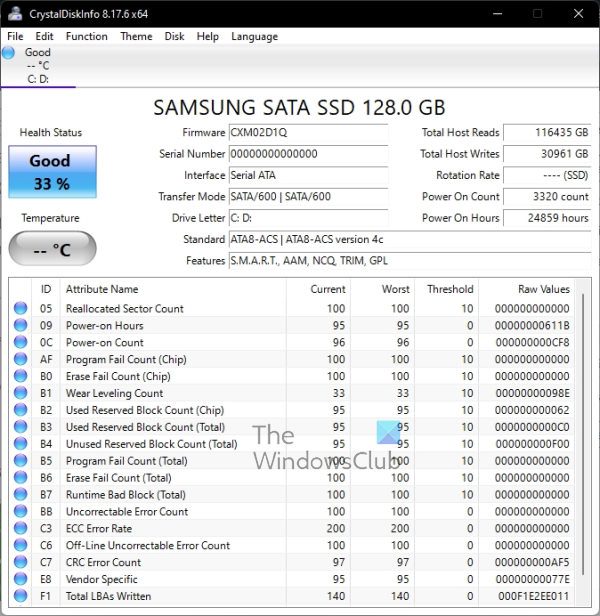
Another way to determine the lifespan of your solid state drive is to make use of two interesting tools, and they are CrystalDiskMark & CrystalDiskInfo Tools. These are simple, yet powerful programs, so let us discuss the aspect that tracks the health of your drive.
CrystalDiskInfo
If you want a quick and comprehensive check of the health of your SSD, then this is the program to use.
- Download CrystalDiskInfo from the official website.
- Install the program on your computer.
- Once installed, launch it right away.
- After launch, you should see your drive’s health without pressing any additional keys.
One of the things you must check is your SSD’s Health Status. As you may have already guessed, this feature shows your SSD’s condition along with its percentage. There are three modes for the same, depending on the condition of your SSD.
- Good: Your SSD is perfectly fine and you can continue using it for a lot of years. Since there is nothing to worry about here, you can rest assured that there is no need to swap your SSD in the near future.
- Caution: You will see the keyword “Caution” if the health of your SSD is starting to degrade. This may be a sign that you should probably create a backup of your SSD before it is too late.
- Bad: This keyword implies that you are fortunate that your SSD hasn’t given up yet. You should immediately back up your files, buy a new SSD, and copy them to that disk because your SSD might call it a day at any given moment.
Next, check the Total Hosts Write. You can see the amount of data you have already written. Since we are taking 700TB as an average lifespan value of an SSD, go ahead and subtract the Total Hosts Write value from it. From this, you can estimate the lifespan of your disk.
As you can see from the drive in the photo, this SSD has a healthy 33% usage, which is good according to CrystalDiskInfo.
Crystal Disk Mark
When it comes to using Crystal Disk Mark, this tool is all about measuring the transfer speed of data storage drives such as HDDs, SSDs, USB drives, SD cards, and NAS devices.
- Download CrystalDiskMark from the official website.
- From there, install the file on your computer.
- The next step is to open CrystalDiskMark.
- Finally, click on All to allow the program to scan your drive.
- Doing this will deliver Read/Write information about your SSD.
If the numbers are significantly below your SSD’s typical speed, your drive is not healthy.
3] Use SeaTools (Seagate)
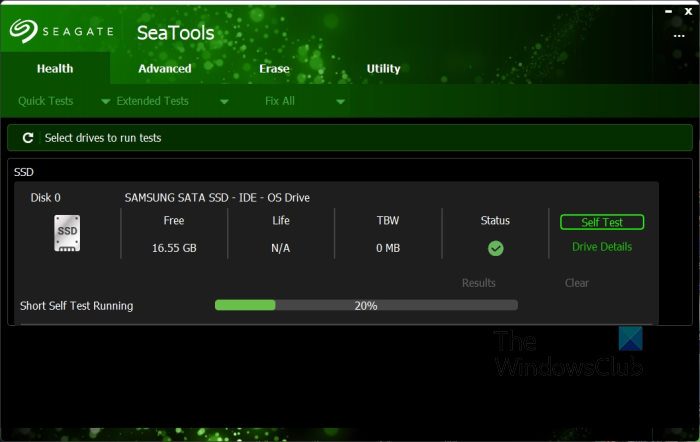
If you have a Seagate solid-state drive installed on your computer, it is best to download and use the SeaTools app, as it is designed primarily to keep tabs on the company’s SSDs.
- To use the SeaTools application, visit the official website.
- Click on SeaTools for Windows.
- Once installed, press the Self Test button from under the Health tab.
- Wait a few seconds.
- After that, you should have information about your SSD’s life, among other things.
We should note that SeaTools can be used with SSDs from brands other than Seagate, but certain information will not be available.
Overall, there are other free tools that help you assess your drive’s health, but from our point of view, the ones listed here are among the best. No need to spend money to get information you can acquire for free.
Read: Things you must do when running an SSD in Windows
4] Check your Warranty
Most of the time, your SSD’s warranty is nearing the end of its lifecycle. For example, if your SSD has a 5-year warranty and 600 TBW, and you have used it for the same amount for, like, 2 years, it is pretty reasonable to say that your device will run for 3-4 years more. There are many factors that affect the lifespan of an SSD; metrics such as TBW and MTBF are crucial. That is why you should consult your manufacturer and ask them how long your SSD will last.
Read: SSD Optimization Tips for better performance on PC
What does the health of SSD mean?
It is all about checking the memory cells using various attributes to ensure the SSD operates as intended. If there are no problems with the drive, it is in good health and no additional action is needed.
In most cases, you do not need to worry about your SSD’s health until its rating drops below 10 percent. At that point, it is safe to say the overall performance will drop to an unreliable level.
Read: How to extend the life of your SSD
How long is the lifespan of an SSD?
SSDs are way quicker than your typical HDD drives; however, this speed comes at a cost, as SSDs generally have fewer write cycles than HDDs. However, it would take years for an average user to exhaust their write cycles and for the SSD to become read-only. If we set a threshold amount, it would be near the 700 TB mark. Remember that yours can have lower or higher capacity depending on the type and manufacturer.
The best thing to do here, without going into too many details, is to keep your SSD from filling to the brim. A full SSD works harder than one with sufficient extra space, so consider removing files you no longer need or uploading important ones to the cloud.
Read: Bad Sectors on HDD and SSD: Introduction and Repairing.
