
While accessing a shared file on Google Drive, if you get Access denied, or You need permission, or You need access message, this guide will help you fix the issue. This error message implies that your account doesn’t have the correct permissions to access the file, or that the owner has revoked the permissions you previously had.
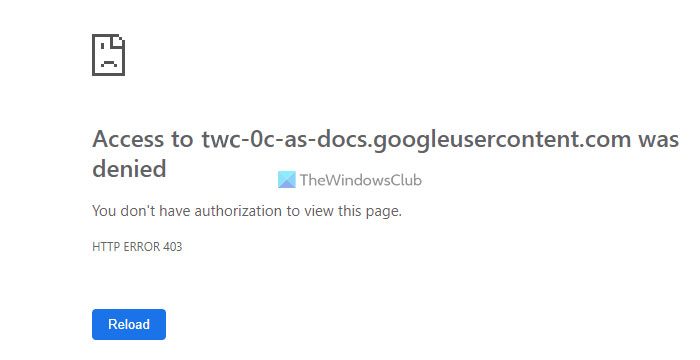
Google Drive is one of the solutions that you can use to collaborate with other people on any document, spreadsheet, presentation, etc. It is possible to share a file with anyone and allow them to view or edit it as required. However, Google Drive may display this error when accessing a file if you do not have the proper permissions. Let’s say you have viewing permission but are trying to edit the file by manipulating the URL. In such situations, you may encounter such errors.
How to bypass Google Drive Access Denied error
To bypass the Google Drive Access Denied error, follow these steps:
- Ask for permission
- Sign out of other Google accounts
- Change browser
- Clear cache and cookies
To learn more about these steps, continue reading.
1] Ask for permission
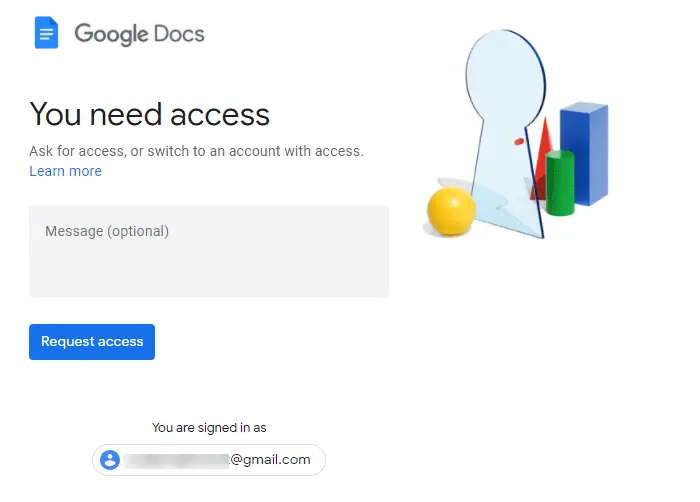
It is probably the first thing you need to ask for. As it is a permission-related error, you must ask for permission to view or edit the document. It is pretty straightforward since the error screen displays an option to request permission. The UI might be different for different files, but they do the same.
If you get a Request access button, click on it. It will send a notification to the owner. On the other hand, if you get a Message box, you can write a note and click the Request access button. Either way, it will do the same.
2] Sign out of other Google accounts
Many people use multiple Google accounts in their browsers. If you have signed in to more than one Google account and tried accessing a shared file, it could create a conflict. Therefore, it is better to sign out of all the other Google accounts and try having only the one which has the permission. You can follow this guide to sign out of one Google account when using multiple accounts.
These are the two working solutions that fix the aforementioned issue. However, you can try the following tricks as well.
3] Change browser
If your browser has some internal conflicts, it might reflect as the error mentioned above. Therefore, you can try switching browsers before accessing the file again. On the other hand, you can also use incognito mode, which disables extensions, settings and other data. If you can access the file without errors, you need to reset your browser to fix the issue.
4] Clear cache and cookies
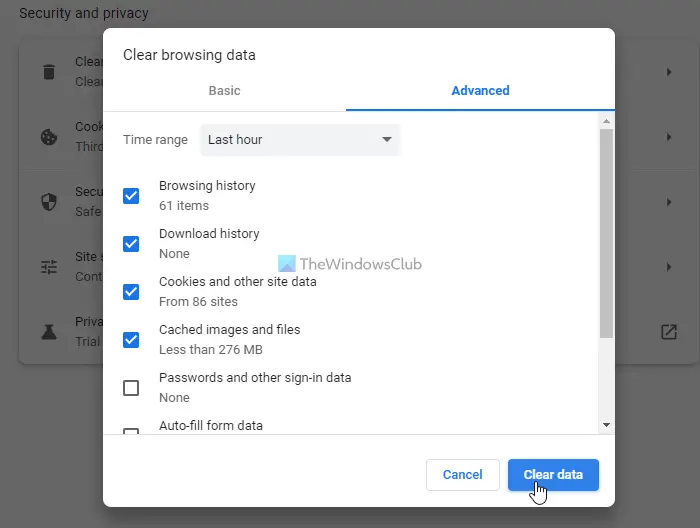
If you can access the file in incognito mode, you can also try clearing the browser cache and cookies to resolve this issue. If you want to clear cache, cookies, etc., in Chrome and Firefox, follow this guide. If you want to remove cookies and site data in the Edge browser, follow this guide.
That’s all! Hope this guide helped.
How do I get past Access denied on Google Drive?
To get past the Access denied error on Google Drive, you need to follow the aforementioned tips and tricks. For example, you can ask the owner for permission, sign out of all other Google accounts, try in incognito mode, etc. All the steps are detailed, and you need to follow them one after another.
Why does Google Drive say Access Denied?
If your Google account doesn’t have the correct permissions to access a file, Google Drive says “Access denied.” Once you get permission from the owner, you can bypass this error on Google Drive. For that, you can go through the above-mentioned solutions.
Read: How to bypass Google Drive Download quota is exceeded error.
