
Many a time IT admin needs to set up multiple IP addresses to the same network adapter. Situations such as hosting multiple SSL sites can speed up traffic exchanges, which can bypass the gateway in cases where there are multiple IP addresses. This is particularly useful when using different public IP addresses to avoid firewalls or being blacklisted in spam filters, among other benefits. In this post, I will share how you can assign multiple IP addresses to a network adapter.
Assign Multiple IP Addresses to a Network Adapter
There are multiple ways to achieve this in Windows 11/10. It includes making use of the following:
- Network adapter settings
- Netsh utility
- PowerShell.
1] Network Adapter Settings
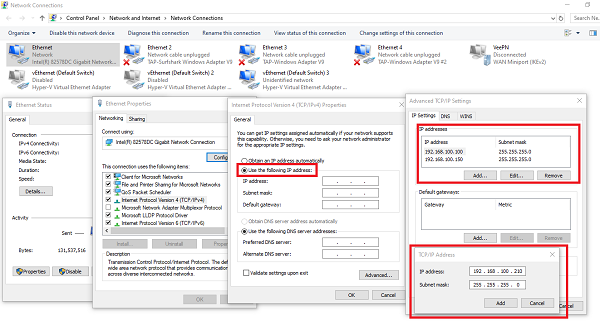
1] Go to Settings > Network & Internet, and click on Change adapter options. It will reveal a list of physical and virtual network adapters on the computer. Double-click on the Ethernet adapter to which you want to assign multiple IP addresses. Click on Properties button.
2] In the Ethernet properties, select TCP/IPv4 or TCP/IPv6, and then click on Properties. Under the General tab, choose “Use the following IP address.” Add an IP address, subnet, and default gateway to the adapter.
3] Then click on Advanced button, to open advanced TCP/IP settings. Then click on Add button to add an IP address. You can keep adding multiple IP addresses to the adapter using this method. You can also choose to add multiple gateways or DNS IP address in the same place.
If you type ipconfig command on the prompt, you should see all the secondary IP addresses listed.
2] Using Netsh command
If you are comfortable with the Command Prompt, then adding multiple IP addresses is significantly faster and easier.
Open Command Prompt with admin privileges, and run the following command:
Netsh int ipv4 add address name="Local Area Connection" 192.168.100.100 255.255.255.0 SkipAsSource=True
You can choose to set SkipAsSource depending on your need using Netsh. When configured as true, the IP address won’t be used by the OS for outbound connections.
3] Use PowerShell to assign more IP address
Open PowerShell with admin privileges using Windows X. Then use the NetIPAddress command to add more IP addresses. Make sure to figure out the adapter name.
- Find list of Ethernet adapter:
Get-NetIPAddress | ft IPAddress, InterfaceAlias, SkipAsSource
- Assign an IP address to a network adapter. Here it is vEthernet.
New-NetIPAddress –IPAddress 192.168.100.100 –PrefixLength 24 –InterfaceAlias “vEthernet” –SkipAsSource $True
- Modify the SkipAsSource parameter
Get-NetIPAddress 192.168.100.100 | Set-NetIPAddress -SkipAsSource $False
Assigning multiple IP addresses is used on the needed scenario, and is not for general consumers. They are usually used by IP address when an application demands it.
Hope this helps!
Can we assign multiple IP addresses to one Ethernet card?
Yes, you can assign multiple IP addresses to one Ethernet card. This is achieved by using multiple IP configurations on the same network interface card (NIC), allowing it to handle traffic for different networks or services. This setup is often used in environments requiring increased network flexibility or segmentation.
How do I add a second IP address to my network adapter?
To add a second IP address to your network adapter, go to Control Panel, open Network and Sharing Center, and click on Change adapter settings. Right-click your network adapter, select Properties, choose Internet Protocol Version 4 (TCP/IPv4), and click Properties. Select Advanced, add the second IP under “IP addresses,” and click OK to save.
