
If you do not mind tempering a wide range of workloads of your CPU and experimenting with system configuration give AMD Ryzen Master application, a try. The processor offers an impressive range of performance-tuning options, including potential overclocking headroom. It has been designed by AMD itself and can be tuned to deliver added system performance.
AMD Ryzen Master Overclocking Tool for PC
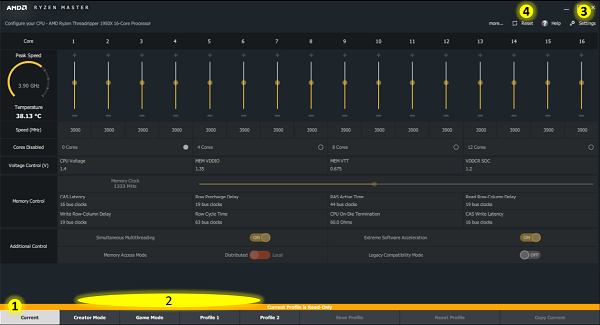
AMD Ryzen Master (earlier called AMD OverDrive tool) gives users advanced, real-time control of system performance. It also allows a user to overclock & change factory settings, enabling the processor to operate outside AMD’s published operating specifications.
This free overclocking software allows a user to control multiple processor clock and voltage settings in real-time. In addition, it features adjustable parameters and various performance-tuning knobs based on the AMD Zen processor core.
What Ryzen Master does:
- Overclocking: Adjust CPU core frequencies, voltages, and multipliers.
- Precision Boost Overdrive (PBO): Lets you push beyond stock boost limits for extra performance.
- Profiles: Save multiple tuning setups (e.g., gaming vs productivity).
- Monitoring: Real-time CPU temperature, voltage, and clock speed tracking.
- Memory Control: Adjust RAM timings and speeds for advanced tuning
The user interface has been neatly done up. Let us have a look at it.
Current view tab
It is a dashboard displaying the system’s current configuration and performance state. This view lists the same parameter controls as you find in the Profiles but uses the controls as status displays.
Profiles
This provides control over parameter changes, subject to support from the specific processor and motherboard configurations. Each Profile tab can be optionally renamed by the user with up to 20 characters to represent the optimized use of the profile.
Reset
The Reset control when employed, resets the processor CPU voltages, speed, core enablement and additional controls to stock settings.
Settings page
The Settings page can be readily accessed from the upper-right menu. It provides controls over global settings. System and software information, along with several global parameters, can also be found under this menu.
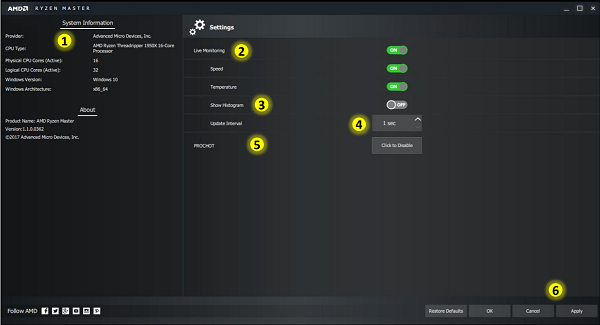
Live Monitoring
It is a master control over the following parameters,
- Speed
- Temperature
- Update Interval
- Show Histogram controls.
When Live Monitoring is switched off, Speed, Temperature and Show Histogram controls are also switched off.
The user can select to display a real-time, dynamic line graph of each CPU core’s speed and the die temperature in the Current View. However, to enable this feature both, Speed and Temperature monitoring should be enabled under Live Monitoring.
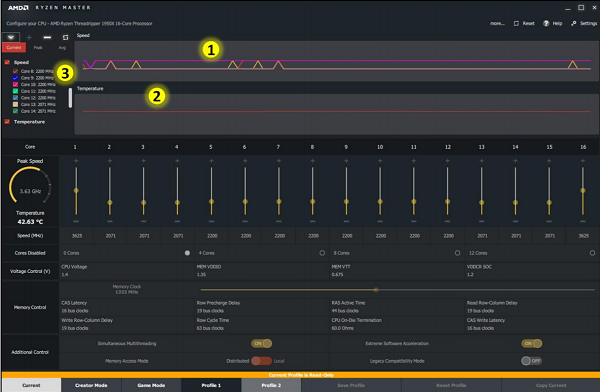
Also, note that under high-thread-count applications or heavy multitasking, the CPU load can exceed the tolerable range and, in certain cases, even become significant. This can significantly degrade the application’s performance.
So, if you are looking for ways to maximize the application performance under these conditions, it is desirable to turn off the Show Histogram feature in the Current view.
Additional information related to real-time control of system performance and changing factory settings and the download link can be found on amd.com.
PC Overclocking has several benefits, such as boosting the system’s performance, increasing the smoothness of a computer while running heavy software and many more. However, it is important to note that overclocking is a complex process that can lead to overheating which may potentially damage system processor and graphics cards.
