
When you are browsing the Internet, you click on a link. The new link or tab will open. If you don’t want your browser to switch to the link that opens in a new tab, you will have to set your browser so as to force links to open in the background. This way, you continue to remain focused on the same page while opening the external links in new tabs.
Open New Tabs in background
This is how you can open New Tabs in the background in Microsoft Edge, Google Chrome, Mozilla Firefox, and Opera browsers.
Force Links to open in background in Chrome
Chrome does not offer any straightforward method to force links to open in the background. Nevertheless, there are some different approaches you can follow to force Chrome to open links in the background.
Move Links to Tab Bar New Tab
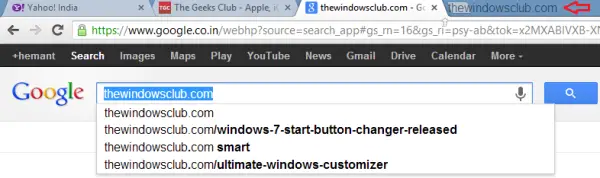
Click to move the link on a web page and drop it anywhere in the Tab bar. You will observe that the link automatically gets opened in a new tab. You can move the tab anywhere in the address bar you want.
Using Chrome extensions
- Force Background Tab: This is a convenient to use plugin that will open new tabs in the background.
- Open _new & _blank in a new background tab: Forces all links that have
_newor_blankas the target to open in a new background tab, instead of a foreground tab. The plugin, however, does not seem to work for Google Reader entry titles, it will open two tabs instead.
Force Links to open in background in Microsoft Edge
In the Edge browser, when you right-click and select Open in new tab, it opens the tab in the background – like most other browsers.
When you press CTRL+SHIFT and left-click on the link, it opens the tab in the foreground – like most browsers.
You can also use the Chrome extensions mentioned above on Microsoft Edge Chromium.
Force Links to open in the background in Firefox
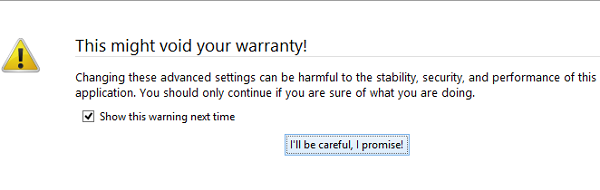
Open your Firefox browser. In its address bar, type ‘about:config’ and hit ‘Enter’. Instantly, a warning message will flash on your computer screen. Ignore it if seen and press the ‘I’ll be careful, I promise’ tab.
Proceeding further, try locating ‘browser.tabs.loadDivertedInBackground‘ in the configuration window of advanced settings. Use the search bar to simplify your search process. In the search bar, just type “browser.tabs” and hit Enter.
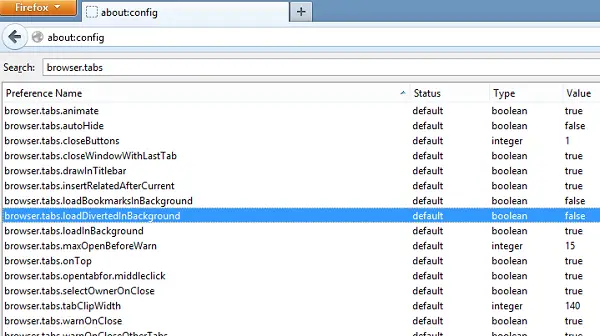
When seen, you will observe by default the ‘browser.tabs.loadDivertedInBackground‘ value is set to false. You’ll have to change the value.
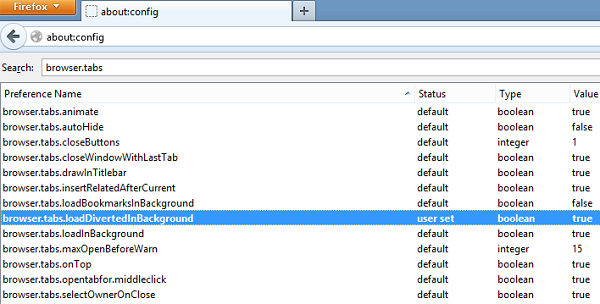
For this, double-click on browser.tabs.loadDivertedInBackground and set its value as ‘true’. That’s it! You can disable this if you want at any point of time by simply settings its value as false again.
Force Links to open in background in Opera
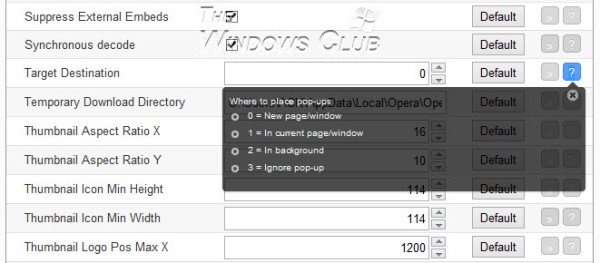
Open Opera > Tools > Quick Preferences > Ensure Block unwanted Pop-ups is checked.
Next type about:config in the address bar and hit Enter. Scroll down to Target Destination.
Type ‘2.’ Save and Exit.
Open New Tabs in background in Internet Explorer
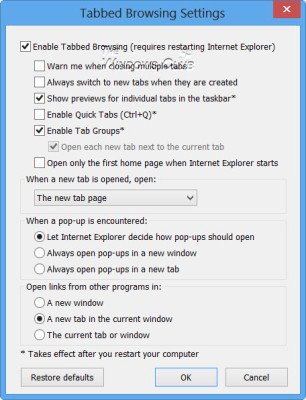
In Internet Explorer, you can easily change this setting via Internet Options > General tab > Tabs button > Uncheck Always switch to new tabs when they are created.
Hope this helps!
