
Many people have faced an issue where font sizes appear different across apps when working with multiple apps on a Windows PC. We often need to open multiple software programs like Google Chrome, Microsoft Word, etc., simultaneously. Now, if they start displaying different font sizes, you may not like that. In this case, you need to follow these solutions to resolve this issue on Windows 11/10.
Font size problem when working with multiple apps in Windows 11
For your information, there is no one-click solution to this issue. You can try any of these suggestions and see which of these helps you get the same font size on any app.
- Change scaling
- Change display font size
- Use the exact resolution for multiple monitors
- Update graphics driver
- Rebuild Font cache
You will need an admin user account for most of these solutions.
1] Change scaling
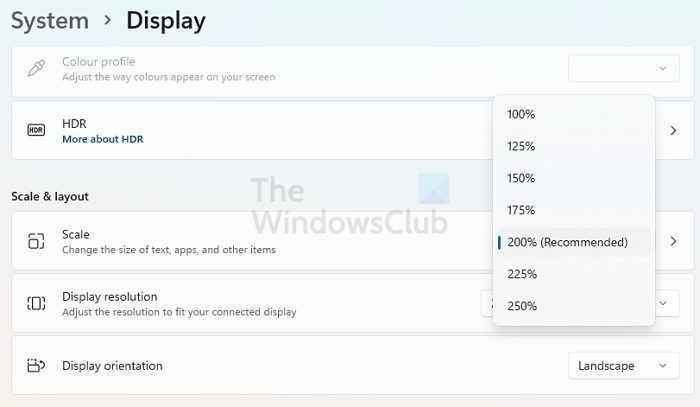
If you have recently upgraded your monitor and started facing this issue, you may need to adjust the display scaling. Although it is always set to 100%, which is recommended, your new monitor lets you adjust this scaling.
To do so, go to Settings > System > Display. On the right-hand side, you should find an option called Scale and layout. Click the drop-down menu and select a custom scaling. Try a few options till you get things right.
2] Change display font size
Try and change the font size of Title bars, Menus, message boxes, icons, etc. via Control Panel or Windows Settings. The default size is 9. However, if it has been changed, set it to 9 and save your settings.
3] Use the exact resolution for multiple monitors
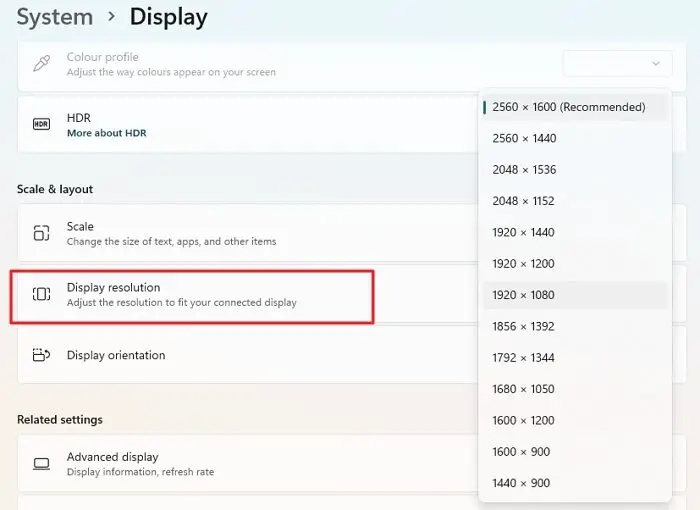
If you have more than one monitor with different resolutions, there is a 100% chance you will encounter this font-size issue. The higher-resolution screen will show a smaller font than the lower-resolution monitor.
It is recommended to use the same screen resolution. If you are facing this issue on multiple monitors, check whether all monitors are using the same resolution. To check this, open the Settings panel > System > Display. Now, select each monitor and check its resolution under the Resolution section. If different values are set, you need to set them to the same value.
4] Update the graphics driver
You may need to update your graphics driver. If an update is available, you should install it right away. Many times, it has solved such problems. When updating the graphics card driver or any driver, it is best to use the installer downloaded from the OEM website. Not only will the drivers be the latest, but they will also have fixed most of the bugs.
5] Rebuild Font cache
You might want to rebuild the Font cache and see if that helps. When you do that, Windows needs to download the fonts again, ensuring there are no differences or corrupted fonts.
I hope these simple suggestions will be helpful for you.
Why can’t you change my font size in Windows?
If you cannot change the font size the usual way, another option is to use Accessibility or Ease of Access in Windows Settings. Make sure to experiment with your resolution to ensure it fits well and is readable.
How do I fix the blurry font in Windows?
You need to adjust the ClearType or turn it on. It makes the text you see on the screen sharper, clearer, and easier to read. After that, you need to tune all the monitors, or just the single monitor with the issue. It will then take you through a series of texts asking which looks good. Once you select and clear all steps, restart the PC; the fonts should no longer be blurry.
