
Some HTC Valve, Vive or Occulus Quest users are seeing Error 108 in SteamVR. In some cases, the headset is not detected, while in others, the system says “Updating”. Whatever the case may be, the solution to the error code will be the same, and that’s what we will show in this article. If you are seeing SteamVR Error 108, check out the solutions here to resolve the issue.

Why is SteamVR not detecting my headset?
SteamVR may not detect your headset if the connection is weak. So, you need to make sure that the connection is tight before looking for the solutions.
This issue can also occur because of a glitch. The glitch usually prevents the computer from recognizing a new headset. Like any other glitch, it is entitled to a restart. We will see other solutions later in this article. So, without wasting any time, let us hop into it. So, without wasting any time, let us hop into it.
Fix SteamVR Error 108 on WindowsPC
If you are seeing SteamVR Error 108, then check out the solutions mentioned below to resolve the issue. Before starting the troubleshooting process, you need to check that all connections are tight and secure. Check that the USB and HDMI plugs on both the Headset side and computer side are connected perfectly to the Link Box.
- Restart your devices
- Run Steam as an administrator
- Connect Headset directly to the PC
- Opt-out of Beta
- Contact your Headset manufacturer
Let us talk about them in detail.
1] Restart your devices
As mentioned earlier, the issue can usually be resolved by a restart if it’s a glitch. So, you should first restart your headset. You should plug all cords out and let it sit for 30 seconds. Then plug it back in and see if it works. If it ain’t working, then try restarting your computer as well. When you restart your computer, you stop all programs that could have interfered with your VR software. Do that and check if the issue is resolved. If the issue persists, check the next solution.
Related: Fix SteamVR Error Codes 113, 200, 206, 207, 208, 301, 306, 308, 302
2] Run Steam as an administrator
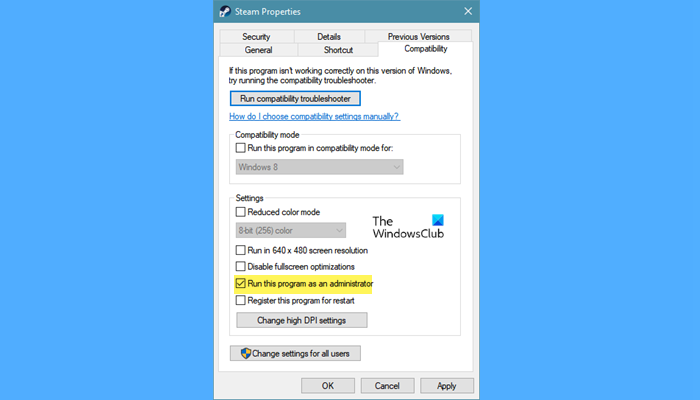
Steam should have the administrative privileges required to run the VR connected to the computer. If you are oblivious to this requirement, you can grant it by right-clicking on the Steam client app and selecting Run as administrator from the options. However, there is a way to always launch Steam with administrative privileges. The following are the steps to do the same.
- Right-click on your Steam and click Properties.
- Click on Compatibility.
- Tick Run this program as an administrator.
- Click Apply > Ok.
Now, try opening Steam. But before that, do check Task Manager and make sure that there are no instances of Steam running in the background; if there is such a process, right-click on it and select End Task.
3] Connect Headset Directly to the PC
You may already know that your Link Box is an important part of your setup, and if it’s malfunctioning, you will see the error code in question. In this solution, we are going to remove Link Box out of the equation. Follow the given steps to do the same.
- Unplug the USB and HDMI cable from your computer and Link Box.
- Make sure that Link Box is connected to the power supply.
- Plug your headset’s USB and HDMI into the computer.
- Then restart your computer and check if the issue persists.
Hopefully, your issue will be resolved.
4] Opt-out of Beta
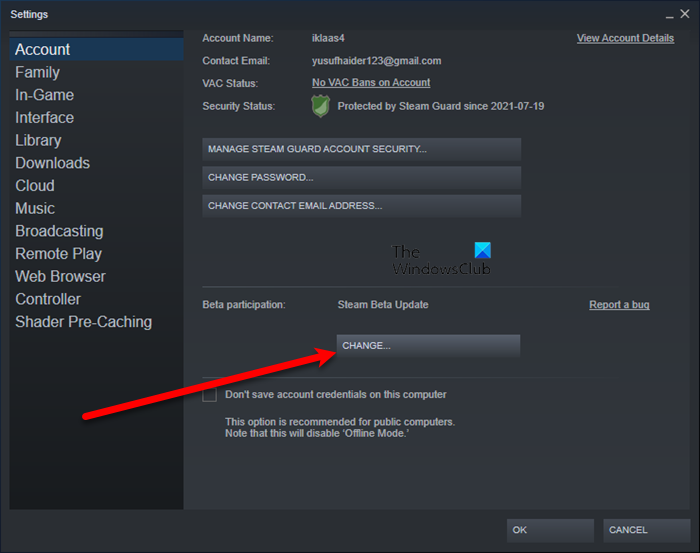
If you are connected to Steam Beta, you will likely see a lot of error messages and error codes, and the 108 Error Code may be one of them. So, we are going to jump out of Steam Beta and see if it works. You can skip this solution if you are not a part of the Steam Beta.
- Open Steam, click on Steam > Settings.
- Navigate to the Account tab.
- Click the Change button under Beta Participation.
- From the drop-down list, select the NONE – Opt out of all beta programs option.
- Click OK.
Finally, restart Steam and see if the issue persists.
5] Contact your Headset manufacturer
If nothing works, then chances are it’s the hardware has malfunctioned and hence, you need to contact your Headset manufacturer and ask them to resolve the issue. You need to tell them the problem along with the error code and error message, do that, and hopefully, they will either fix it or replace the device for you.
What is Steam 208 error?
The Steam error code 208 is associated with the HDMI connection. When this error occurs, Steam displays the message “Headset Display Disconnected. Please make sure your video cables are securely connected. The headset’s display was not found.” In simple words, Steam error 208 occurs when your display settings are not correctly configured or your display is not properly detected.
