
When playing FIFA or launching it, if you receive a message saying There was an error accessing server data, this post will help you resolve it. Server issues cannot be fixed on the client side, but if the game is blocked, it can result in the same error. Let’s explore some solutions to help you fix the problem.
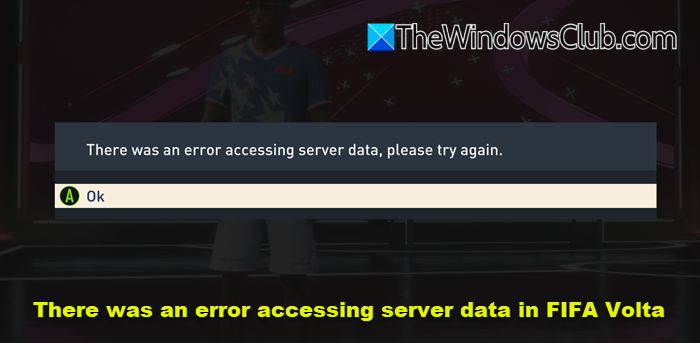
FIFA Volta Football is a small-sided street-football mode that focuses on flair, skill moves, and customization in cages and on futsal courts worldwide.
There was an error accessing server data in FIFA Volta
You will need an admin account to try these suggestions to fix There was an error accessing server data in FIFA Volta:
- EA Server Issue
- Network Issue
- Security System Blocking
- Firewall Issue
Before you begin, make sure that your Windows 11/10 OS and the game are up to date.
1] EA Server Issue
All online games have dedicated servers, and if the game cannot connect to them, it will result in an error. It usually happens when EA servers are down, or the service has an issue. The best way to find out if the server is down is to check on social media and see if many people are talking about it. Another way would be to check out sites like Downdetector keep track of these. If nothing works, get in touch with EA support to obtain the final statement.
2] Network Issue
If the EA servers aren’t the issue, the next thing you need to check is your internet connection and network. Checking the internet connection is easy. All you need to do is try opening a website and check if it works.
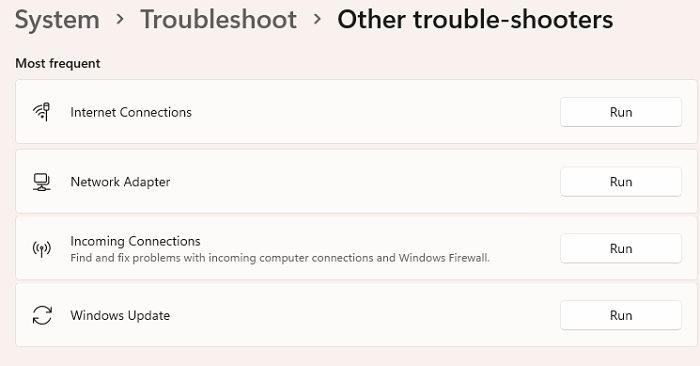
Once through that, it’s time to check the Network issue. Windows offers a couple of built-in network troubleshooters.
- Open Windows settings using Win + I
- Navigate to System > Troubleshoot > Other troubleshooters
- Locate the following and run it
- Internet Connections – Checks internet connection stability
- Network Adapter – Resolves problems with the network adaptor, including wifi.
- Incoming Connections – Find and fix problems with incoming computer connections and Windows Firewall.
- Run each of them, and then evaluate for the problem.
If the problem is with the adaptor, the issue should get resolved when the troubleshooter completes the process. If you get any indication from the Incoming Connections wizard, you need to check the firewall settings.
3] Firewall Issue
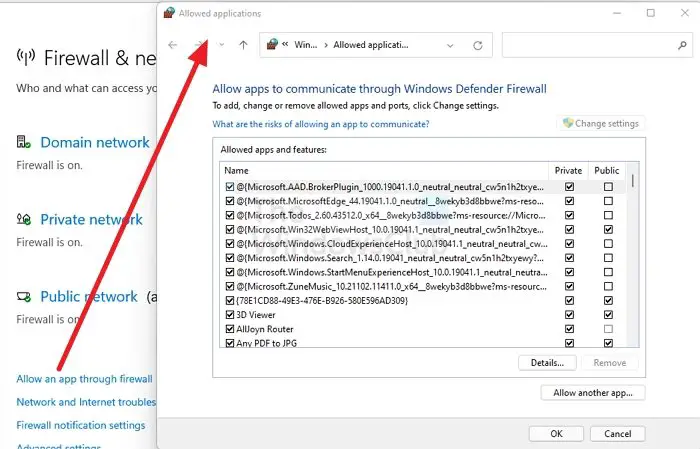
The next in the line is to check if the Windows Firewall has blocked the application. At times, Microsoft Security is known to block legitimate programs, i.e., false positives.
- Type Windows Security in the Start Menu and open it once it appears
- Go to Firewall and Network Protection
- Click on Allow an app through the firewall
- Click on the Change Settings button on the Allowed applications window
- Locate the FIFA application EXE or listing, and check both Public and Private checkboxes
- If it’s not in the list, click on Allow another app button and then select FIFA and make the changes
Relaunch the game and check if the issue is resolved.
4] Security System Blocking
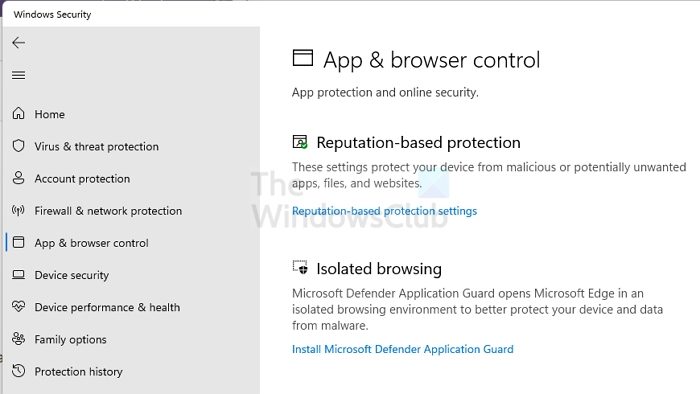
The last in the list is where Security System blocks the application from accessing the internet. The process will vary from application to application. So here I am going to talk about Windows Security software.
- Open Windows Security
- Navigate to App & browser control > Reputation-based protection settings.
- Check if there is a message or notification about FIFA or a related file that has been blocked.
- If yes, make sure to allow it.
These apps are usually listed under Reputation-based protection. So make sure to unblock it from there.
I hope the post was easy to follow, and you were able to resolve the Error accessing server data in FIFA Volta.
Why does FIFA not start?
If FIFA crashes as soon as you launch, check if the PC meets the minimum system requirements. Most games crash when this happens. It is assumed that the game is not blocked by a firewall or system security. To run the game smoothly on a Windows 11 or Windows 10 PC, the recommended system requirements include a mid-range Intel i7 processor, 12 GB RAM, and a GTX 1660 or equivalent GPU.
