
On Windows 11/10, you can add multiple display languages and input languages or even change your default language to anything to suit your preferences. So if you like everything in English but most of your tasks are in Hindi, you can do this by installing two languages and using the Language bar to switch between them. As a matter of fact, you can also enable settings that allow you to change the keyboard when using an app.
Languages are also used for Handwriting, Text-to-Speech, and Speech Recognition. It is now easy to determine whether the Language supports these features. Prior to this, you had to install the language and then look inside to figure out which features were supported.
How to find if a language supports features before installing it on Windows 11
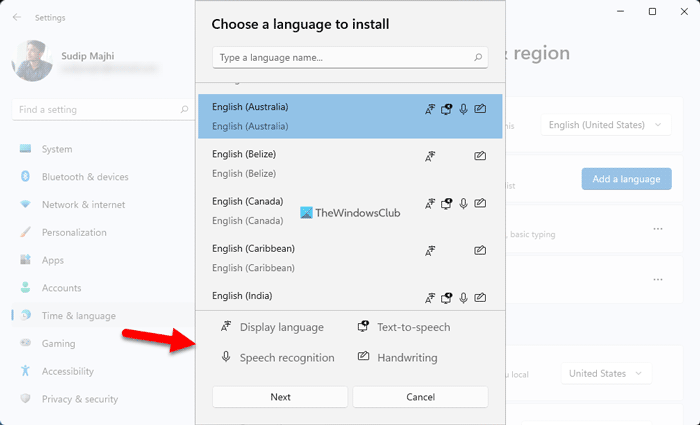
To find if a language supports features before installing it on Windows 11, follow these steps:
- Press Win+I to open Windows Settings.
- Go to Time & language tab.
- Click on the Language & region menu.
- Click the Add a language button.
- Select a language you want to install.
- Find the features on the popup window.
However, if you use Windows 10, you need to follow the following guide.
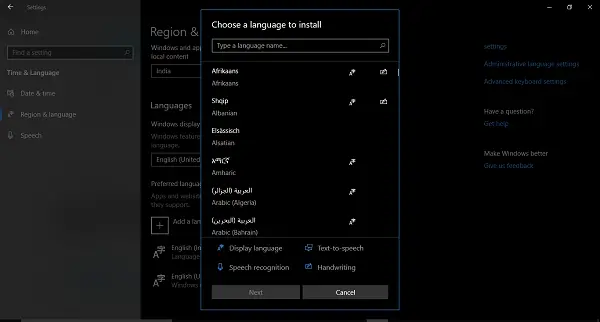
Steps to figure out supported features in Windows 10 Languages:
- Go to Settings > Time & Language >Region & Language.
- Under Preferred Languages > Add a language.
- This will open a search box where you can find any language by typing few keywords. It also includes icons next to the name representing the supported features which will help you identify if the language supports the features you were looking.
- In case you cannot find the language, a link to the store will be shown at the end of the search result.
- Once you find the language, select it, and click Next,
- The next screen will prompt you to set it as the default language, use for Handwriting, and also download speech data.
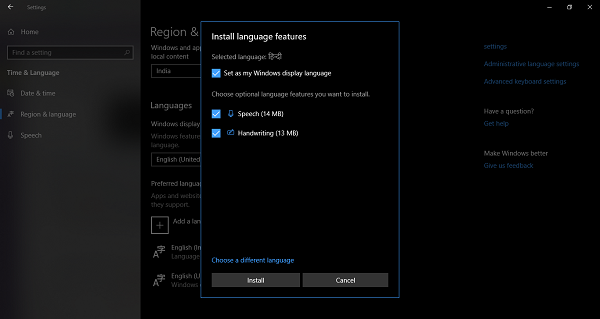
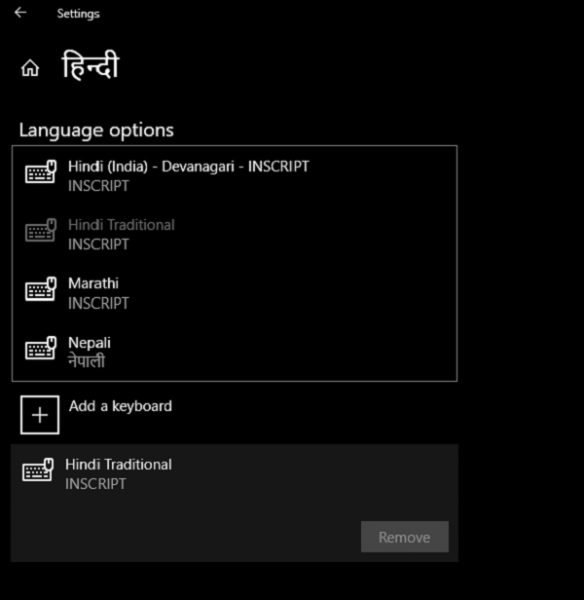
Once installed, go to Languages, select the language, then choose options. Here you can get options for those features if any.
What I find useful is that you can add related keyboards for that language. So, for example, when I choose Hindi, I get options to add Marathi, Nepali, and Devanagari keyboards, as they share the same script.
Note: If you don’t find the language available for Speech, it means that Cortana doesn’t support that language. However, if you are using a third-party application, it will work without issue.
Do you find this feature useful with Windows 11/10? Does it make it easier for you to find supported features for a language?
How do I know what language packs are installed?
To find which language packs are installed on your computer, open Windows Settings first. For that, press the Win+I keyboard shortcut. Then, switch to the Time & language tab. Here you can find a menu called Language & region. You need to click on this menu and head to the Preferred languages section. Here you can find all the language packs you have installed already on your computer.
How can I add Language to Windows 11?
To add or install a language to Windows 11, you need to press Win+I to open the Windows Settings panel first. Then, go to the Time & language tab on the left-hand side and click on the Language & region option. Next, click the Add a language button and select a language you want to install. Finally, click the Next button to start the installation.
