
More advanced games are pretty sensitive to screen resolution, especially when we play them through an external game launcher like Steam. I have seen conflicts with screen resolution, including the screen blacking out completely or the game pausing. Similarly, a known issue with conflicting screen resolution is when players get the error:
Failed to create the D3D9 device, This can happen if the desktop is locked
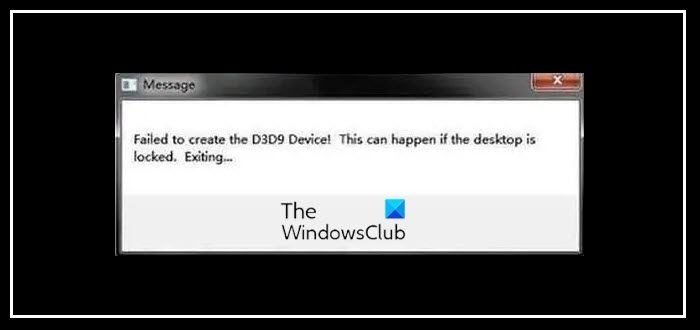
One possible reason is that the game’s resolution differs from your monitor’s current display settings, though other factors could also cause the issue.
You could try the following solutions step by step in an attempt to resolve the error:
1] Change the resolution of the game when launched through Steam
When launching the game through Steam, you can launch it in Windowed mode. This would help in matching the monitor’s resolution with the resolution of the game. The procedure to do the same is as follows:
- Right-click on any empty space on the desktop and select Display settings from the list.
- Check and note the current resolution of the monitor. Match this with the game’s resolution.
- Now launch the Steam client of your game and go to Library and then Properties.
- In the General tab, click on Set Launch Options. Enter the entry as “-w 1920 –h 1200” (without the codes).
- Press OK and exit the screen.
Check if this resolution works. We could also try changing the monitor resolution if you’re unwilling to do the same in the game.
Another workaround is to enter the command “-windowed” instead of the resolution in Set Launch Options. Upon doing so, the game would launch in a smaller window, and after that we could adjust the size and corners as per our wishes.
2] Change the resolution in game files manually
In case the above method does not work, we could change the resolution of the game by opening the Steam config files in a Notepad window on the system and changing them manually. The process is as follows:
- Navigate to the directory of your game’s Steam launcher. A sample could be Steam/Steamapps/Common/Counter-Strike/CSGame/Config.
- Search for the file “Machineoptions.ini.” Right-click on it and then select Open with.
- From the options, open it with Notepad.
- The resolution would be mentioned such that the value of X represents the width and Y the height.
- Change them to match the monitor’s resolution.
Another way to make sure the configuration always matches the resolution of the monitor screen is to remove “;” from behind the values of X and Y. Eg:
;ResX=1920

;ResY=1200
After removing “;” from both the values, we get-
ResX=1920

ResY=1200
We hope this helps you.
Fix: Fatal D3D error in Monster Hunter Rise
What’s a D3D device?
D3D device, or Direct3D device, is the rendering component of Direct3D that encapsulates and stores the rendering state. It also performs transformations and lighting operations on an image.
