
Intel RST VMD driver allows Windows to detect and manage NVMe SSDs. This driver allows the direct connection of NVMe SSDs to the CPU. If your system does not detect the NVMe SSD during the Windows installation, you cannot proceed with your Windows setup. To fix this issue, you need to extract the Intel RST VMD driver from the SetupRST.exe executable file. This article shows how to do that.
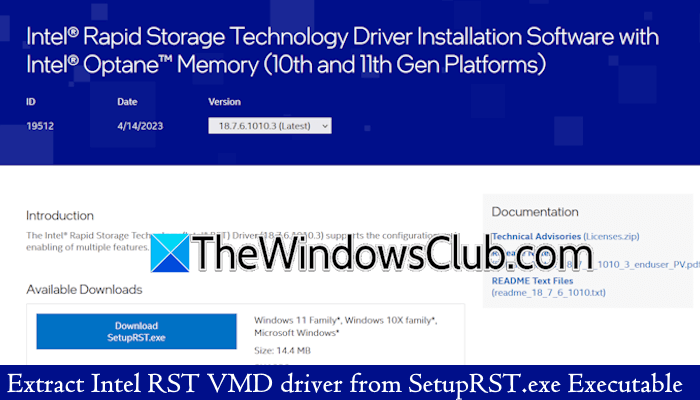
How to extract the Intel RST VMD driver from the SetupRST.exe executable
Windows does not detect NVMe SSD during installation if VMD is enabled in BIOS. In this case, you have two options: either you can load the VMD driver during the installation process or disable VMD in the BIOS. If you select the first option, you need to extract the Intel RST VMD driver from the SetupRST.exe executable and load it in the Windows setup file. The latter option is preferred for users who do not require the advanced storage options.
Follow these steps:
- Go to the downloaded location
- Launch the Command Prompt
- Execute the required command
- Copy the VMD folder to the bootable Windows folder
All these steps are explained below in detail.
First, go to the location in File Explorer where you downloaded and saved the SetupRST.exe file. Now, click on the address bar of File Explorer and type cmd. Press Enter after that. This will launch the Command Prompt in the same directory.
Copy the following command, paste it into the Command Prompt, and hit Enter.
SetupRST.exe -extractdrivers SetupRST_extracted
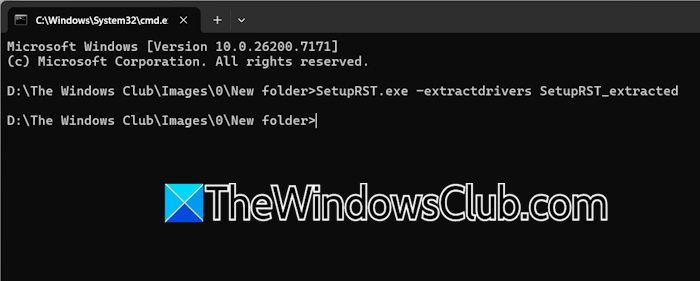
In the above command, SetupRST_extracted is the name of the extracted folder. You can replace SetupRST_extracted with another name. The command will automatically create this folder, and all the extracted files will be placed inside it. After pressing Enter, click Yes in the UAC prompt to grant Windows permission to extract the file.

Now, open the extracted folder. It contains many subfolders. Keep opening all the subfolders until you find the Drivers folder. The VMD folder is located inside the Drivers folder. Copy the VMD folder and paste it into the bootable Windows folder.
Now, you can proceed with the clean installation of Windows using the bootable USB flash drive containing the Windows ISO image and the VMD driver folder. Your system will detect your NVMe SSD this time.
That’s it. I hope this helps.
What is an Intel VMD driver?
Intel VMD (Volume Management Device) driver allows direct connection of NVMe SSDs to the CPU. It helps your system manage NVMe SSDs. If VMD is enabled in the BIOS of your computer, the Windows installer will not be able to detect the NVMe SSD to install the OS. To fix this issue, you need to load the VMD driver manually during the installation process.
Should VMD be enabled?
It depends on your requirements. Intel VMD is the new way to configure 11th-generation or greater Intel Core processor-based platforms for Intel RST management of RAID and Intel Optane memory volumes. The primary function of VMD is for advanced storage features. Therefore, if you do not require the advanced storage features, you can disable VMD in BIOS. However, if you have installed Windows with VMD enabled in BIOS, you cannot disable it later. Doing so will result in the Inaccessible Boot Device Blue Screen error.
Read next: Enable or Disable Intel Turbo Boost on Windows.
