
Drivers are one of the most critical components of the Operating System, enabling interfaces and hardware to communicate. If you don’t install the OEM’s driver, Microsoft uses the generic drivers, but it will still miss the custom functionality. Additionally, many individuals develop custom drivers for their hardware. That said, Windows offers a built-in way to export drivers using the DISM tool. It allows you to keep a backup and use it anytime. This post guides you on how to export drivers using DISM in Windows 11/10.
DISM is a powerful command tool that you can use to mount and service Windows images before deployment. It is also used to install, uninstall, configure, and update Windows features, packages, and drivers in a Windows image.
Why Use DISM Tool to Backup Drivers?
It’s a simple, straightforward tool that can back up all the drivers with a single command. You can also automate this process by adding the command to a batch file and executing it with administrative permissions to take regular backups. The biggest advantage is that you don’t have to deal with many options offered by driver backup software.
How to Export Drivers using DISM in Windows 11/10
- Select a location where you can save the driver backup.
- Right-click on the Start menu, and click on Windows Terminal (Administrator).
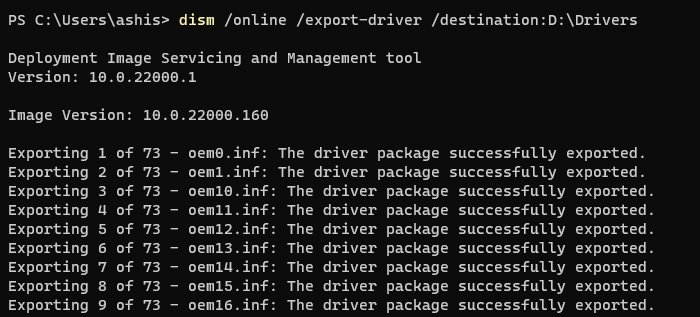
- Execute the following command to start exploring the drivers
DISM /online /export-driver /destination:D:\Drivers - If you need to export drivers from an already created image, you can use the following command
DISM /online /export-driver-Path c:\offline-image -Destination d:\drivers
The offline option works with a storage device that has Windows installed on it or a System Image backup
This command will only export third-party drivers. Additionally, the same command can be executed in PowerShell or Command Prompt with administrative privileges.
Unable to Export Drivers using DISM
if you cannot export the drivers from both system image and live OS, you need to use the -LogPath and -LogLevel options to generate the log file. You can then further figure out what is stopping the export.
How do I Export Drivers from Device Manager?
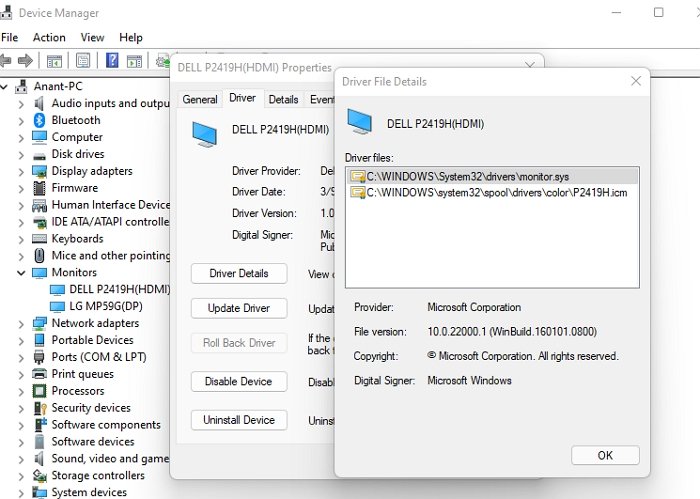
- Use WIN + X to open the Power menu, then select Device Manager,
- Right-click on any device and select Properties.
- Switch to the Driver tab, and then click on the Driver Details button.
- This will reveal the list of all drivers attached to the driver. Make a note of the exact path.
- Open File Explorer, navigate to the path, and copy it.
- Make sure to save it somewhere.
Drivers’ files typically end with SYS, but if the Device Manager displays anything else, you can also copy that.
Now that you know how to export the driver using the DISM tool, if you back up often, be sure to save the command in a BAT file and schedule it to run daily using Task Scheduler.
What Folder Are Drivers Stored in Windows?
The default location of the drivers on Windows is at C:\windows\System32\drivers. You can also copy this folder to a safe destination. Once done, you can always install it from the saved location using the Device Manager.
