
There is a feature in Microsoft Edge that lets you switch tab view from horizontal to vertical. You can turn on Vertical tabs via Edge settings. While some users find it useful, others like to keep the traditional horizontal view for open tabs. If you like the horizontal mode, then you can completely disable vertical tabs in Microsoft Edge using the Registry Editor.
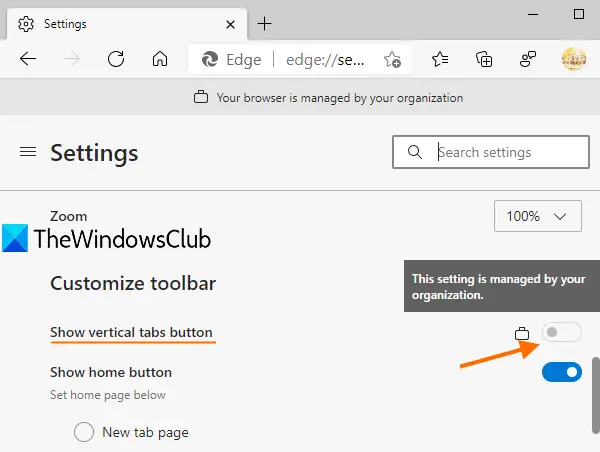
Once the Registry tweak is applied, the Show vertical tabs switch in the Edge browser won’t work. That Show vertical tabs switch will be greyed out or disabled, as shown in the screenshot above. The changes are applied to all the profiles you’ve created in Microsoft Edge.
Disable Vertical Tabs in Edge using Registry
Before performing any Registry tweak, it is advised to keep a backup of Registry that will help you restore it if something goes wrong. Now follow these steps:
Type regedit in Search bar and press Enter key to launch Registry Editor. You can also use some other ways to open Registry Editor.
In the Registry Editor window, access the Edge key. That key is present under Microsoft key. The path is:
HKEY_LOCAL_MACHINE\SOFTWARE\Policies\Microsoft\Edge
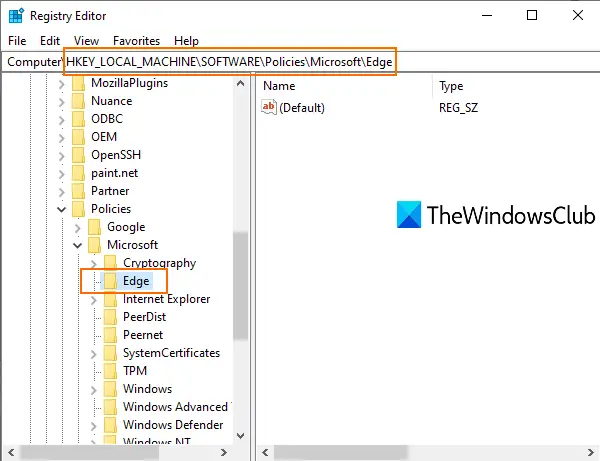
Do note that if the Edge key is not visible there, then you need to create a new Registry key, and rename it to Edge.
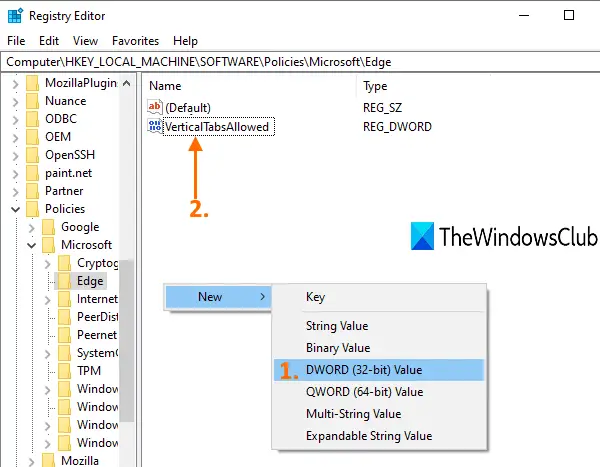
Now, on the empty area of the right-hand section of the Edge key, do a right-click, use the New menu, and click on DWORD (32-bit) Value. This will create a new DWORD value. You need to rename it to VerticalTabsAllowed.
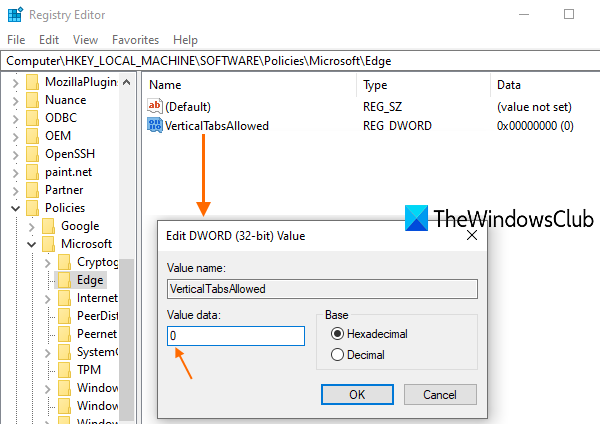
Double-click on that value, and you will see a small box. Add 0 in the Value data field of that box and press OK.
Close all Edge browser windows if already open.
Now restart your PC. The changes are applied and the Vertical tabs option will be disabled.
To enable vertical tabs again in Microsoft Edge, delete the VerticalTabsAllowed DWORD value and restart the PC or File Explorer to apply the changes.
I hope this tip is helpful.
