
It should be common knowledge by now that saving files on the desktop is not the way to go. Despite this, many Windows 11/10 users continue to save their files on the desktop. As a result, folks tend to have a cluttered desktop with a ton of unnecessary files. Windows 11/10 comes with built-in storage for saving your files; therefore, it makes a lot of sense to use that instead. For those who might not know where to save their files, this article is designed to enlighten you.
How to make your Desktop look clean in Windows 11
Keeping your desktop free of clutter creates a cleaner environment and improves efficiency when working in Windows 11/10. Here are things you could do to declutter & organize your Windows 11/10 desktop:
- Audit your desktop
- Use the Windows folders
- Take advantage of Windows Libraries
- Use Desktop organizer software
- Use OneDrive cloud storage
- Use the Hide icons option
- Other suggestions.
How to organize your Windows desktop
Let’s look at the downsides to storing files on the desktop.
The first problem is the difficulty in navigating. When a ton of files are stored on your Windows desktop, the entire thing becomes a mess, making it a chore to navigate and locate files.
Yes, we know there might come a time when saving a file to the desktop is deemed best for easier access. However, if you do this, you will likely keep doing it until the desktop is cluttered. So, in truth, users should normally never practice saving content on the desktop, ever.
1] Audit your desktop to remove unwanted icons
Begin by auditing your desktop. Delete all program icons and files you do not need or else move them to the appropriate folder. Add the Move to option to your context menu to make things faster. You may manually tweak the Registry to add Move to or use our Ultimate Windows Tweaker. You may also delete unwanted icons from the taskbar.
2] Use the Windows folders
Did you know that Windows lets you create folders directly in File Explorer? If not, well, let’s explain it all for you right now.
Windows 11/10 comes with several default folders for saving your files. The most prominent are Documents, Pictures, and Music. The user can access these folders by clicking the File Explorer icon on the taskbar or by navigating to Documents or Pictures directly by pressing the Windows key and then the hamburger menu.
Once you’re in a folder, you can choose to save your files there or create subfolders for better organization. We do this by right-clicking and selecting New > Folder. Be sure to name the folder, then press the Enter key to proceed.
Create as many secondary subfolders as you want, but bear in mind that Windows has a limit: the path cannot exceed 240 characters at this time.
3] Take advantage of Windows Libraries
One of the cool things we’ve come to enjoy when using this operating system is the Libraries. It’s a section that groups several folders together for easy access. Bear in mind that by default, Windows 10 has created libraries for Camera Roll, Documents, Music, Pictures, Saved Pictures, and Videos.
OK, so to access your libraries, open File Explorer and click Libraries in the left pane. Here you should see all the folders located inside it. Additionally, if you want to specify which folder the libraries should pull from, right-click and select Properties.
4] Use a desktop organizer software
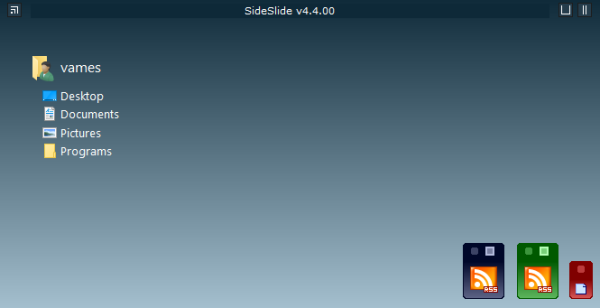
You can also make use of these free desktop organizer software. A program like Iconoid helps you better manage your Windows desktop icons.
5] Use OneDrive cloud storage
Windows 10 comes with OneDrive as default, and we urge everyone to use it. The service can synchronize with your folders, enabling more seamless interaction with files. If you want to learn more about how to use OneDrive, then click here to gobble up all that information.
6] Use the Hide icons option
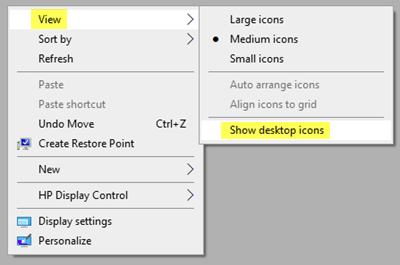
This is the final option. If you need to have a lot of icons on your desktop, you can uncheck the “Show desktop icons” option in the right-click context menu to temporarily hide the icons and keep the desktop looking clean. When required, you can always unhide them.
7] Other suggestions
- Use a simple, minimal wallpaper.
- Remove unnecessary shortcuts from the desktop.
- Pin frequently used apps to the taskbar instead of keeping them on the desktop.
- Customize taskbar settings. Center icons; hide the search box if not needed, and so on.
- Turn off unnecessary system tray icons.
- Keep widgets minimal or disable them if unused.
Hope this helps.
How do I organize my messy Windows desktop?
Using a free Desktop Organizer software. iOs is the best way to go. Other tips we offer are:
- Delete all unwanted desktop icons and shortcuts
- Decide how you want to sort the icons by
- If you have many icons, you can place them in subject-wise folders
- Opt to pin oft-used shortcuts to your Start Menu or Taskbar.
How do I clean up my desktop fast?
The fastest way is to right-click on the desktop and uncheck Show desktop icons option to temporarily hide the icons and make the desktop look clean. Alternatively, move them all to a folder and keep them on your desktop till you get time to move them to the appropriate locations.
