
Minecraft is filled with a lot of realms that can be used by players to connect to a server, however, some users are seeing the following error message when trying to connect to the server – Could not connect: Outdated server!
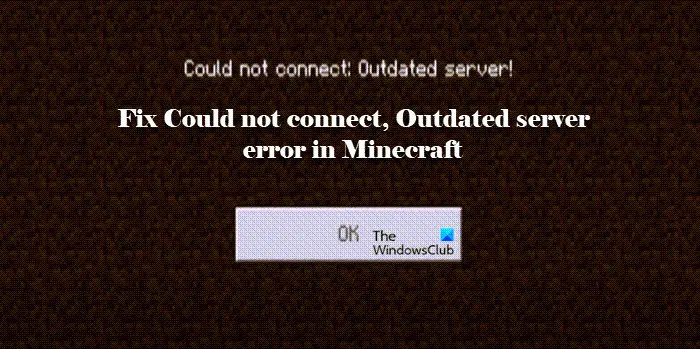
In this article, we will address the error with some straightforward solutions.
Why does my Minecraft say Could not connect outdated client?
One of the reasons you are seeing this error message is the presence of different versions. Ensure that all players are using the same version. Other reasons you may encounter this error include an improper network connection, network glitches, or other issues. In this post, we will explore all the potential reasons and solutions to resolve the issue.
Fix Could not Connect, Outdated Server error in Minecraft
If you are seeing ‘Could not Connect, Outdated Server’ error in Minecraft and hence not able to connect to a server, then these are the things you can do to fix the problem.
- Check Minecraft version
- Allow Minecraft through Firewall
- Reset network
- Check your Internet Speed
Let us talk about them in detail.
1] Check Minecraft version
You need to ensure that all players playing together have the same version. If the server owner is using the Beta version then you can not be on the stable version, and vice-versa. Therefore, you should update your client application and request that all other players, including the server owner, update theirs as well. Hopefully, you won’t see the error message.
2] Allow Minecraft through Firewall
If the issue persists, Windows Firewall may be blocking your game. If that’s the case, then you have to allow Minecraft through Firewall. To do that in Windows 11/10, follow the given steps.
- Open Windows Security by searching it out of the Start Menu.
- Go to Firewall & network protection and click Allow an app through firewall.
- Look for Minecraft and allow it through both Public and Private networks.
Now, try joining the server, hopefully, you will succeed this time.
3] Reset network
The issue can be because of a network glitch. To fix the issue, you can use some commands and reset the network. So, open Command Prompt as an administrator from the Start Menu and execute the following commands one by one.
ipconfig /flushdns
ipconfig /renew
ipconfig /registerdns
Now, reopen the game and see if it’s working fine.
4] Check your Internet Speed
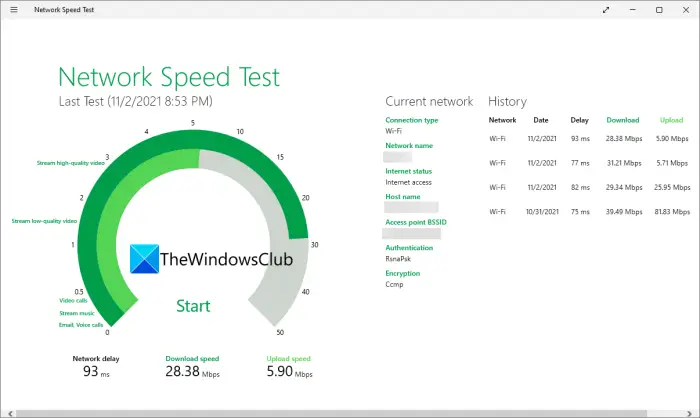
Last but not least, you should check your Internet speed, to do that, you can use any one of the Internet Speed checkers and see what’s your bandwidth. If your bandwidth is low, then you may have to fix slow Internet speed, if your computer is the only device that’s seeing the error, but if all the devices connected to your network are facing the issue, you should contact your ISP.
Hopefully, you are able to resolve the issue with the help of the solutions mentioned here.
Read: Fix Unable to update the Minecraft Runtime Environment.
How do I fix Minecraft could not connect to an outdated server?
The easiest way to resolve this error is to update your Minecraft to the latest version. Following that, you can allow Minecraft through the Firewall, no matter whether you use the built-in Firewall or any third-party application. Additionally, you should also check your internet connection.
Read Next: Fix Minecraft game has crashed with Exit Code 0.
