
Browsers use Connection Keep-Alive headers to establish a persistent HTTP connection with a Web server and reuse the same TCP/IP socket used to receive the initial request for up to 1 minute by default. If the socket remains idle for 1 minute, the browser resets the connection.
How to change Keep Alive Timeout in Windows 11/10
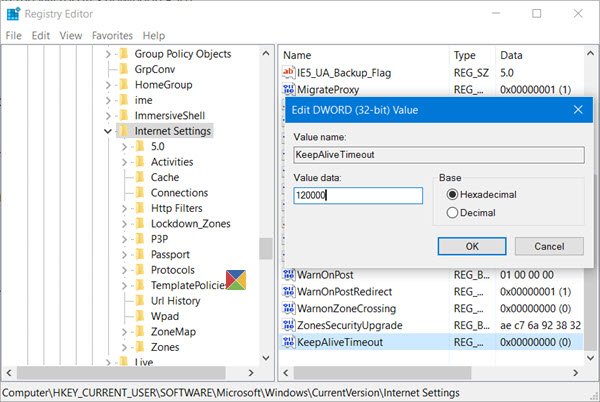
Most browsers (like Edge, Chrome, Firefox) use a default Keep-Alive timeout of ~60 seconds, but you can override this in Windows via the Registry Editor.
If you wish, you can change this HTTP KeepAliveTimeout value to say, 2 minutes. This can be useful if the Web Server has a 2-minute time-out value.
But if the Web Server has a 1-minute timeout, then changing this value will not make a difference, as the lower of the two values – Browser timeout and Server timeout is always considered.
Create a system restore point first and then Run regedit to open the Registry Editor. Now navigate to the following key:
HKEY_CURRENT_USER\Software\Microsoft\Windows\CurrentVersion\InternetSettings
Right-click on InternetSettings > New > DWORD.
Name the new DWORD in the right pane as KeepAliveTimeout, and give it a value 120000 in Decimal.
Exit the Registry Editor and restart Internet Explorer.
The 120000 value is 2 minutes in milliseconds.
To restore the value to its default, delete KeepAliveTimeout or change its value to 60000.
If you wish to keep a time out or 3 minutes you will have to do the following – Give KeepAliveTimeout a value of 180000 AND create and give DWORD ServerInfoTimeout a value of 180000.
NOTE:
- Long timeout can waste server resources (idle connections).
- Short timeout may cause frequent reconnects, slowing performance.
