
Do you leave your Windows PC ON unnecessarily? If yes, let me tell you that it is not a good idea, not just because you are wasting your money, but it is also not good for environmental reasons. You should know that by leaving your PC idle for a day, you are actually adding to your annual electricity bill. There are plenty of tools to schedule your PC shutdown. You can schedule your PC to shut down at a specific date and time with just a few clicks. Recently I wrote about a freeware KShutdown, a utility to shut down your Windows PC at a set time and today, I got to know about another such utility called AMP WinOFF that is fully configurable and has several shutdown modes.
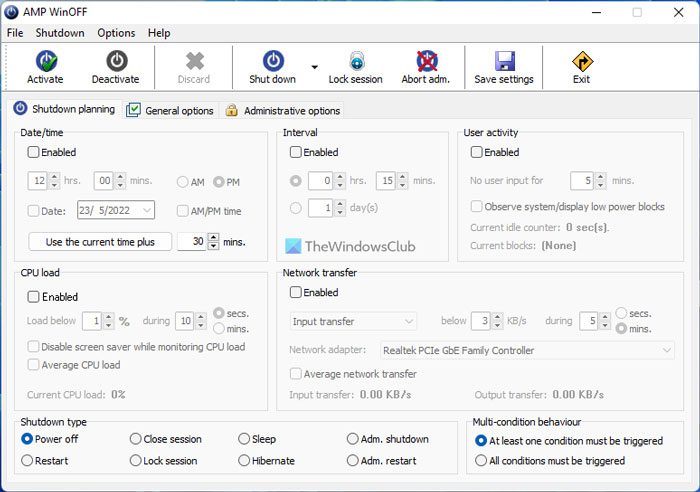
AMP WinOFF for Windows PC
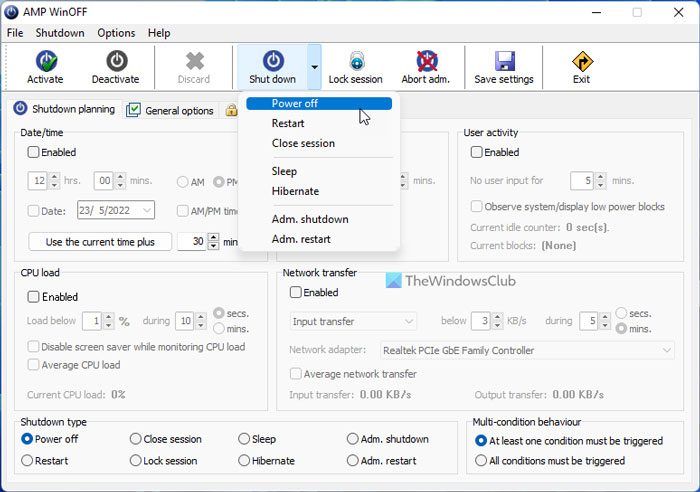
AMP WinOFF is not a newly launched freeware, but I just learned about it and found it worth sharing here with my readers. AMP WinOFF is a utility designed to schedule the shutdown of Windows computers. AMP WinOFF has several shutdown modes which include:
- Power off
- Restart
- Close session
- Sleep hibernate
- Admin shutdown and
- Adm. restart.
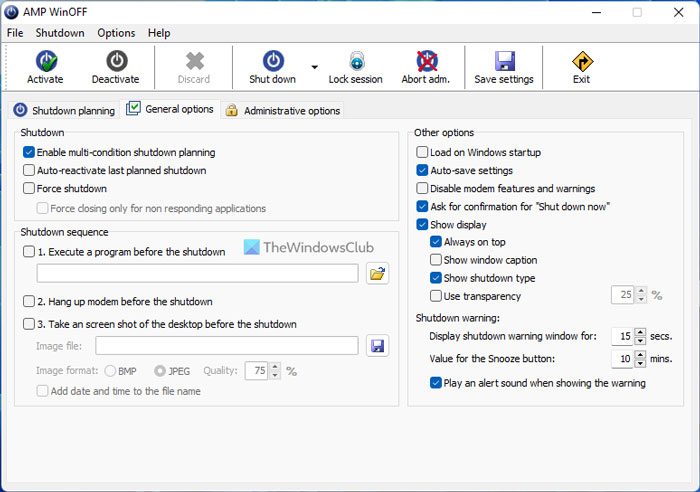
It took just a few seconds to download and install this utility. After using the utility, I must say that it is a useful tool for scheduling the shutdown of Windows-based computer systems. With its various options one can schedule my PC to shut down, restart, hibernate or end the running session.
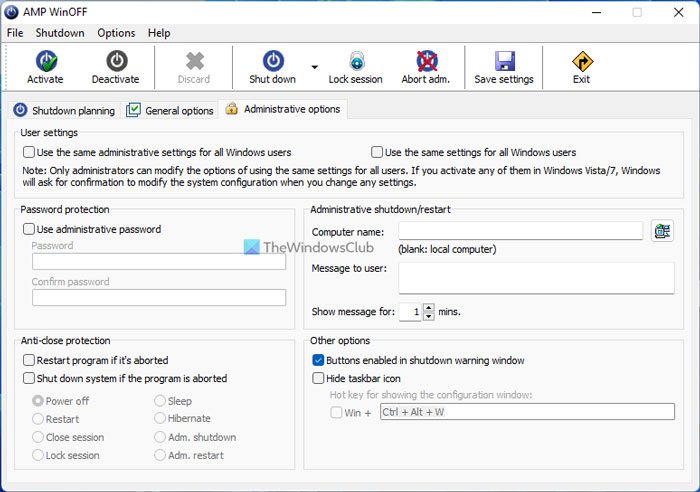
The main interface of AMP WinOFF includes an icon bar, a toolbar and tabbed options including Shutdown planning, General Option and Administrative Options.
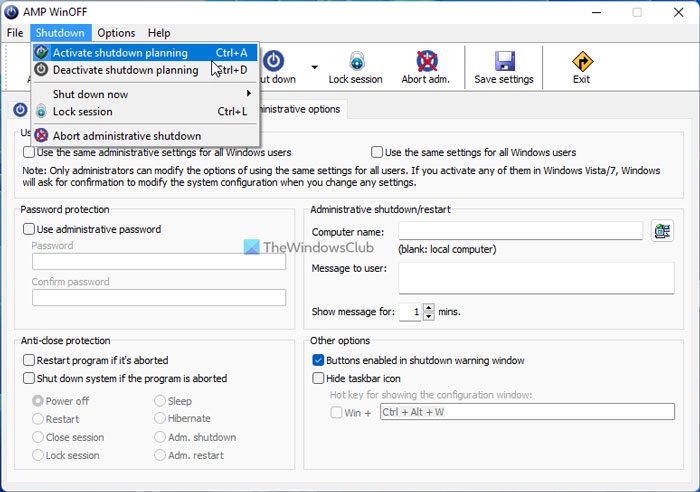
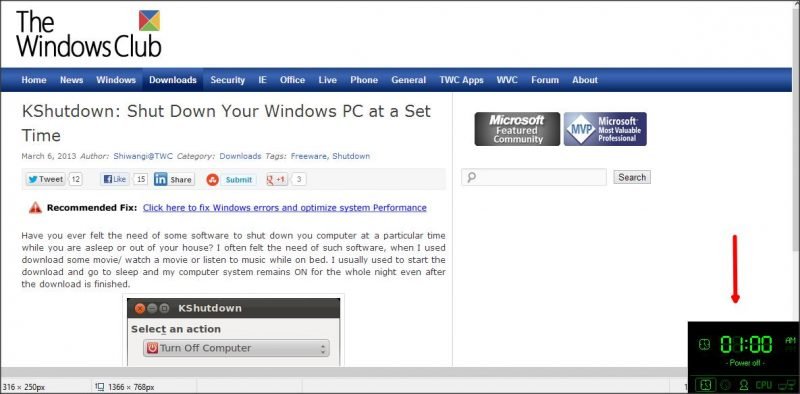
It is very easy to configure the utility and scheduled shutdowns. After adding the specific date and time, we need to activate the shutdown via the tab ‘Activate’ on the top right corner. After activating the shutdown, a small timer is displayed in the bottom left corner of the computer screen, showing the time remaining for the shutdown. Furthermore, the AMP WinOFF utility also allows one to schedule the shutdown according to the inactivity on the computer system.
The utility supports English and Spanish languages. It has icons for saving the current settings and activating the shutdown and for deactivating the shutdown. We can select our action from the ‘Shutdown’ icon which includes the options of Power off, Restart, Close session, Sleep hibernate, Admin shutdown, and Adm. Restart.
Features of AMP WinOFF:
- Several modes/conditions for shutdown planification:
- 1. At certain date/time (e.g. 12:00 AM).
- 2. After a period of time (e.g. 1 hour and 15 minutes).
- 3. When there isn’t user activity (i.e. no mouse/keyboard input).
- 4. When there isn’t CPU activity.
- 5. When there isn’t network activity.
- Option of set several conditions at the same time for the planification. Examples:
- 1. Shut down at 08:00 PM or when there is no user activity for 15 minutes.
- 2. Shut down when the CPU load is below 1% and the network transfer is below 1Kb/s.
- Several types of shutdown: power off, restart close session, lock session, administrative shutdown/restart, sleep and hibernate.
- Immediate shutdown and session lock from the taskbar icon menu.
- Several security options including anti-close protection and password-protected access to the configuration.
- Option of showing a display with the active shutdown planification.
- Option of executing a program, capturing the desktop, and/or hang up the modem before the shutdown.
- Command-line support for batch processing.
- Dual English/Spanish version.
AMP WinOFF provides plenty of tools to schedule your PC as per your needs. With just a few clicks, you can configure the program to turn your PC off on a specified date/time or in a specified number of minutes. Go get it from here.
What is WinOFF?
WinOFF is freeware for Windows computers, which helps you shut down your computer conditionally. You can set various filters to shut down your computer at a predefined time. Not only shut down, but also you can restart, Sleep, Hibernate, etc., your PC with the help of this app.
How can I shutdown my computer automatically?
There are multiple apps available for this purpose. For example, you can use WinOFF, as mentioned in this article. AMP WinOFF freeware lets you shut down, Hibernate, Restart, etc., your computer at a preset time. The best thing is that you can shut down your computer if it is inactive for a specific amount of time.
