
Although Microsoft Excel, Google Sheets, Excel Online are three of the best tools to create a table, do check out these free online table generator tools to create a table for any purpose. You can create a table to make a Q&A sheet, note down the prices of different products, and so on.
Free online Table Generator tools
Let us take a look at these websites. These will help you create HTML, Markdown, etc, tables:
- Tables Generator
- Div Table
- Rapid Tables
- Quackit
- Truben Table Editor
- Bootstrap Table Generator
- Table Convert
- Zettlr
- Typora
How to create HTML, Markdown, etc, tables online for free
1] Tables Generator
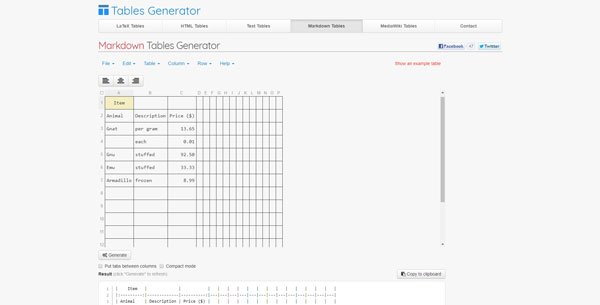
Tables Generator is probably the first tool you should check out since it comes with a couple of useful options those might help you create a better table for your website. It allows you to create a LaTeX table, HTML table, Text table, markdown table, MediaWiki table and so on. You can create a table with as many columns and rows as you want. Although the preset option will allow only 15×15 table, you can manually enter the number as per your requirement. Visit their official website.
2] Div Table
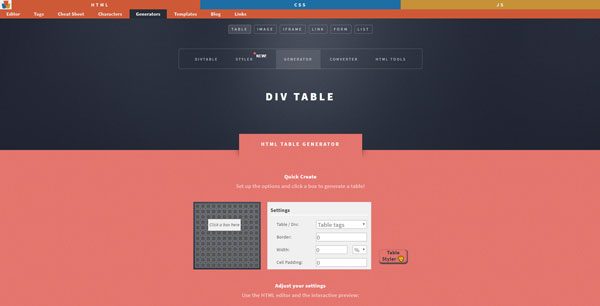
If you want to get a simple user interface but with all the necessary options, Div Table can help you out. You can find a minimal UI to enter only values in different boxes. Although Div Table allows you to customize the table in a very different way, the only limitation is you can create an (up to) 12×12 table. Regarding the customization, you can change the theme, font, background and text color, manage border, and so on. However, it helps you create an HTML table. That means whatever you will do in the table, it will be converted to an HTML code. Following that, you can paste that code to show your table on any webpage. Visit their official website.
3] Rapid Tables
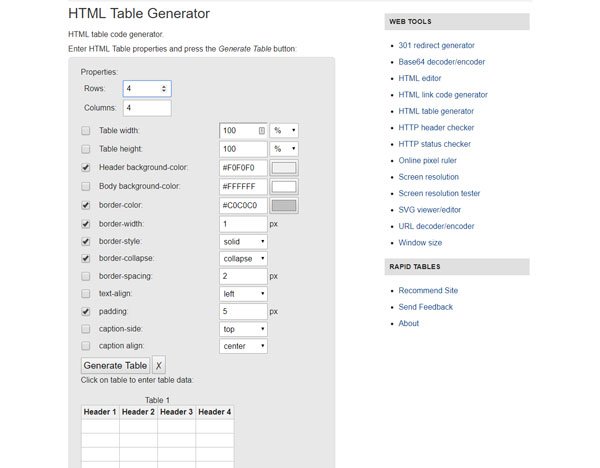
Rapid Tables is another useful tool for creating HTML tables with ease. Like Div Table, you will get the option to customize your table as per your wish. For example, you can change the background color, border color, border style, border spacing, and so on. It is possible to create a 100×300 table with the help of Rapid Tables. This lets you create an HTML table. Visit their official website.
4] Quackit
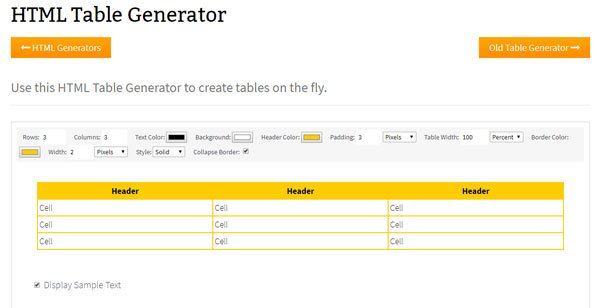
Quackit is yet another simple HTML table generator that you can use to create a 99×99 table without any problem. Although you will get comparatively fewer options in this table generator tool, you can personalize it quickly. There is an option to change text color, background color, header color, padding, table width, and more others. Like the other tools above, you will get HTML code to paste into your webpage to display the table. As all the “styles” get copied with that HTML code, you can find the same-looking table on your webpage. Visit their official website.
5] Truben Table Editor
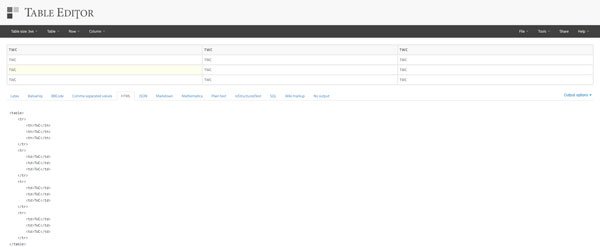
Truben Table Editor probably has the simplest user interface with the minimum options. The Markdown page is where you will get all the options to create a table as per your requirements. The advantage of using this tool is that you can create as many columns and rows as you want. However, if you want to display your table on a webpage, it is recommended to use the HTML table generator option. If you choose that, you need to paste the whole code into your webpage. The drawback is that you won’t get any option to customize the table. For instance, you cannot change the background color, text color, etc. Visit their official website.
6] Bootstrap Table Generator

If you have minimal knowledge of HTML, the Bootstrap Table Generator would be helpful for you. Otherwise, this is not suggested to use this online table maker. By default, you can create a 4×12 table. However, if you know HTML, you can use the “MDB Editor” to add as many columns and rows as you want. No matter what you do, you will have to copy the HTML code and paste it somewhere. Apart from that, you will get a few options to add or remove borders, hover styles, small boxes, and more. Visit their official website.
7] Table Convert
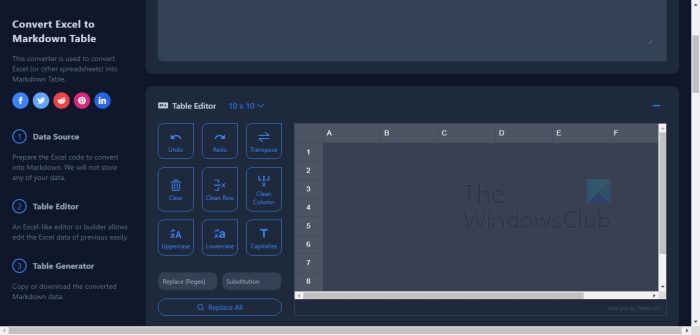
We like Table Convert because it is an intuitive online tool designed to convert CSV to Markdown Table. Let us look at how to use it right now.
- Visit the official website.
- From there, upload the CSV data to the Data Source field.
- You can also drag and drop the CSV file instead.
- After that, the generator will show a preview of the Markdown table.
- If you want to bold the header row, then select Bold first row.
- Also, be sure to always check Pretty-print Markdown for improved readability.
- Download the table to your computer or copy it to the clipboard.
8] Zettlr
This online tool includes a built-in table editor that lets users edit .md tables with ease. Folks can also convert the Markdown source to HTML if they wish to go down that road.
- Visit the official website of Zettlr.
- Download and install the tool to your Windows 11 computer.
- Once there, click on Preferences.
- Select Editor, then check Enable Table Editor.
- Select any one of the cells to add content.
- Navigate through the cells by pressing the Tab, and Arrow keys.
- Use the edge buttons to add columns and rows.
- Save changes by clicking outside of the table.
The size of the file is not large, and it runs quite well, at least for us. Furthermore, Zettlr is open source and free to download and use.
9] Markdown Convert
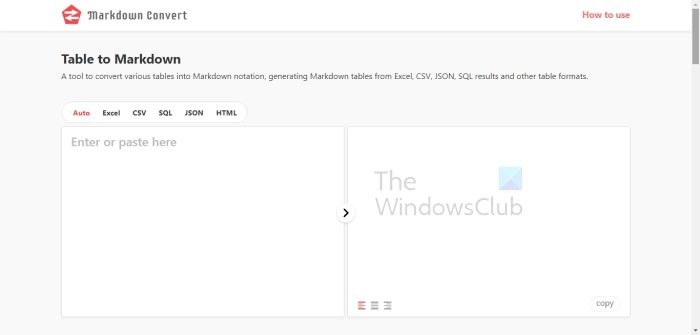
OK, so the final tool we’re going to look at here is one called Markdown Convert, and from what we can tell, it works quite fine, to be honest. Let’s discuss how to use this online tool to create a simple Markdown table.
- Open the official Markdown Convert website.
- From there, copy tables from either Excel, CSV, JSON, or SQL.
- Paste the content into the box to the left.
- Whatever is pasted to the left will be converted and shown in the box at the right.
- Check the finished product to ensure it meets the required standards.
- Finally, then, copy the finished Markdown table and paste it into your editor.
All the tools above should be more than good enough to create basic Markdown tables, so get to work.
Read: Best free Markdown to PDF converter software and online tools
You can use any of the tools mentioned above without creating an account, which is one of their advantages. I hope they help you.
Can you create a table in markdown?
Yes, it is possible to create tables in Markdown. All you have to do here is use three or more hyphens ( — ) in order to generate each column’s header. From there, it is time to separate each column using pipes ( | ). To ensure compatibility across platforms, please add a pipe on each end of the row.
How do I convert an Excel table to Markdown?
OK, so when it comes down to converting an Excel table to Markdown, this is easier than many might have thought. All you have to do is select the cells to be converted. Copy those cells to the clipboard. From there, visit tabletomarkdown.com, and paste the copied table into the box. Finally, click the Convert button.
