
Issues with conflicting programs and accounts in Windows or Xbox systems are not new. It’s a known fact that if applications (eg., Microsoft Office) are not completely removed from the system, it gives an error when trying to install them again. Many users have noticed the exact same issue with Microsoft accounts, where they get the error – [email protected] is already here, Another user on this device uses this Microsoft account, so you can’t add it here.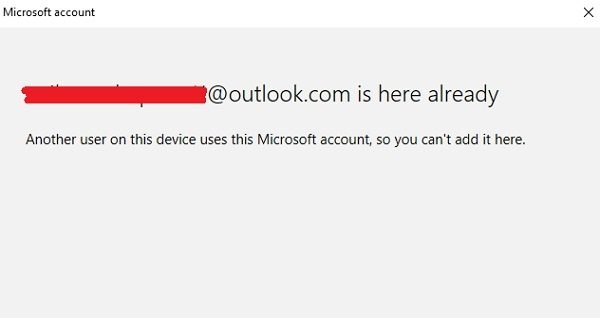
This error has been reported both on Windows and Xbox consoles.
Microsoft account is already here, Another user on this device uses this Microsoft account
Let us assume a user creates a Microsoft account and integrates the system with it. Later, the user needs to create another Microsoft account and integrate it with the same system for some reason. However, the system usually doesn’t delete the initial account from the registry just because we created a new one. This might cause the error mentioned above.
Try the following suggestions to fix the error:
For Windows PC
1] Editing Local Security Policy
1] Press Win + R to open the Run window and type the command secpol.msc. Press Enter to open the Security Policy snap-in.
2] Go to Security Settings >> Local Policies >> Security Options.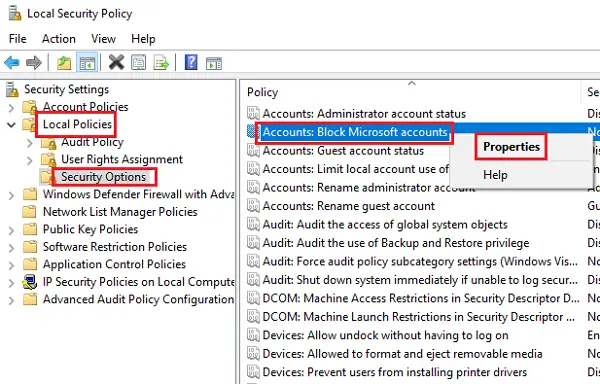
3] On the right pane, double-click on the policy setting Accounts: Block Microsoft accounts to open its settings page.
4] Change the status of the policy to “This policy is disabled” from the drop-down menu, and then click on Apply and the OK.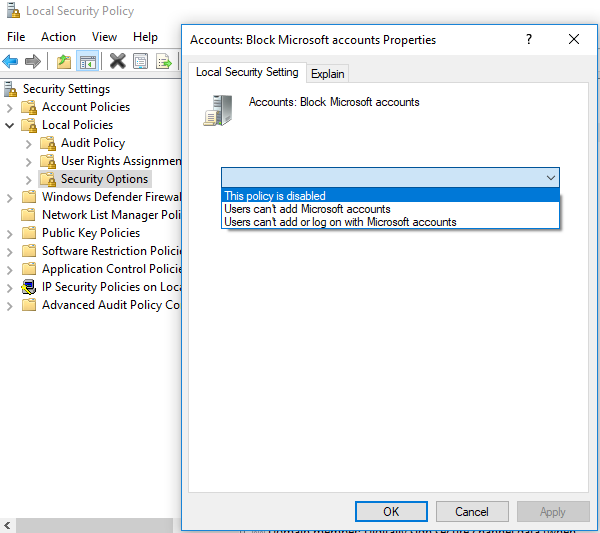
5] Restart the system and check if it fixes the issue.
2] Using Registry Editor
Please back up your system data before proceeding.
Press Win + R to open the Run window and type the command regedit. Press Enter to open the Registry Editor window.
Navigate to the following registry key:
HKEY_USERS\.DEFAULT\Software\Microsoft\IdentityCRL\StoredIdentities
Upon expanding the StoredIdentities registry key, you will find the Microsoft accounts integrated with the system. You could right-click and delete the account which is not needed on the system.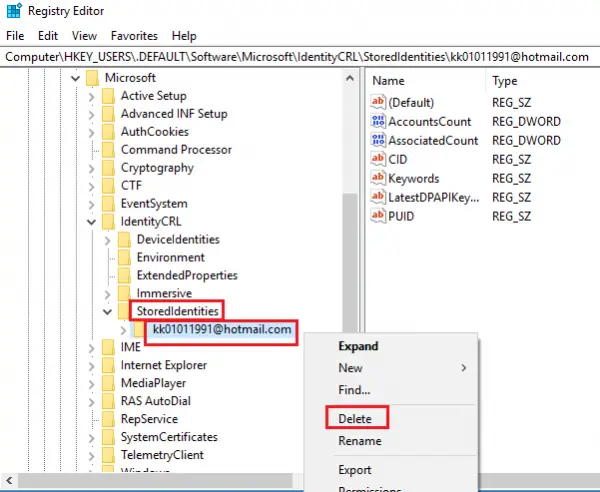
Reboot your system. This will surely fix your problem.
For Xbox
When you see this error message “Another User On This Device Uses This Microsoft Account” while trying to add a new account to your Xbox console, we would have to remove the previous account.
- Press the Xbox button to open the Xbox guide.
- Go to Settings > All settings > Accounts.
- Click on Remove accounts.
- Select your old account and remove it. Make sure you remove all redundant accounts before restarting the console.
After restarting the console, try adding your new accounts.
All the best!
