
Adobe CEF Helper.exe, a process that renders various components of the Creative Cloud applications, can cause high CPU or Memory usage issues on your Windows 11/10 computer when not installed properly. Once you start the software, it will run in the background, performing routine checks to verify that all your programs are up to date. This application is known to consume significant CPU resources even when idle.

What is Adobe CEF Helper.exe?
Adobe CEF Helper (Adobe Chromium Embedded Framework Helper) is a process service used to render components in several Adobe Creative Cloud applications. When you use Creative Cloud applications, you will see separate and multiple processes with similar and the same names running in the background. The processes depend on the Adobe CEF Helper, which is required at runtime and for complete rendering.
The Creative Cloud desktop app has several components within its user interface, including the Apps, Files, and Discover tabs. Adobe CEF Helper is a process that renders these components of the Creative Cloud desktop app. CEF helper is important to run the Creative Cloud desktop app.
The legit file is generally found here:
- C\:\Program Files\Adobe Systems\Adobe Creative Cloud
- C:\Program Files (x86)\Common Files\Adobe
Users have long reported that the Adobe CEF helper application consumes excessive CPU resources, causing device issues such as screen freezes, lag, and glitches when the software is active. Hence, many times they believe it is a virus but that is not the case. Adobe CEF Helper is used by an application to render a project before export, resulting in high CPU and GPU utilization on the device.
Fix Adobe CEF Helper High Memory or CPU usage
Follow the list below to resolve this issue.
- Restart your computer and see
- Run SFC scan
- Temporarily disable your antivirus program
- Update Windows OS
- Uninstall & reinstall Adobe CEF Helper
Let us look at these solutions in more detail.
1] Restart your computer and see
Restart your computer and see if that resolves the issue.
2] Run SFC scan
Press Windows + S and open the Search bar. Type cmd and then right-click on the most relevant result that runs it as an administrator.
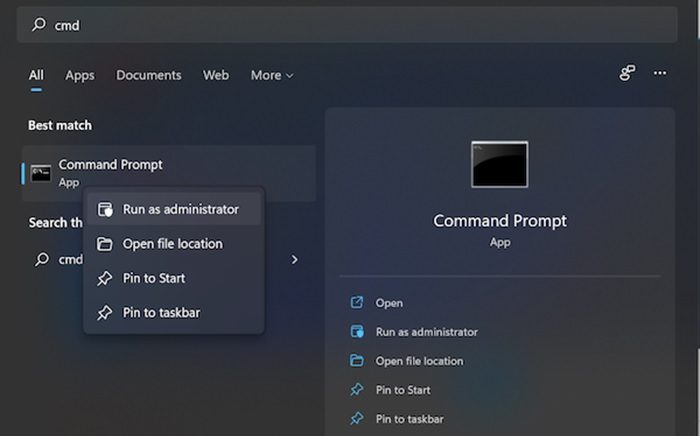
Type the following command and press Enter:
sfc/scannow
Once the process is complete, restart your PC and verify that the changes have taken effect. SFC automatically detects and repairs corrupted files and directories on your PC.
3] Temporarily disable your antivirus program
Click on the expand arrow of your taskbar. Right-click on the antivirus icon, choose the McAfee antivirus and click the Disable for 10 minutes tab.
In case you have installed any other antivirus program, you can disable it using the above-mentioned steps or similar steps.
4] Update Windows OS
Press Windows + I and open the Settings App. Click on the Windows Update in the left panel.
In case you see any new updates, you can click on the Install now button and wait till the process completes. Click on the Check for updates button for updating Windows.
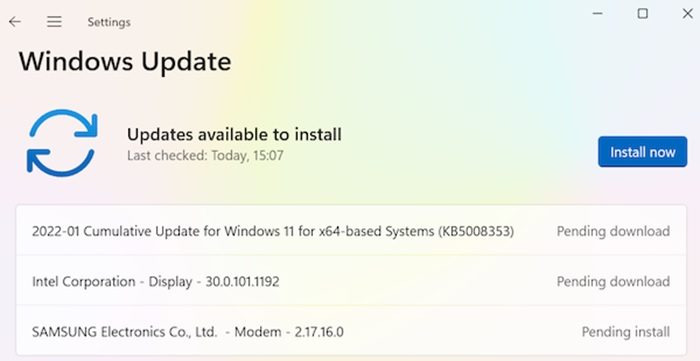
An older version of Windows can also be an issue and, it can be easily fixed by updating the operating system. The error will mostly be fixed in future iterations.
5] Uninstall & reinstall Adobe CEF Helper
If you are sure you do not need it you can uninstall the program via Settings or Control Panel. Look for Adobe Creative Cloud Desktop and uninstall it.
Restart your computer.
Next, we recommend visiting Adobe.com to download the latest version of V and reinstall it on your computer.
We hope the above instructions help resolve the high CPU usage caused by Adobe CEF Helper. Do let us know if you have any questions.
How to stop Adobe CEF Helper from running in the background?
Do the following to disable from running at startup automatically:
- Open Adobe Creative Cloud Desktop
- Click on your Profile Picture.
- Click on Preferences
- Under General, toggle the switch against Launch Creative Cloud at login to the Off position
- Click Done.
How to remove Creative Cloud from Windows?
You can uninstall Adobe Creative Cloud using the Windows Settings panel:
- Open Settings
- Select Apps > Apps & features
- Select Adobe Creative Cloud
- Click on the Uninstall button that appears.
Hope this helps.
