
If you use your Gmail account for sending deal-related emails to your customers, you can add hyperlinks in the image in Gmail. This is a highly effective way to increase clicks for affiliate marketing, as people tend to open pictures included in the email body. Here is a simple trick to increase the clicks and sales of your business. Before getting started, you should know that you can perform this on the web version of Gmail only. It is not possible to perform the same steps on a mobile app.
How to add Hyperlink to Image in Gmail
To insert a hyperlink in an image in Gmail, carry out the following steps-
- Insert the image in the email
- Select the image and change the permalink
Here is the detailed guide you need to follow.
Log in to your Gmail account and click the Compose button to write a new email. In the email body, you have to insert a picture. For that, click the Insert photo button visible in the bottom menu bar.
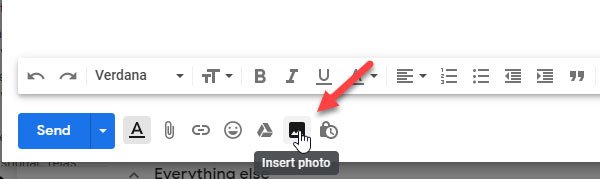
You can upload an image from your personal computer, or you can insert an image from Google Photos, Google Drive, etc.
Make sure Inline option is selected on the Insert photo window. If Add attachment option is selected, this tutorial will not work.
After inserting the image, you can resize it according to your requirements.
Then, you need to select the image. To do that, click outside of the image and hover your mouse over the image. This is the most challenging step, and you must perform it carefully. In other words, you need to select the picture just as you would choose text. After successfully selecting the picture, it should turn blue, as shown in the screenshot.
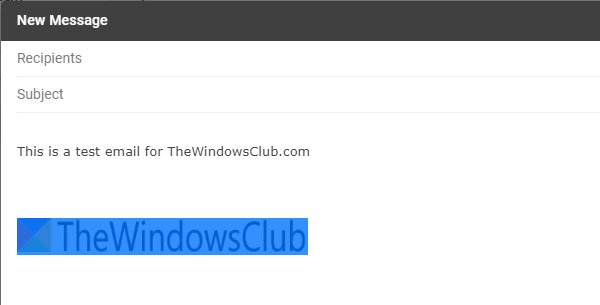
After that, click the Insert link button visible in the bottom menu bar. Alternatively, you can press Ctrl+K and insert the web address or URL of any webpage in the “Web address” box.
Do that, and click the OK button to finish the insertion.
That’s it! Now, your recipient can click the image to open the web page link you inserted.
Read next: How to send Blocked Files on Gmail?
