
We don’t know what processes and executables are running on our computer unless we check the Task Manager. Malware or other programs may run in the background without our knowledge. Sometimes we wonder whether there’s software that can stop or block unwanted executables from running, password-protect executables, and protect against ransomware. In this guide, we explain how A1RunGuard works and protects your PC from unwanted executables, ransomware and more.
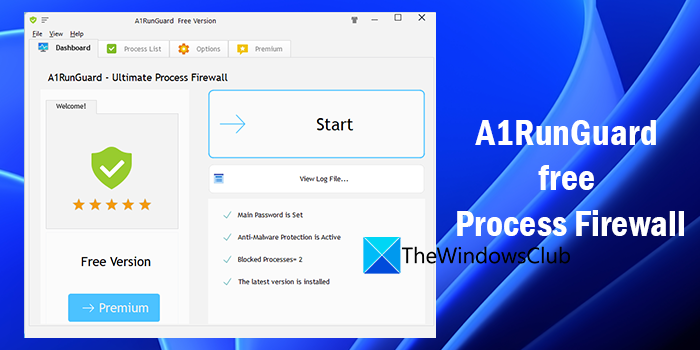
The inbuilt Windows Firewall is great – and just good enough for the regular home user who wants protection and who does not want to be bothered with setting it up. But if you are looking for more – check out A1Run Guard.
A1RunGuard Free Process Firewall for Windows 11
A1RunGuard blocks unwanted programs, adds password protection for executables, and protects against ransomware attacks. The following are the main features of A1RunGuard.
- Prevent Ransomware attacks
- Block an executable/process
- Password protects an executable/process
- Redirect Process to another Program
Let’s get into the details of each feature.
1] Prevent Ransomware attacks
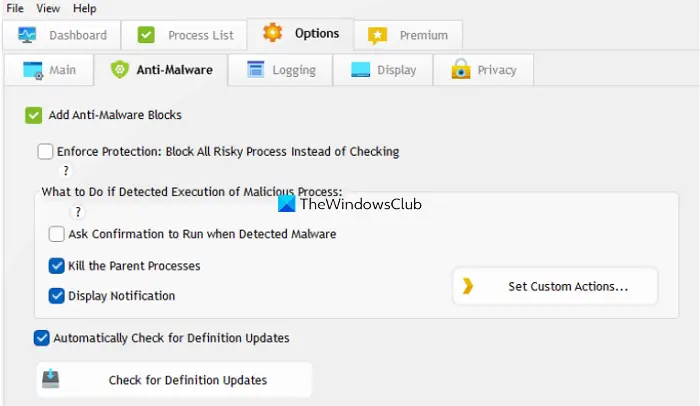
Ransomware attacks are very common nowadays. We need to be alert always to protect our devices from such attacks. Ransomware attacks don’t happen from new or alien programs. They often happen through the legitimate software on our PC. Whenever a process is launched on your PC and if you have A1RunGuard installed, it will not block the process, instead, it reads and investigates the command lines of the process or program and flags if there is any dangerous combination. After finding the dangerous combination in its command lines, it blocks the process as well as the parent process that made the flagged process run, through the ‘Kill the parent process’ option in the A1RunGuard anti-malware settings.
2] Block an executable/process
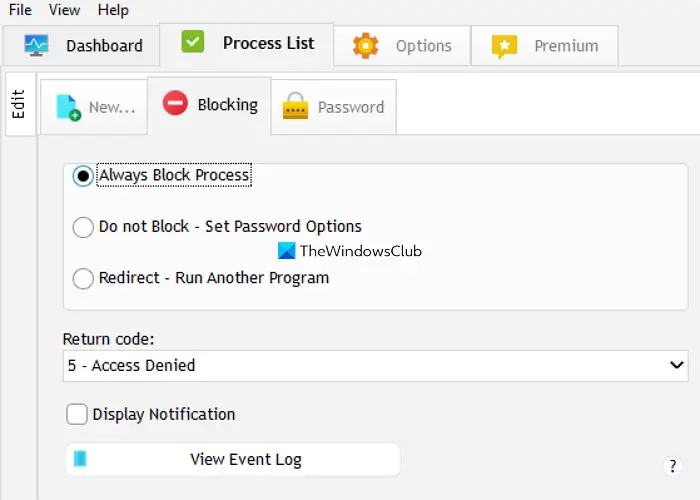
A1RunGuard has different options to block a process or an executable. You can choose to always block a process, or set a password to run the process. These options are available in the Process List tab of A1RunGuard where you can choose how you want to run or block a process.
3] Password protects an executable/process
Many processes start automatically on our PC. You can set a password to such processes and block them. If you do not specify the password options, the process will start as usual. You can use the Main Password set in A1RunGuard or set a new, unique password for the process. If you check the button beside ‘Check Password One Time Per Session’, you will have to enter the password every time you open that particular program/process. Otherwise, it will crash.
4] Redirect Process to another Program
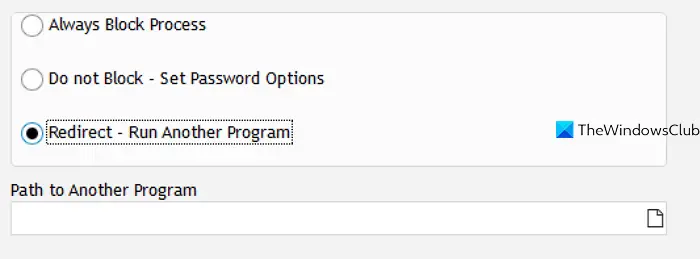
There is an option to set to run another program instead of the original process. If you set it, whenever you need to run that process, the program you set to redirect will launch and run.
These are the different features that are available on A1RunGuard which will help you protect your PC. The program is available to download at Greatis. It offers both free and premium versions with strong protection.
Read: Free Firewall software for Windows PC.
Does A1RunGuard affect the Windows processes?
No, A1RunGuard does not affect any Windows process unless malware or ransomware affects it and contains conflicting command-line commands. It will not change any system files and does not hinder driver or executable performance. You can also easily undo a block if you have blocked a program by mistake.
Read: Ways to test your firewall software, for free, and find out how well it is protecting your computer.
How do I stop a process from running?
To stop a process from running on Windows, you can use the free A1RunGuard program. You can block the process by setting its path or file name, or you can protect it with a password. It also protects you from ransomware attacks that spread through processes or executables on your PC.
More firewall software:
