
People using Microsoft Access will sometimes receive errors when typing a sentence and trying to spell a word. Microsoft Access has a Spelling feature that helps people to correct misspelled words. In this post, we will show you how to check Spelling and Grammar in Microsoft Access.
How to check Spelling and Grammar in Access
Follow the steps below to check Spelling and Grammar in Microsoft Access:
- Launch Access or open an existing database.
- Select the cell
- Click the Spelling button in the Records group.
- Click the suggestion you want and click Change
- If you select Autocorrect, the word will automatically be corrected.
How to Spell Check in Access
Launch Access or open an existing database.
Click the cell where you want to correct the misspelling.
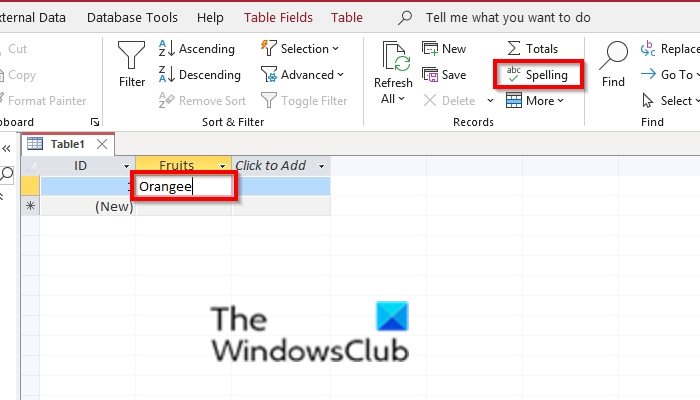
On the Home tab, click the Spelling button in the Records group.
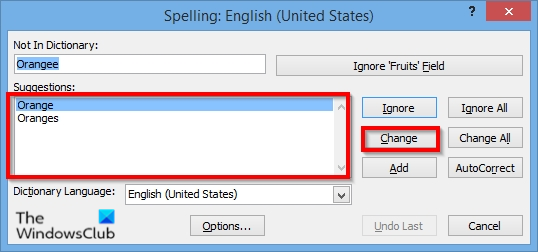
A Spelling dialog box will pop up.
In the dialog box, you will see a display of the correct spellings in the Suggestions box.
If it is more than one suggestion offered; click the suggestion you want and click Change.
Click Ok.
The word is corrected.
If you click the Ignore button, the word will be ignored.
If you select Add, the word will be added to the dictionary.
If you select Autocorrect, the word will automatically be corrected when you press enter or move to a different cell.
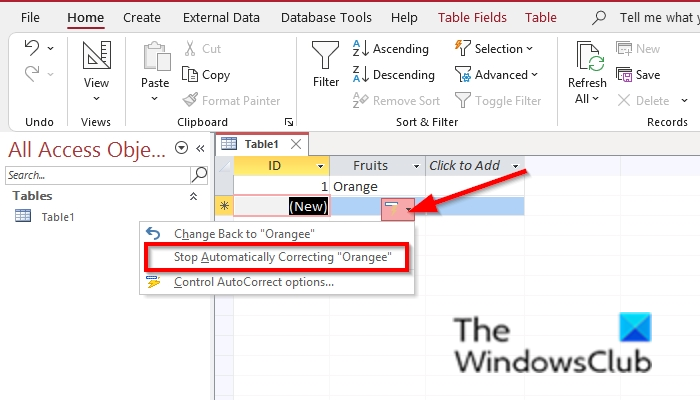
To remove Autocorrect, click the Autocorrections Options button and select Stop Automatically correcting “ ” from the list.
We hope this tutorial helps you understand how to use Spelling in Access. If you have questions about it, let us know in the comments.
Why is Office spell check not working?
Spell-checking may not be working for several reasons. The Spell check feature can stop working if you change a simple setting in Proofing, if the language settings are turned off, or if the template has issues.
Read: How to change the Font face, size, and color in Access
Which wavy line shows grammatical mistakes?
In Microsoft Office, grammatical errors are indicated by colored wavy lines. The red line indicates a misspelled word; the green line indicates a grammatical error; the blue line indicates a contextual spelling error.
