
When installing Hyper-V on Windows 11/10, if you receive an error 0x800f080c, it means that Windows cannot find the Hyper-V feature. While this post looks at how you can resolve it, here is detailed information on the error:
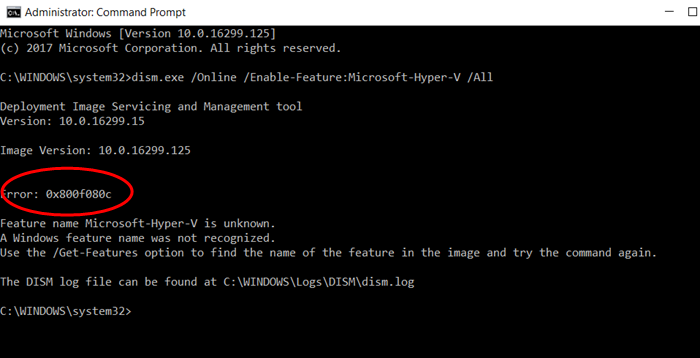
Feature name Microsoft-Hyper-V is unknown.
A Windows feature name was not recognized.
Use the /Get-Features option to find the name of the feature in the image and try the command again.
Error: 0x800f080c
This occurs when you try to install Hyper-V from the Command Prompt or PowerShell. If Windows cannot find the feature you want to install, or the command has an issue, you will receive this error.
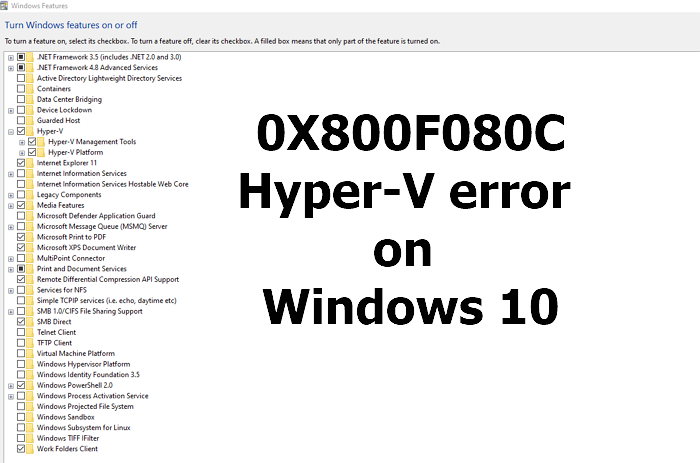
Fix 0x800f080c Hyper-V error on Windows 11
Use the following methods to resolve the error 0x800f080c, Feature name Microsoft-Hyper-V is unknown, which occurs when installing or changing anything with Hyper-V.
- Use the correct command
- VirtualBox issue
You will need an administrator account to execute the suggestions mentioned below.
1] Use the correct Command
Use the command mentioned below to enable Hyper-V on Windows 11/10:
Enable-WindowsOptionalFeature -Online -FeatureName Microsoft-Hyper-V-All
Read: Fix 0x80070057 Hyper-V Error
2] VirtualBox issue
If you face the problem in VirtualBox, you need to turn Core Isolation Memory Integrity back off again.
Open Windows Security > Device security > Core Isolation > Core isolation details > Toggle on Memory integrity.
If that doesn’t work out, you can enable a Registry setting.
Navigate to the location in the registry, and set the value of Enabled to 0.
HKEY_LOCAL_MACHINE\SYSTEM\CurrentControlSet\Control\DeviceGuard\Scenarios\HypervisorEnforcedCodeIntegrity\Enabled
I hope you were able to resolve the 0x800f080c Hyper-V error on Windows 11/10.
Similar: Fix 0x800F080C .NET Framework error.
