
Microsoft Office is a great software for Windows and I am guessing that quite a few of you may be using it on your system. This productivity suite contains many technologies built into it, and sometimes, due to them, an average computer has to suffer. Suppose you are facing issues such as Office components crashing or not running properly, freezing intermittently, or only working in Safe Mode. In that case, Hardware Graphics Acceleration may be the culprit.
I found that many users having issues with the working of Office on your system are often advised to disable hardware graphics acceleration. In almost all cases, disabling the hardware acceleration for graphics does the trick and solves issues for many. In this article, I’ll show you how to disable hardware acceleration of graphics using the UI and the Registry Editor.
Turn off or Disable Hardware Graphics Acceleration in Office
1] Using UI
1. Open any Office app for example Word, and create a blank document, click FILE.
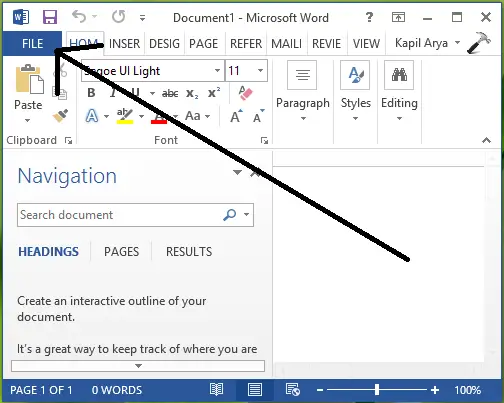
2. Next, click Options in the following screen:
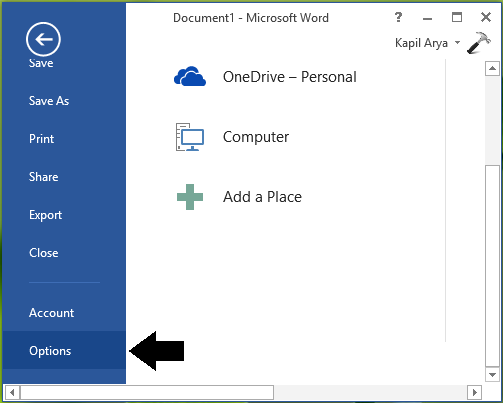
3. Moving on, in the below-shown window, select Advanced in the left pane. Then in the right pane, scroll down and look Disable hardware graphics acceleration under the section Display. Check this option and click OK.
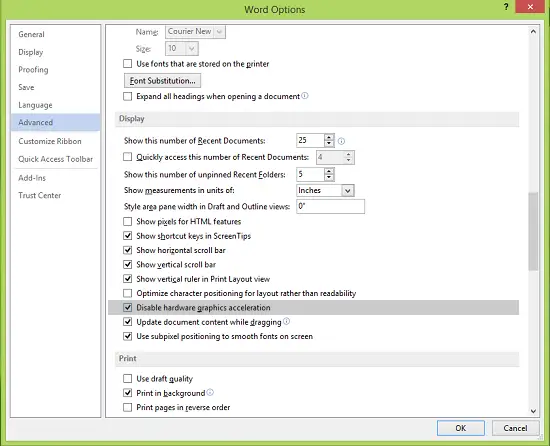
You may now close Office (Word) and reboot the machine. After restarting the system, you’ll find the issues you were facing in Office is resolved now.
2] Using Registry Editor
1. Press Windows Key + R combination, type put regedit in Run dialog box and hit Enter to open the Registry Editor.
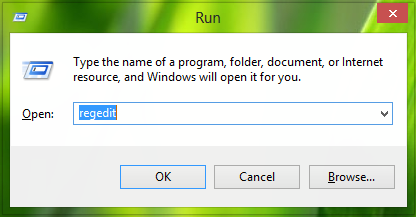
2. In the left pane, navigate here:
HKEY_CURRENT_USER\Software\Microsoft\Office\15.0\Common
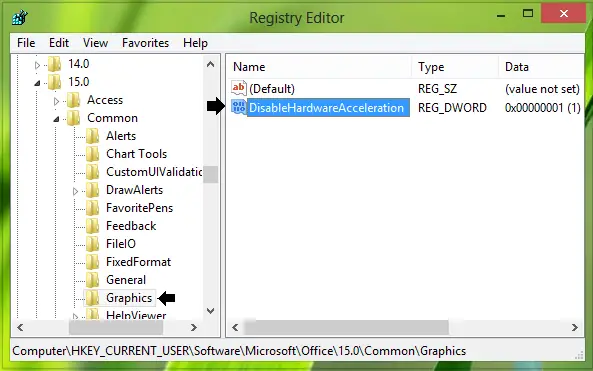
3. Firstly create a subkey to Common by right-clicking over it and selecting New > Key. Name this subkey as Graphics. In the right pane of Graphics subkey, create a new DWORD by right-clicking on blank space and selecting New > DWORD Value. Name the newly created DWORD as DisableHardwareAcceleration and double click on it to get this:
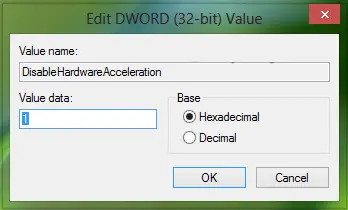
4. In the above-shown box, change the Value data from 0 to 1. Click OK. Close the Registry Editor and reboot the machine to make the changes effective.
Please let me know if doing this helped you make Office run properly.
How to disable hardware acceleration in Microsoft Teams?
To disable hardware acceleration in Microsoft Teams, click on your profile photo, select ‘Settings,’ and then go to the ‘General’ tab. Here, you’ll find the option to disable GPU hardware acceleration. Ensure the box is checked and restart Teams for the changes to take effect.
Check out this post: Disable Hardware Acceleration in Windows completely.
