
If for some reason, you wish to restrict the use of the Internet on your computer, you can restrict the use of Internet Explorer, by password protecting its use. That, of course, makes sense if you have no other browsers installed.
Password protect Internet Explorer
In Internet Explorer 9 and earlier, you have to start Internet Explorer > Tools > Internet Options > Content tab > Content Advisor > Click Enable.
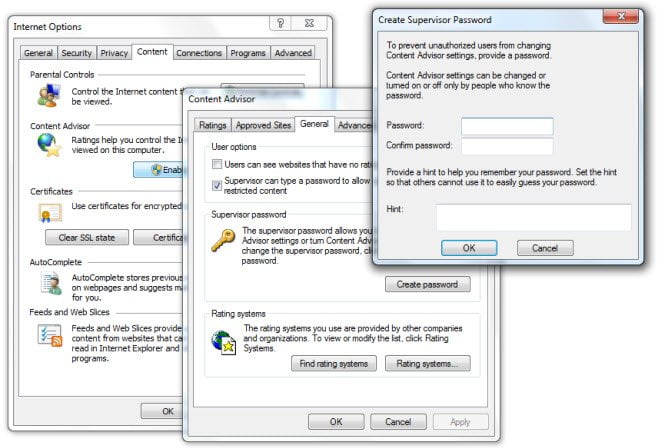
In the Content Advisor dialog box which opens up, click on General tab > Ensure Supervisor can type password is checked > Click Create password.
In the Create Supervisor Password box which opens, fill in the details.
Click OK / Apply all the way! Restart IE.
Now the next time anyone tries to open a website with Internet Explorer, the user will be presented with a dialog box asking him/her to enter the password and be presented with 3 options:
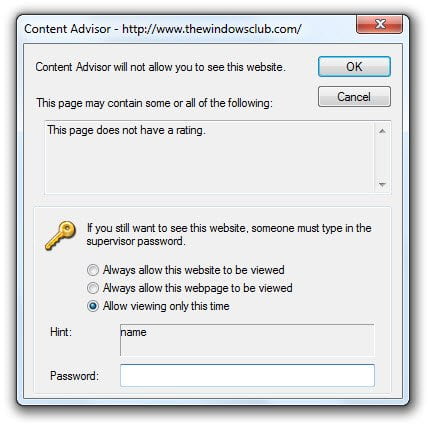
– Always allow the site to be viewed without the password.
– Always allow that specific web page to be viewed without the password.
– Allow the site to open one time only.
This way you can also decide on which sites you would like to allow unrestricted access and which sites you’d like to disallow.
Internet Explorer 10 onwards, things have changed.
Now you will not see Content Advisor section. So to bring up Content Advisor, open the Run box, type the following and hit Enter:
RunDll32.exe msrating.dll,RatingSetupUI
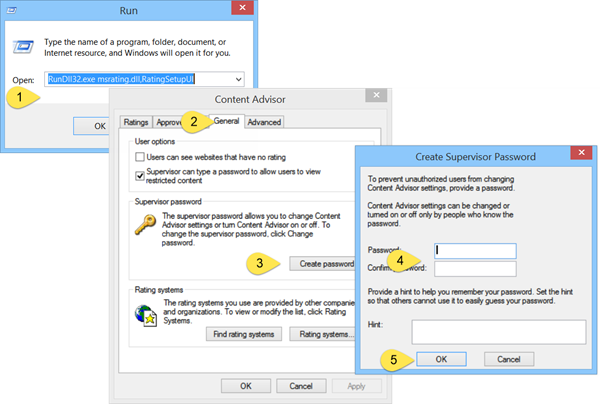
Now you can click on the General tab and follow the same procedure.
In this way, you can password protect Internet Explorer 11 on Windows 10 and Windows 8.1 too.
Also read: Enable Content Advisor in Internet Explorer.
You might also want to check out how to password protect and restrict access to any application using AppAdmin.

