
The Hosts file in Windows 11/10, is used to map host names to IP addresses. If, for some reason, you find that your Hosts file has been compromised and that some malicious entries have been added, you can, if you wish, reset the Hosts file back to default.
Reset Hosts file in Windows 11/10
The Hosts file in Windows 11/10 is located at the following location:
C:\Windows\System32\drivers\etc
To reset the Hosts file, open File Explorer, type the following in the address bar and hit Enter:
%systemroot% \system32\drivers\etc
Rename the Hosts file to hosts.bak. You may be required to take ownership of the file first.
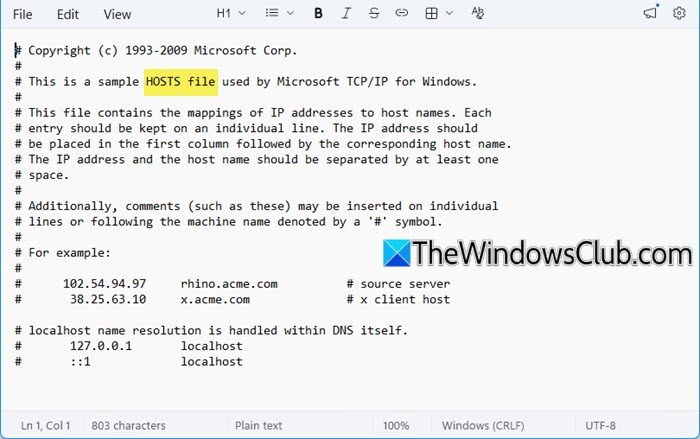
Next, create a new default Hosts file. To do so, open a new Text file named hosts in the %WinDir%\system32\drivers\etc folder.
Copy-paste the following text into the notepad file:
# Copyright (c) 1993-2009 Microsoft Corp.
#
# This is a sample HOSTS file used by Microsoft TCP/IP for Windows.
#
# This file contains the mappings of IP addresses to host names. Each
# entry should be kept on an individual line. The IP address should
# be placed in the first column followed by the corresponding host name.
# The IP address and the host name should be separated by at least one
# space.
#
# Additionally, comments (such as these) may be inserted on individual
# lines or following the machine name denoted by a '#' symbol.
#
# For example:
#
#      102.54.94.97     rhino.acme.com          # source server
#       38.25.63.10     x.acme.com              # x client host
# localhost name resolution is handle within DNS itself.
#       127.0.0.1       localhost
#       ::1             localhost
Save the text file.
Download default Windows Hosts file
Alternatively, if you wish you can download the default Hosts file of Windows 11/10 by clicking here. Extract the contents and place the Hosts file in your C:\Windows\System32\drivers\etc folder. You may be asked for permission to replace it.
HostsMan is a good freeware utility that lets you add, remove the entries and generally lets you manage the Hosts File in Windows easily. Go here to see how you can Lock, Manage, Edit Hosts File in Windows.
Does Windows still use the Hosts file?
Yes, Windows still uses the Hosts file. Although DNS has largely automated hostname resolution, the Hosts file remains in the latest operating systems. It allows users to manually map domain names to specific IP addresses, providing a useful tool for custom network configurations or blocking unwanted domains.
What is the purpose of a Host file on a PC?
A Hosts file on a PC maps easy-to-remember hostnames to numerical IP addresses, enabling the operating system to efficiently identify and locate hosts on an IP network. This helps with network management and can override DNS settings.
