Disable System Beep in Windows 7 | 8

Speed Up My PC

When computers did not come with speakers, System Beeps were a useful way to warn us when there were any system errors or hardware errors, and were rather helpful in troubleshooting issues. But today, there is no real need for these beeps – but they continue to be included in every Windows release. While they may be of use to some, many find it irritating and may want to disable them.

This post will tell you how to disable system beeps in Windows 8 and Windows 7, via Control Panel, Regedit, Device Manager and CMD.

Disable System Beep in Windows 8 | 7

Disable System Beep via Control Panel

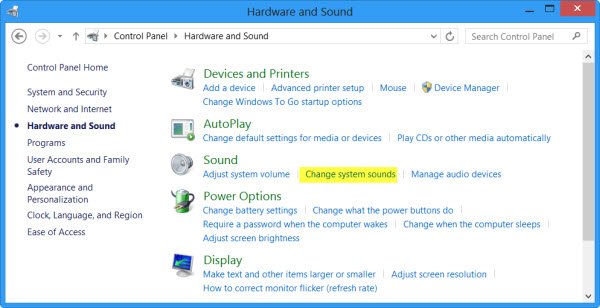
In Windows 8, right-click in the bottom left corner to open the WinX menu. Select Control Panel to open it. Click on Hardware and Sound.

hardware panel Disable System Beep in Windows 7 | 8

Under Sound, click on Change system sounds. Now under Sounds tab, browse to and select Default Beep. Now towards the bottom of the Sound properties windows, you will see a drop-down menu for Sounds. Select None and click on Apply/OK. This will disable the default system beep.
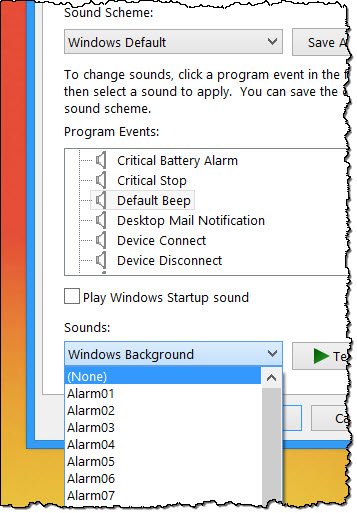
system none Disable System Beep in Windows 7 | 8

You can follow the same procedure in Windows 7 too.

Disable System Beep via Registry Editor

Open Registry Editor and navigate to the following key:

HKEY_CURRENT_USER\Control Panel\Sound
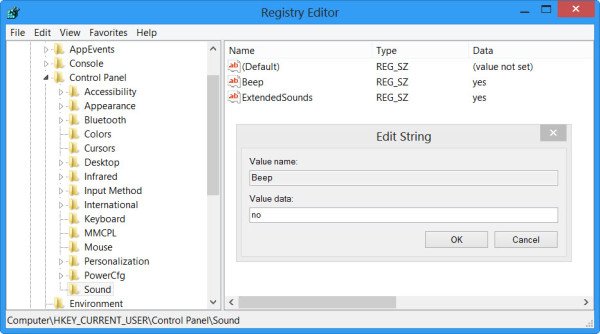
disable beep regedit 600x334 Disable System Beep in Windows 7 | 8

In the right pane you will see Value Name Beep. Double-click on it change its Value Data to no.

Disable System Beep using Command Prompt

You can also disable system beep using an elevated command prompt. To do so, open CMD and type each of the following lines and hit Enter after every command:

net stop beep

sc config beep start= disabled

This will disable the beep. If you wish to only disable it temporarily till the next reboot, type the second line only.

Disable Beep in Windows 7 via Device Manager

In Windows 7, you can also use the Device Manager to disable the beep. To do so, click on Start > Computer. Right-click on computer and select the ‘Manage’ option.
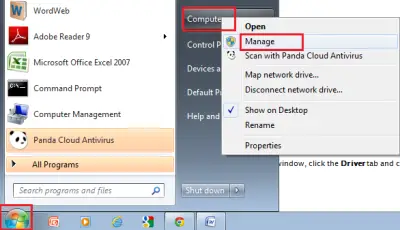
Computer Management Manage 400x230 Disable System Beep in Windows 7 | 8

Then, in the left pane of the Computer Management window, click on System Tools to expand it and choose ‘Device Manager’.
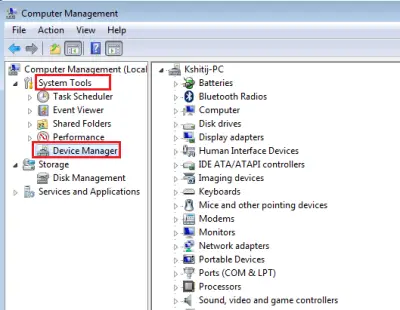
Computer Management System Tools 400x310 Disable System Beep in Windows 7 | 8

Also, from the menu bar choose ‘View’ option and select the ‘Show Hidden Devices’ option.
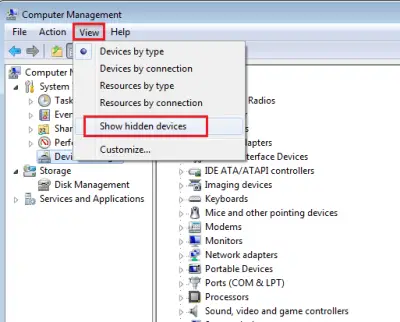
Computer Management Show Hidden Devices 400x322 Disable System Beep in Windows 7 | 8

Next, in the right pane locate the Non-plug and Play Drivers group. Please note that the group will be visible only after you enable the ‘Show hidden devices’ option.
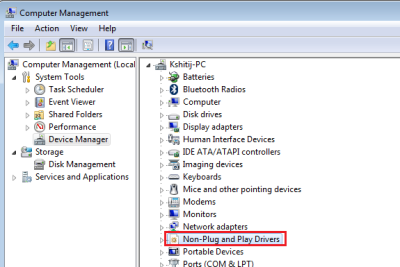
Computer Management Nonplug and drivers 400x267 Disable System Beep in Windows 7 | 8

Once you find it, click on the group and search for the item – Beep. Then, click the item to open the ‘Beep Properties’ window. Under it, select the ‘Drivers’ tab and choose the ‘Disabled’ option from the System type drop-down menu.
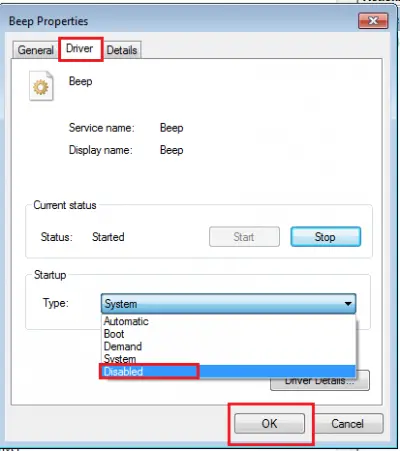
Computer Management Driver disabled e1350120166235 Disable System Beep in Windows 7 | 8

The system beep in your Windows PC will now be disabled.

Posted by on , in Category Windows with Tags
Anand aka HappyAndyK is an end-user Windows enthusiast, a Microsoft MVP in Windows Desktop Experience since 2007, and the Admin of TheWindowsClub.com, TheGeeksClub.com & WinVistaClub.com. Creating a System Restore Point before trying out a new software or a tweak is always recommended.
  • Awicenna

    really thank u ,appreciated

  • Addy

    i tried but didn’t work for me, i m using windows 8 enterprise…
    I m gettting this after updating my BIOS..

  • Steve

    MB: ASUS P8z77-V Deluxe

    OS: W8

    CPU: I7

    After tediously going through all of the sounds produced by W8/ASUS found it to be:

    Device Connect Sound

    Windows Hardware Insert

    That annoying beep discovered at: Systems Tools, Event Viewer, Applications and Services Log, Microsoft, Windows, Audio, Playback Manager, It showed an ‘audio 20′ every time I heard the beep. Hmm audio huh?

    At ASUS website, found there was a driver update for AUDIO on the mother board. Installed the update. Sound disappeared. The other option was to see if front panel Audio connections were installed correctly.

    While you are stirring the details, look at:

    Systems Tools, Event Viewer, Applications and Services Log, Microsoft, Windows,

    ApplicationResourceManagementSystem

    Operation

    And see if you are getting many errors reported there. Now the real fun begins.

  • jamie

    Excellent. It eliminated the annoying connect disconnect beeping sound. Thanks!

  • Joe Guy

    This helped!

  • NoEinstein

    I’m new to Windows 8, just got an Asus Vivotab Smart tablet.

    I’ve been trying to stop all system sounds – done change sound scheme to none and set system sounds volume to 0 in audio mixer but still can’t get rid of a clicking noise when I switch from desktop to start screen. Really annoys me, I’ve even poked around in the registry but couldn’t see any likely candidate there. Anyone have any ideas?

    (Also, the floating keyboard clicks and haven’t seen a way of silencing that, but haven’t really worked on it yet.)