
This tutorial will show you how to design and create a Business Card in Microsoft Publisher. Microsoft Office suite includes a program Microsoft Publisher which can be used to create professional, high-quality publications and marketing materials, such as newsletters & brochures. Creating Business cards using Publisher is easier and more convenient than in another Office suite program.
Create a Business Card using Microsoft Publisher
Launch the Microsoft Publisher application from the Start Menu.
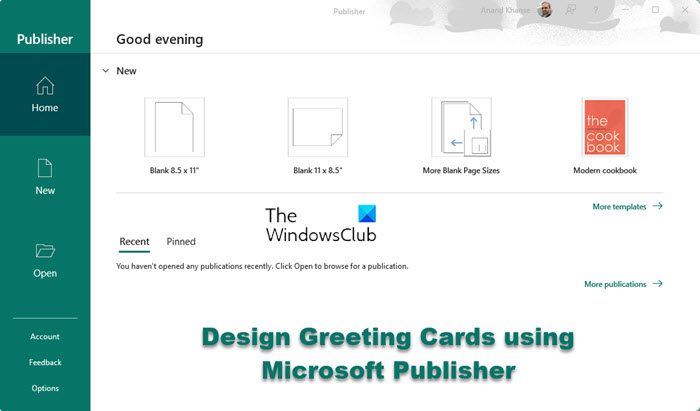
Click on More templates to download some Business Card templates.
Search for ‘Business Card’ and Microsoft Publisher will show you a list of available templates for Business cards. Choose any one of the templates from the list & then click “Create” or double-click the template.
The selected template would be opened in an editable environment. Details like name, title, address, phone, logo, etc. can be edited here.
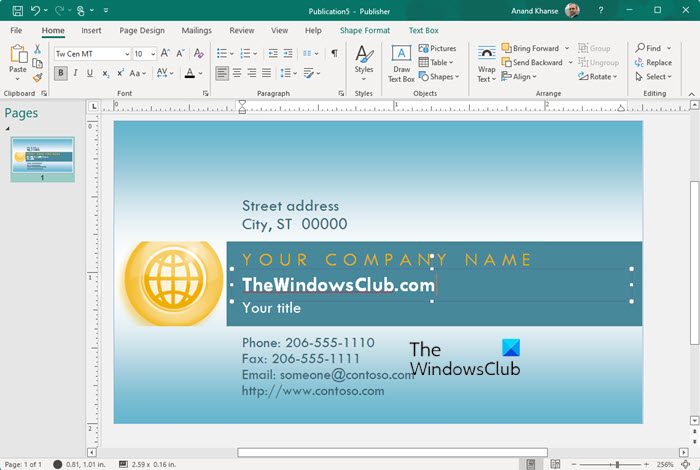
Also, there are many tools in the ribbon that can be used to customize the business card document.
Details like Margins, Orientation, and alignment can be set. Also, the color template and fonts can be customized. Objects like the picture, image holder, and table borders can be inserted into the document. Header, footer, page no., etc can be set too.
To edit the business information, Navigate to “File” > “Info” > “Edit Business Information“.
Clicking on the Edit Business Information will pop up a dialog box & so that you can customize these settings. After making the changes click “Save” to retain the changes.
Settings for color models, embedded fonts, etc can be customized from the “Info” > “Commercial Print Settings“.
After completing the formatting, and editing of the business card, to print navigate to “File” > “Print“. In Printing, you can set options like the number of pages to print, document quality, etc before printing.
After making the changes in printing, click “Print” to print the business card. The number of Business cards to be printed on each page can be set. The maximum number of business cards to be printed on paper is ten.
Note: Keep saving the document while performing these steps to avoid the loss of work due to sudden failure/crash
How to design greeting cards in Microsoft Publisher may also interest you.
How do I make business cards in Publisher?
To make business cards in Microsoft Publisher, you can go through the above steps. Although things have changed a lot, you can find the exact same options in the exact same location. Whether you want to create a new business card or edit an old one, you can do that with the help of Microsoft Publisher.
Also read: How to design Business Cards using Word
Can Publisher make cards?
Yes, Microsoft Publisher can make cards. No matter whether you want to make a business card, greeting card, or anything else, you can do that with the help of the Publisher. For your information, the latest version of Publisher comes with more options than any other old version.


Awesome!I have done this.I was looking to create business cards at my own and I got your post.I have done as stated above and I get my business card done which I uploaded to my site.
This is very useful.
too too many many ads on this website! :/