
If Word Mail Merge is not working or formatting as expected on your Windows 11/10 PC, read this post to learn how to fix the issue. Mail Merge is one of the most practical features offered by Microsoft Word for creating and sending customized bulk documents. However, many users report that after performing a Mail Merge, the data does not appear in the correct format. In some cases, currency symbols disappear, while in others, numbers lose decimal places or leading zeros. Sometimes, Mail Merge does not pull data correctly at all.
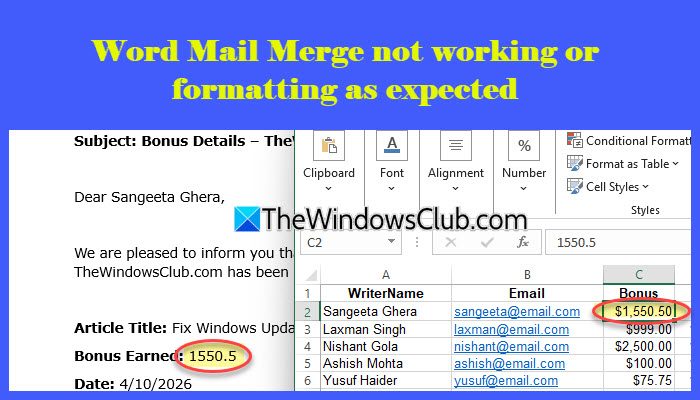
If you are facing the same issue, continue reading. In this post, we will look at why Mail Merge issues occur in Word and how to fix them.
Why is Mail Merge not working in Word?
Mail Merge issues usually occur because Word reads the raw data differently and does not preserve the original formatting from the source file, especially when using Excel. This is one of the most common causes of formatting issues in Mail Merge. Additionally, if the source file is open, corrupted, or improperly linked, Mail Merge may fail to retrieve data correctly or skip records.
Word mail merge not working or formatting as expected
If your Word Mail Merge is not working properly or the formatting looks incorrect after merging, use these fixes:
- Use formatting switches in merge fields
- Change the data connection method
- Prepare and clean the data source
- Update all fields before finishing the merge
Let us see these fixes in detail.
1] Use formatting switches in merge fields
By default, Word uses the OLE DB connection to link data sources (such as Excel), which does not preserve the original formatting. As a result, dates, currency symbols, and number formats may appear incorrectly in the merged document. Formatting switches are special codes that let you manually control how the merged data appears in the final document.
Open your Mail Merge document. Press Alt + F9 to display field codes.
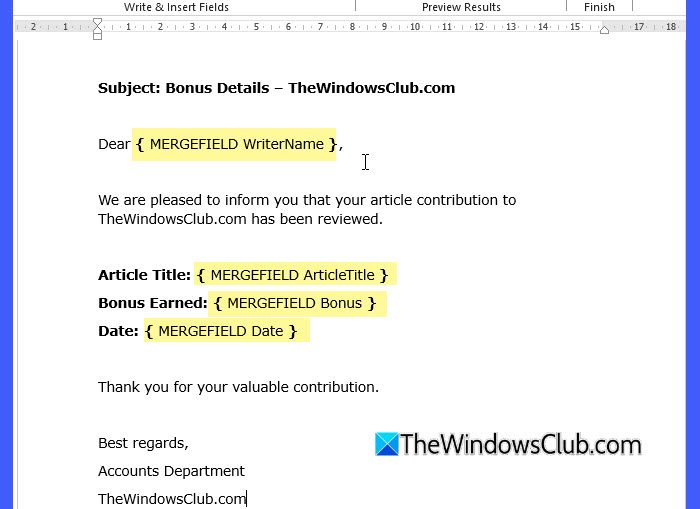
Add the appropriate formatting switch to the merge field.
For example, to display the Amount with the currency symbol, thousand separators, and two decimal places, use:
{ MERGEFIELD Amount \# "$#,##0.00" }

Press Alt + F9 again to hide field codes. Then press F9 or right-click the field and select Update Field to apply the changes.
Here are a few common Mail Merge formatting switches you should know:
| Category | Switch | What it does |
|---|---|---|
| Number | \# “#,##0” | Adds thousand separators (e.g., 1,000) |
| Number | \# “#,##0.00” | Adds thousand separators and two decimal places (e.g., 1,000.00) |
| Number | \# “0.00” | Forces two decimal places (e.g., 100 → 100.00) |
| Currency | \# “$#,##0.00” | Adds dollar symbol with thousand separator and decimals |
| Currency | \# “$#,##0” | Adds currency symbol with thousand separator. Rounds values automatically |
| Currency | \# “$#,##0.00;($#,##0.00);’-‘” | Shows negatives in brackets and a dash for zero values |
| Date | \@ “dd-MMM-yyyy” | Displays date like 14-Apr-2026 |
| Date | \@ “dd/MM/yyyy” | Displays date like 14/04/2026 |
| Date | \@ “MMMM d, yyyy” | Displays full date like April 14, 2026 |
| Time | \@ “HH:mm” | Displays time in 24-hour format (e.g., 22:45) |
| Percentage | \# “0%” | Converts number to percentage (e.g., 10 → 10%) |
| Percentage | \# “0.00%” | Converts to a percentage with two decimal places |
| Text | \* Upper | Converts text to uppercase |
| Text | \* FirstCap | Capitalizes the first letter |
2] Change the data connection method
If the formatting issues persist, use DDE instead of the default OLE DB connection.
DDE (Dynamic Data Exchange) is a connection method that allows Word to read data from Excel exactly as it appears in the worksheet. This helps Word retain the original Excel formatting.
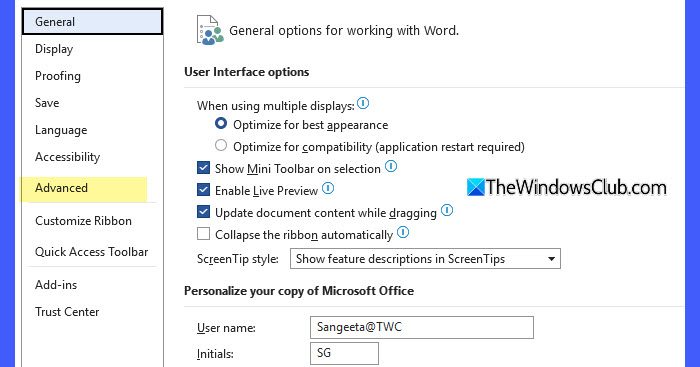
Open Microsoft Word. Go to File > More… > Options. Switch to the Advanced tab in the Word Options window.
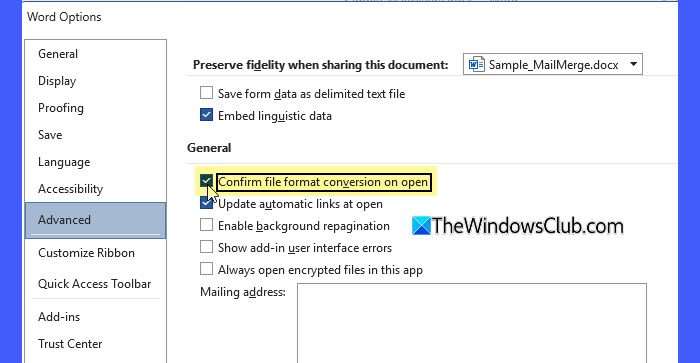
Scroll to the General section. Enable Confirm file format conversion on open. Click OK.
Now reconnect your data source.
Go to Mailings > Select Recipients > Use an Existing List.
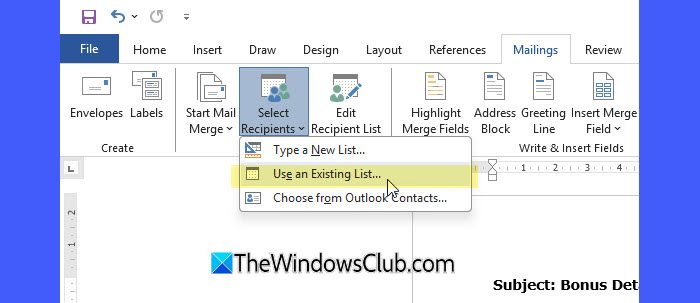
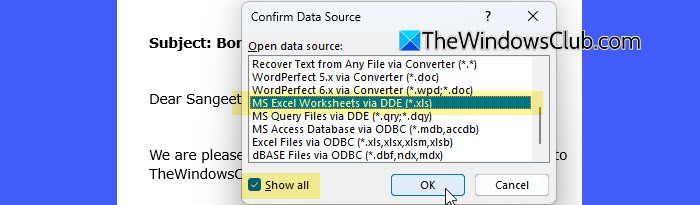
Browse and select your Excel file, then click Open. When prompted, select MS Excel Worksheets via DDE (*.xls).
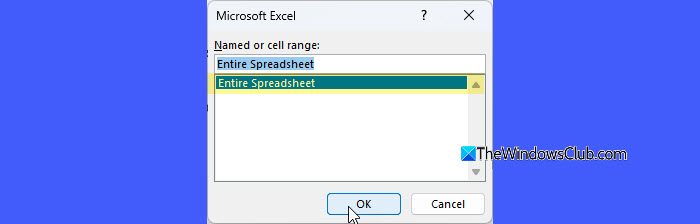
Select the worksheet and click OK.
3] Prepare and clean the data source
Mail Merge issues often originate from the Excel data source rather than Word itself. If the data is not properly formatted or contains inconsistencies, Word may interpret it incorrectly, leading to formatting errors in the final document.
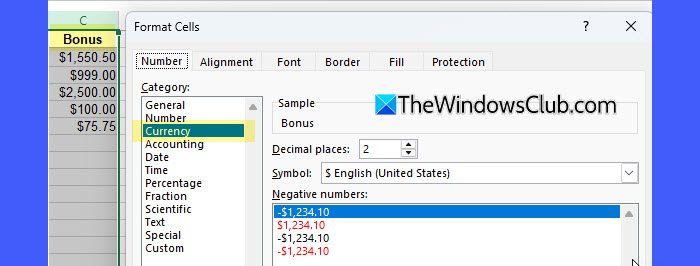
Open your Excel file and ensure the following:
- The first row contains proper column headers
- Each column has a consistent data type
- Avoid mixing data types in the same column
- Remove extra spaces and hidden characters (use the TRIM function if needed).
- Preserve special formats where required (for example, set ZIP codes or IDs as Text to keep leading zeros)
- Save and close the Excel file before running Mail Merge
4] Update all fields before finishing the merge
If you make changes to the document or the data source, Mail Merge fields may not refresh automatically. As a result, the merged output may display outdated or incorrectly formatted data.
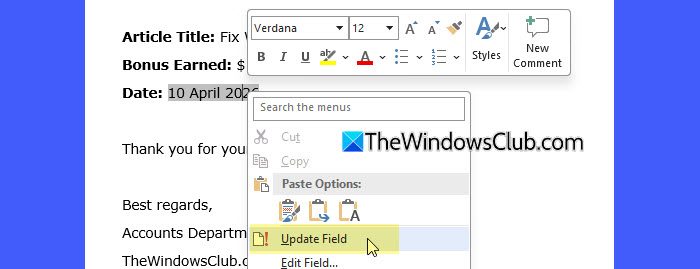
Press Ctrl + A to select the entire Mail Merge document. Then press F9 to update all fields. If only one field has been changed, right-click it and select Update Field.
In some cases, pressing F9 only updates the existing fields but does not reload updated data from the Excel source. To ensure the latest data is reflected, close both the Word document and the Excel file, then reopen Word and reconnect the data source.
Mail Merge error when multiple users use the data source
If your Mail Merge data source (especially an Excel file) is stored in a shared location and is being accessed by multiple users at the same time, you may encounter the following error:
External table is not in the expected format

This happens because Word tries to open the Excel file exclusively. If another user is already using the file, Word may only get read-only access, causing the Mail Merge to fail.
To fix this, ensure the Excel data source is closed by other users before running Mail Merge. Alternatively, save the file as:
- .CSV (Comma Delimited), or
- .XLS (Excel 97–2003 format)
These formats are less likely to cause access conflicts.
That’s all! I hope you find this useful.
Word Mail Merge date format dd/mm/yyyy not working
If Word Mail Merge date format dd/mm/yyyy is not working on your Windows 11/10 PC, Word may be applying its own default date format instead of using the one from Excel. To fix this, right-click the date field, select Toggle Field Codes, and update it to { MERGEFIELD Date \@ "dd/MM/yyyy" }. Then press F9 to apply the changes. If the issue persists, ensure the Excel column contains valid date values and not text.
Read: How to send bulk email messages in Outlook with Mail Merge.
How do I enable Mail Merge in Word?
To enable Mail Merge in Word, open your document and go to the Mailings tab on the ribbon. Click Start Mail Merge and choose the document type (Letters, Emails, etc.). Then select Select Recipients to connect your data source. After that, insert merge fields and complete the merge.
Read Next: Word Mail Merge printing blank pages.
