
The theoretical limit of rows and columns in the Microsoft Office application Excel is well defined. If you exceed this mark, you are prompted with a ‘File not loaded completely’ pop-up message. It bears the following description:
- The file contains more than 1,048,576 rows or 16,384 columns. To fix this problem, open the source file in a text editor like Microsoft Word. Save the source file as several smaller files that meet this row and column limit, then open the smaller files in Microsoft Excel. If the source data cannot be opened in a text editor, try importing it into Microsoft Access, then exporting subsets to Excel.
- The area that you are trying to paste the tab-delineated data into is too small. To fix this problem, select an area in the worksheet large enough to accommodate every delimited item.
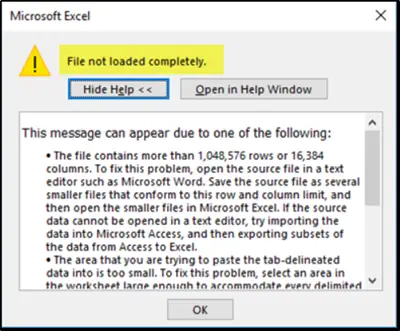
So, what’s the maximum number of rows and columns supported in an Excel worksheet? Let’s find out!
Maximum number of rows & columns in Excel
Excel supports three Worksheets in a Workbook file, and each Worksheet can support up to 1,048,576 rows and 16,384 columns of data. Workbooks, however, can have more than 3 Worksheets if the computer supports enough memory for the additional data.
A handful of Office users seem to believe that 64-bit Excel can support more rows or columns than the 32-bit version. Is it true? While it might seem possible theoretically or remotely, it’s certainly not true, as the number of rows/columns is limited by the version of the product and not by the number of ‘BITS’ it supports.
Moreover, having larger worksheet sizes exclusively for 64-bit Excel would introduce unknown compatibility issues. Microsoft strongly desires to keep its Worksheet accessible across all Excel versions and editions, regardless of whether it is 32-bit or 64-bit. Only when data is inserted into a Worksheet, other factors like how much memory the computer has, play a role in defining the rows, columns and cell limits.
Having said that, there’s one way via which you can find the number of rows and columns in an Excel Worksheet and answer the question yourself. Here’s how!
- For determining the maximum number of rows, place the cursor in an empty column and press Ctrl + Down Arrow. The action will take you to the last row.
- Similarly, to find the maximum number of columns, place the cursor in an empty row and press Ctrl + Right Arrow. This will take you to the last column.
For additional information, you can visit this Office Support Page.
Excel has a maximum on the number of rows columns that can be held in a worksheet
In Microsoft Excel, each worksheet has a fixed maximum size. Excel 2007 onward supports 1,048,576 rows and 16,384 columns (columns labeled A through XFD). Earlier versions like Excel 2003 were much smaller, limited to 65,536 rows and 256 columns. This limit is hard-coded, so you can’t expand beyond it. If you need to handle larger datasets, you’d typically use tools like Power Query, Power Pivot, or a database system instead of a single Excel sheet.
