
Microsoft offers numerous useful tools for end users that can be used to tweak, play, troubleshoot, diagnose, secure, or perform other tasks with the Windows operating system. Sysinternals System Monitor (Sysmon), is one such newly released tool designed for Windows-based computers which collects all system log files. These log files are crucial for understanding Windows issues. Sysmon, once installed, runs in the background as a dormant process and can be brought back to life when required.
How to use Sysinternals Sysmon in Windows to monitor System Health
The basic workflow behind System Monitor is that it stores information from Windows Event Collection (Event Viewer) and Security Information and Event Management (SIEM) agents like process IDs, GUIDs, SHA1, MD5 (SHA256) hash logs. It stores all these files under Applications and Services\logs\Microsoft\Windows\Sysmon\operational folder in Windows.
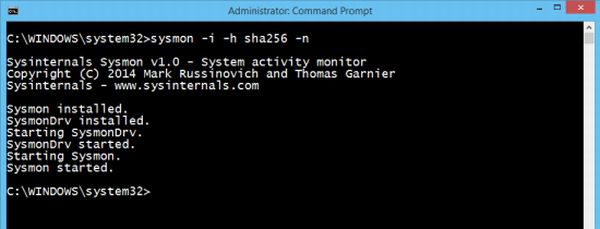
How to install System Monitor
- Download Sysmon.
- The downloaded file will be in zip format. Unzip the file using Windows default file extractor or try WinRAR, 7-Zip, etc.
- Once the file is unzipped, run “Sysmon” accept the EULA and hit Next.
- Wait for System, Monitor to complete installation, that’s all!
UPDATE: You can now enable built-in Sysmon in Windows 11
How to use Sysmon
The command line in sysmon can be used to install, uninstall, check and to tweak System Monitor’s configuration:
Install: Sysmon.exe -i [-h [sha1|md5|sha256]] [-n]
Configure: Sysmon.exe -c [[-h [sha1|md5|sha256]] [-n]|--]
Uninstall: Sysmon.exe –u
Few Sysmon commands that users need to understand are:
–i: install service and driver programs
-n: stores network connection logs
-u: uninstall service and driver programs
-c: it updates the installed sysmon driver on the computer or helps to dump current configuration settings available
-h: It specifies the algorithm applied to the program [by default SHA1 is applied]
Examples:
- To install the application with default settings: “sysmon -i accepteula” without quotes [SHA1 default]
- To install the application with MD5 [SHA256] settings: “sysmon -i accepteula –h md5 -n”
- To uninstall “sysmon -u”
System Monitor stores events like Event IDs as,
- Event ID 1: Used for Process Creation,
- Event ID 2: A Process changed a file creation time with timestamp and
- Event ID 3: For Network Connection.
The tool will keep running in the background and will write all event logs into a folder. After installing or uninstalling, a system reboot is not required.
It is a must-have tool for all Windows computers.
UPDATE: Windows Sysinternals Sysmon now also records process activity to the Windows event log for use by incident detection and forensic analysis, includes driver load and image load events with signature information, configurable hashing algorithm reporting, flexible filters for including and excluding events, and support for supplying configuration via a configuration file instead of the command line. It also gets malware process tampering detection.
