
This post shows how to take a screenshot in Windows PE using ScreenMe or Sysinternals ZoomIt. ScreenMe is built using PowerShell & allows you to capture full screen and save the image file on your computer.
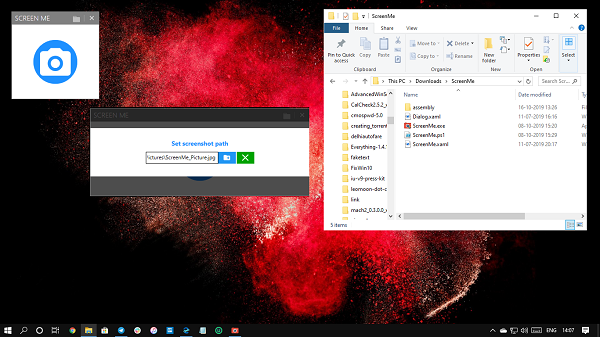
Windows PE is a small version of Windows, which is primarily used to install, deploy, and repair Windows 11/10 for desktop editions. It means it doesn’t have all the features, including the ability to capture or take a screenshot. The only way till now was using a virtual machine or using SysInternals ZoomIt – but now, with ScreenMe, you can take a screenshot in Windows PE easily and also integrate it within PE.
Take a screenshot in Windows PE using ScreenMe
The tool lets you take a full-screen screenshot in Windows PE and Windows 11/10. While Windows has the Snipping Tool, Windows PE has none.
- Download the tool from Github and unzip it.
- Next, run the ScreenMe.exe program. After the UAC prompt, a small window with a Camera icon will open.
- Click the camera icon to take a screenshot instantly and save it to a predefined folder.
You can change the folder path by manually entering it in the text box or by clicking on the folder icon to delete the existing screenshot. The default folder is set to:
C:\ProgramData\ScreenMe_Pictures\
How to integrate ScreenMe with deployment?
There are two ways to do it. The first is by copying the ScreeenMe folder into the Deployment folder, and the second is by adding it as an extra file in the Deployment share.
Copy ScreenMe Folder
- Copy the folder ScreenMe in a folder for instance Deploy folder
- Update your Deployment Share
Add to extra directories or files
- Right-click on your DeploymentShare, and select Properties
- Go to Windows PE and then select your architecture (x86, x64 or both)
- Navigate to Extra directory to add a part, and the browse to choose the screen folder
- Update the Deployment Share.
For more details on deployment, we suggest you visit the official page for full instructions.
How to take screenshot in Windows PE using Sysinternals ZoomIt?
You can take screenshots in Windows PE using Sysinternals ZoomIt.
- Download ZoomIt from Sysinternals. Since ZoomIt is standalone, no installation is required.
- Copy
ZoomIt.exeinto your WinPE boot image. You can add it toX:\Tools\or integrate it via MDT/SCCM. - Next, boot into WinPE.
- Run ZoomIt.exe from the command prompt.
- The first run opens a configuration dialog box where you can set the hotkeys.
- Once ZoomIt is running in the tray, use these keyboard shortcuts:
| Action | Hotkey |
|---|---|
| Copy the full screenshot to the clipboard | Ctrl+C |
| Crop screenshot to the clipboard | Ctrl+Shift+C |
| Save screenshot as PNG | Ctrl+S |
| Save the cropped screenshot as a PNG | Ctrl+Shift+S |
| Copy the region of the screen to the clipboard | Ctrl+6 |
| Save the region of the screen to a file | Ctrl+Shift+6 |
- Screenshots are saved in the same directory as ZoomIt unless you specify another path. However, if you want to save to a network share, first map the drive in WinPE:
net use Z: \\server\share /user:domain\username password - Having done this, configure ZoomIt to save screenshots to
Z:\.
Hope the post helps you.
