
Not everyone with an Apple iPhone or iPad owns a Macintosh computer. Such folks must use Windows 11/10 if they want to populate their devices with music from iTunes. And yes, an iTunes application for Windows is available for free download.
Now, the iTunes app on Windows 11/10 does have its share of problems despite being a mature tool. Fixing some of these problems can be a major headache if you have no idea what you’re doing. This is why we recommend using TunesPal to solve your problems.
Why use TunesPal to fix iTunes on Windows 11?
When it comes to fixing a problem with any app on Windows 11/10, it usually requires a lot of effort, although this depends on the nature of the problem. With the TunesPal tool, you only need to click a few buttons, and that’s it. Your issues with iTunes are resolved relatively quickly compared to the manual effort required to fix iTunes errors. It’s a perfect tool for those who are not well-versed in the technical aspects of iTunes and Windows errors.
What type of errors can TunesPal fix in iTunes?
According to the developers, this tool can fix over 200 iTunes related errors.
- Installation/Download Errors
- Update Errors
- Connection Errors
- Backup Errors
- Restore Errors
- Sync/CDB Errors
- And More…
Repair and clean iTunes with TunesPal for Windows PC
TunesPal will repair over 200 types of iTunes errors and related issues, and clean up iTunes to remove duplicate songs and unnecessary data. When it comes down to using TunesPal, the task is quite simple, so keep reading to learn more about all you need to know.
- Download and install TunesPal
- Open TunesPal after installation
- Choose the iTunes Repair button
- Clear logs, backups, and more with iTunes Cleaner
1] Download and install TunesPal
The first step is to download and install the TunesPal app on your computer. Visit the official page at iToolLab and download the app from there. It’s free. Therefore, you have little to worry about here.
2] Open TunesPal after installation
After you’ve installed the app on your computer, it’s time to open it. You can look to your desktop for the related icon or press the Windows key > All Apps, then search for TunesPal and open it.
3] Choose the iTunes Repair button
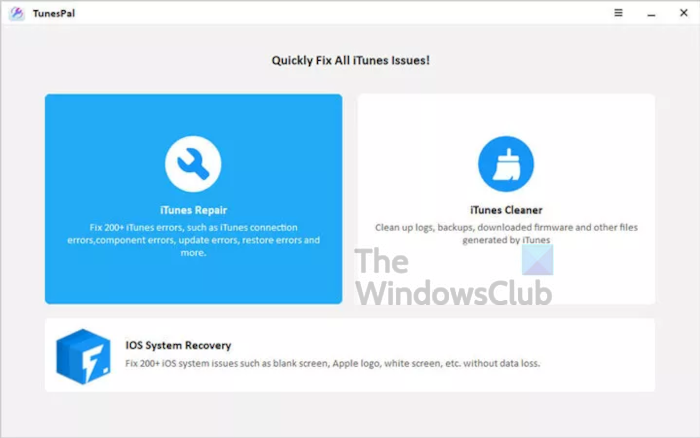
If you want to fix over 200 errors, you’ll need to select the iTunes Repair option. From there, click the Fix button at the bottom, and the tool will immediately attempt to locate and fix issues automatically. Be sure the iTunes app is closed before proceeding.
After completing the task, you can proceed to verify that everything is functioning as expected.
4] Clear logs, backups, and more with iTunes Cleaner
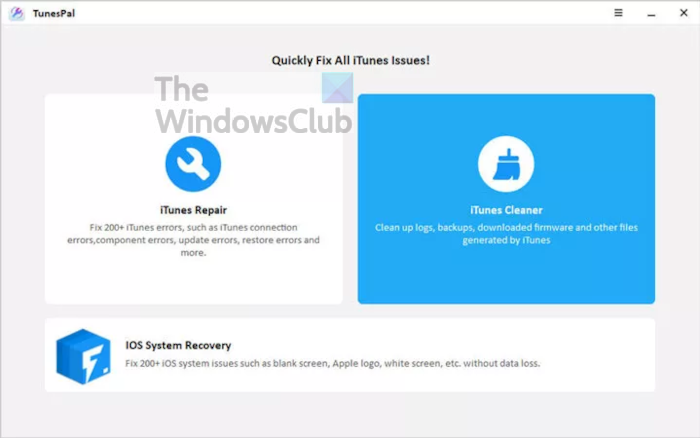
For those who want to clean their iTunes application of backups, logs, downloaded firmware, etc., then you will want to select iTunes Cleaner. Before doing so, please ensure iTunes is closed, then take the plunge.
Wait a short while for TunesPal to get the job done, and that’s it.
How to repair iTunes on Windows 11 without TunesPal
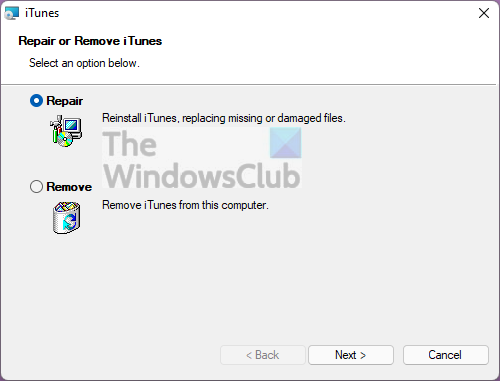
Open the Settings app, then navigate to Apps > Apps & Features. From there, scroll down until you’ve come across iTunes, then select the three-dotted button next to it. Once you’ve done that, click on Modify.
When a new window appears, select Repair > Next, and wait for the tool to perform repair actions.
Read: Apple iCloud.exe not opening, syncing, or working in Windows.
