
Not all of us can afford the high cost of Photoshop and other premium photo-editing tools. Sometimes we just need to do some basic editing. Therefore, a free tool should work just fine to get the job done. On the web today, there are several free photo-editing tools to take advantage of, many of which that are quite popular with the masses. However, today we’re going to look at a photo editor known as PhotoPad.
PhotoPad – Free Photo Editor for Windows 11/10
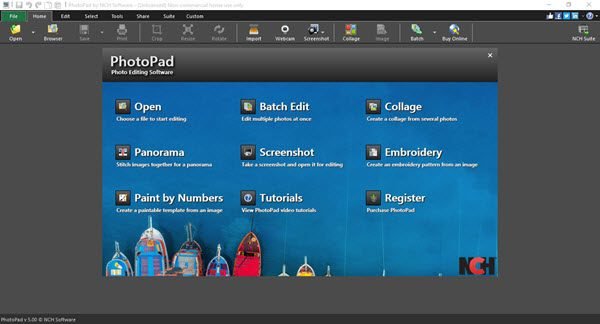
PhotoPad is a free, easy-to-use, comprehensive photo editor for Windows PCs that offers beginner-friendly and advanced tools for professionals. Let us now review some of its features.
1] Add Photo
Like every image editor on the market today, the first thing to do is to add the image you want to edit before moving along. With this tool, users must click on Open, search for the image they want, then add it into the program.
It’s that easy, or you can simply drag and drop a photo if you prefer.
2] Edit Photo
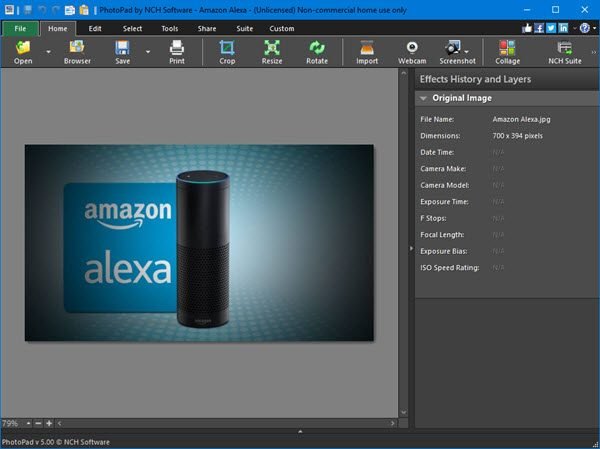
Once you’ve added an image, it’s then time to edit it. Here’s the thing, the tool comes with several options for editing images, and we believe amateur users will enjoy all that is on offer here.
Users can easily crop, resize, or rotate an image. All the buttons are at the top, and they are big enough to see. Therefore, users should have no problems whatsoever.
Now, if you click on the Edit button, you’ll come across more options. From here folks can flip an image, perform a liquid resize, change the color, erase, and more. These are all basic editing features, but that’s what you’re here for.
Selecting tools will reveal additional options when editing a photo. From here, people can add effects, do a regional fix, auto fix, add filters, throw a text in there, and much more.
You can also add text and image watermarks to your images using the editing tools in this software. Navigate to the Tools tab and then click on Text to add a text watermark or write something on the image. If you want to add an image watermark, click on Image in the Tools menu and then select an image from your computer.
3] Share Online
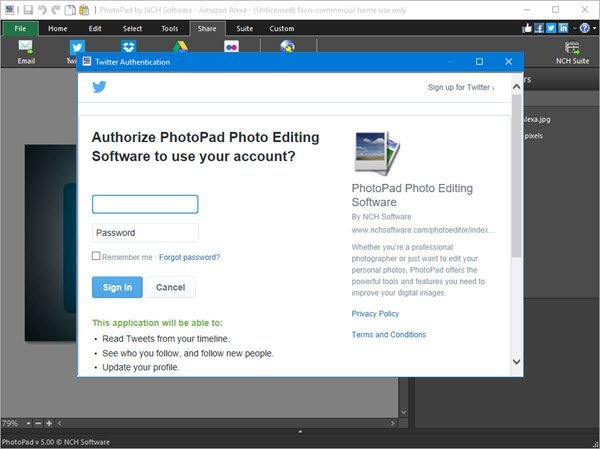
When you’re done editing your photo, you can share it on the web. Simply click on the Share button, then select the social network you wish to send your images to. Additionally, users can share via email.
Please note that the app will prompt the user to authorize their social network account.
4] Take Screenshots
Another cool feature of this tool is the ability to take a screenshot. It’s possible to take a shot of the entire desktop or customize how you want to the screenshot to be taken. It’s very simple, you know.
Just click on the Home tab, and from there, select Screenshot and you’re good tango.
5] Options
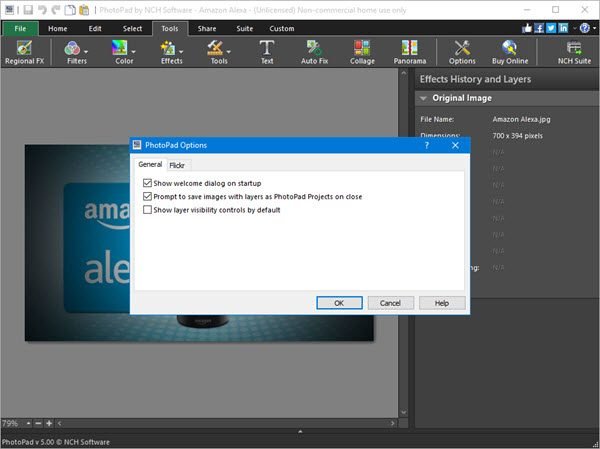
OK, there’s not much for us to discuss regarding the options, as it’s limited in what it offers.
Users can go here to turn off the welcome dialog that appears only at startup, or choose to show layer visibility. Furthermore, if you want to use Flickr, this is where you’ll come to authorize your account.
Some features are not available in its free version. You will get a popup message to upgrade to its paid version when you access the paid features. Ignore this message and close the window to keep using the free version of this software.
Download PhotoPad Photo Editor from the official website.
Does Windows have a free photo editor?
Photos is a free photo viewer and editor app for Windows computers. It is a built-in app that lets you perform basic photo editing. Open a photo in Photos and then click on the Edit image button or press the Ctrl + E keys. This will open the Photos in editing mode. Here, you can crop your photo, adjust its lighting and color, and apply available filters. The Markup tool is also available in Photos. If you want to perform advanced photo editing, you need to install third-party software.
Which software is free for photo editing online?
Like free photo-editing software, a variety of online tools are available to edit your photos for free. You can search online for these tools. Canva is a popular online photo-editing tool with many features. It has both free and paid plans. You can read its free plans to know its limitations.
