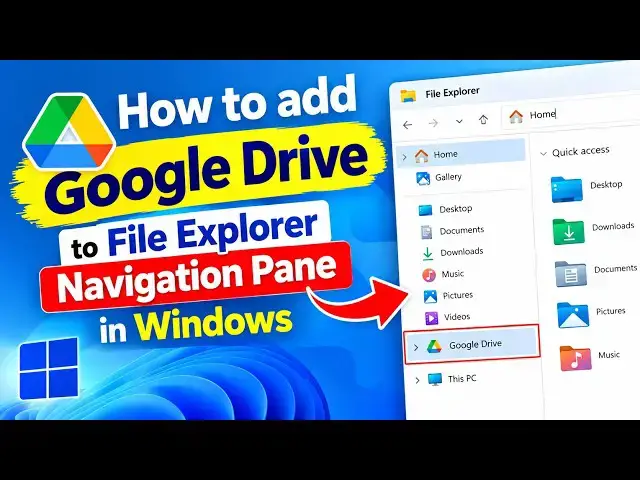

How to add Google Drive to File Explorer Navigation Pane in Windows 11
Sep 22, 2026

Do you use Google Drive regularly and wish you could access it directly from the File Explorer navigation pane? By default, Google Drive may not always appear there, especially with newer versions of the Google Drive desktop app.
But there’s a simple workaround. In this video, we’ll show you how to add Google Drive to the File Explorer navigation pane in Windows. Let’s get started.
Link: https://www.thewindowsclub.com/add-google-drive-from-file-explorer-navigation-pane
00:00 Intro
00:21 How to add Google Drive to File Explorer
01:36 Restart Windows Explorer.
01:55 How to remove Google Drive from File Explorer
Windows Registry Editor Version 5.00
[-HKEY_CURRENT_USER\Software\Classes\CLSID\{3935ea0f-5756-4db1-8078-d2baf2f7b7b2}]
[-HKEY_CURRENT_USER\SOFTWARE\Microsoft\Windows\CurrentVersion\Explorer\Desktop\NameSpace\{3935ea0f-5756-4db1-8078-d2baf2f7b7b2}]
[HKEY_CURRENT_USER\SOFTWARE\Microsoft\Windows\CurrentVersion\Explorer\HideDesktopIcons\NewStartPanel]
"{3935ea0f-5756-4db1-8078-d2baf2f7b7b2}"=-
key :
HKEY_CURRENT_USER\SOFTWARE\Microsoft\Windows\CurrentVersion\Explorer\HideDesktopIcons\NewStartPanel
HKEY_CURRENT_USER\SOFTWARE\Microsoft\Windows\CurrentVersion\Explorer\Desktop\NameSpace\
HKEY_CURRENT_USER\Software\Classes\CLSID\
run : regedit
Other Link: https://www.thewindowsclub.com/how-to-restart-windows-explorer-easily-with-a-shortcut
Show More Show Less