
Words can take on new meaning when paired with shapes. The shapes will draw the interest of people, who will then want to read the words. Photoshop lets you write words inside any shape. You can use this skill to make interesting artwork for business or personal use.
How to type inside a Shape using Photoshop
Let us see how to fill a shape with text. You can shape words into a shape, type text inside a shape using this Photoshop tutorial. Learning to type within any shape will open up new ideas of what you can do with this skill. This article will take you through the simple process of writing within any shape. Follow the steps below and learn a new interesting Photoshop skill. For special occasions, writing in a shape would come in handy, you could write in a heart shape for that special person.
How to make text into a shape in Photoshop
Draw the Shape
Photoshop offers many ways to create shapes. You can draw shapes using the Pen Tool, you can use the Ellipse Tool, the Rounded Rectangle, the Polygon Tool, or the Custom Shapes. You may also create your own custom shape by merging shapes. Make sure the shape is big enough for the words to be visible. If there are lots of curves, the shape will need to be big enough to make the text show properly.
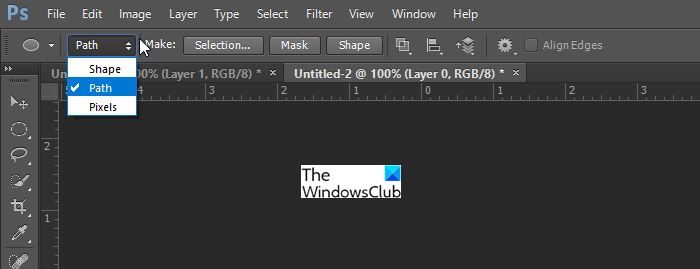
When you draw the shape you can choose to show the path (outline) or you can have the shape. To show the Path (outline), click the shape then go to the top of the window and choose Path. You will still be able to write in the shape even though it is just the Path (outline) that is there. If you choose Path and you want to move the path, you have to use the Path Selection Tool.
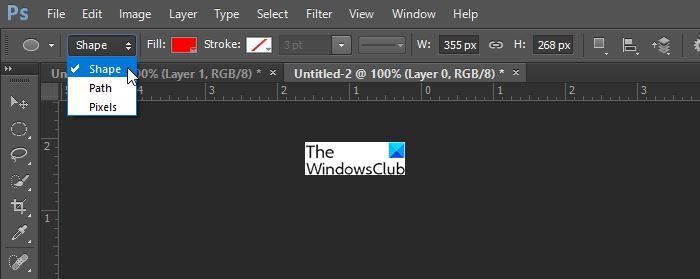
To get the shape to be drawn with fill if it is on Path, select the shape, go to the top of the window and choose Shape. You can still write in the shape even though only the Path (outline) is there.
Fill with Text

When you have decided on the shape you want to use just draw it on the canvas.
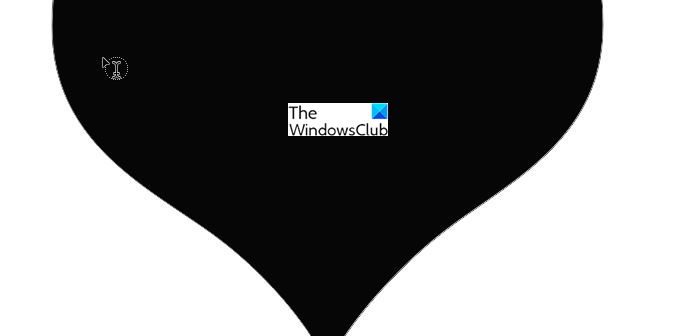
Whether you use Path or Shape the same procedures would work for writing the text. To write the text just select the Text Tool and hover inside the shape until the cursor changes to the cursor in a little circle.

Type the text that you want in the shape until it is full. You can adjust the shape size and the font size so your text fits. Be sure to choose a font type that fits your occasion and is easy to read.
Select all the text then go to the Paragraph panel and click Justify Last Centered, or choose the paragraph style that fits your shape. To find the Paragraph Panel go to Window then look for Paragraph and click it.
Finalize
 When you are finished you can hide the shape by clicking the eye icon in the layers panel to make it invisible. If you used the path option instead of the shape option, click another layer so the outline around the words disappears.

One great way to make this stand out is to use the shape option then you can work on the shape to make it stand out. Experiment with colors and styles, and let your creativity shine.
Read: How to curve text around an image in Photoshop
How can Typing in a shape be useful?
Typing in a shape keeps text from overflowing as you type. It is like a text box that controls the flow of text. Typing in a shape can be an interesting way to use space. Typing in a shape can make your artwork look interesting.
Read: How to warp and convert Text to Shape in Illustrator
How hard is it to type in a Shape?
Typing in a shape is very easy. Read this article, and you will realize that even a beginner can do it. The steps are easy to follow and remember; after the first time, you’ll do it from memory.
