
Sometimes we want to listen to music on YouTube, but we do not have much bandwidth to spare. What are the options here, then? Well, it is possible to stream audio instead of a combined audio-video stream. These things are bandwidth killers; therefore, we will explain how to get the job done.
There are multiple ways to stream YouTube videos as audio-only to save bandwidth. We are going to look into how to do this, and there are quite a few, but we won’t be looking at them all today.
What is YouTube?
YouTube is a video-sharing platform where anyone can upload and consume content for free. The video service can be accessed on PCs running Windows, Linux, and Mac. When it comes to mobile devices, folks can access the platform via any supported web browser or app.
How to play Audio only on YouTube
Some YouTube users do not have much bandwidth, and that is where YouTube audio takes the reins. The information below will guide you down the right path. Here are the best Microsoft Store app or Browser Extensions to play YouTube audio only:
- Audio Only YouTube for Chrome, Edge
- Music Mode for YouTube for Chrome, Edge
- YouTube Audio for Firefox
- MyTube app from the Microsoft Store for PC
- Download YouTube videos as MP3.
1] Audio Only YouTube
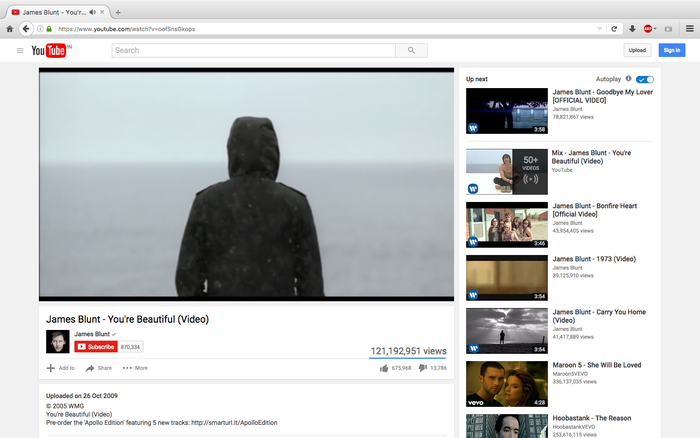
OK, so this is an interesting extension available only for Google Chrome, but you can also use it in Microsoft Edge by visiting the Chrome Web Store. Audio Only YouTube allows the user to enable or disable video streams on any YouTube video and focus on audio-only.
Bear in mind, however, that Audio Only YouTube does not support YouTube Live videos, and this will likely never happen.
Furthermore, this extension is open source, so if you prefer such tools, then you’re in the right place.
Download Audio Only YouTube from the official Chrome Store page.
2] Music Mode for YouTube
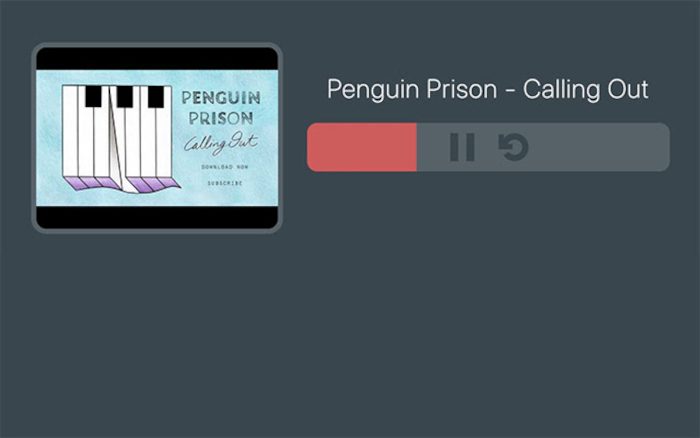
Here is another extension for Chrome and Chromium web browsers: Music Mode for YouTube. This tool works by redirecting users to what the creator calls a distraction-free listening page. It’s basically a smart music player, and from our testing, it works quite well.
Since there is no ability to skip through songs, folks will be unable to play the next song in a playlist, and be able to go to a specific section of a song, its clear Music Mode for YouTube is not for everyone.
Users can click the toggle switch to disable this extension’s feature.
Download Music Mode for YouTube via the official page on the Chrome Web Store.
3] YouTube Audio for Firefox

This is a very similar extension to the ones available for Google Chrome. Open the video in your web browser, then click the icon to disable video streaming. The audio will be left alone, so just sit back and listen to your tunes or whatever else.
Download YouTube Audio from the Mozilla Firefox store.
TIP: Stay in touch with us via our TWC YouTube Channel.
4] MyTube from the Microsoft Store
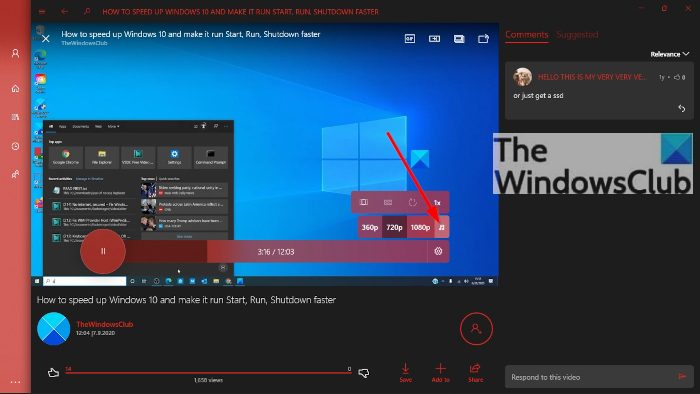
Many users consider MyTube the best YouTube app on the Microsoft Store, and this has been the case since Windows 8 and Windows Phone. A lot has changed since then, but it still has the audio-only feature.
To make it work, open a video, then click on the gear icon. The icon is only visible when the mouse pointer is over the video itself. After clicking on it, select the audio icon, and that’s it, you’re done.
Download MyTube directly from the Microsoft Store for free.
That’s it. I hope this helps.
TIP: More YouTube Tips and Tricks here.
5] Download YouTube videos as MP3
If you’re not interested in streaming audio on YouTube, you can download and convert the MP4 videos to MP3 and save them to your Windows computer.
Can I live-stream audio only on YouTube?
Yes, you can live-stream audio only on YouTube. For this, you need third-party software and an image to be used as a thumbnail. The thumbnail will be displayed until the live stream ends. OBS is a popular video streaming software and it is available for free. You can use it for live-streaming audio only on YouTube by uploading an image as a background for live streaming.
