
Until now, there was no way to view the log of devices connected to our Twitter account. Fortunately, the service now offers a dedicated Dashboard for this purpose. So, if you would like to log out of X (Twitter) on all devices at once, here’s how to go about.
Log out of X (Twitter) on all devices at once
The new Dashboard enables a quick check of your account. So, if there were some devices that you used earlier to log into your Twitter account but don’t remember them now, it’s the right occasion to log out of them. Doing so ensures that only you have access to the account. To log out of Twitter on all devices, you must-
- Login your Twitter account
- Access Settings and Privacy
- Check Data and Permissions
- Logout all sessions
Please note that the process remains the same whether you are using the Twitter web app or the Twitter mobile app (iPhone/iPad). There can be only a slight variation in the User Interface.
1] Log in your Twitter account
If you are using Twitter only on your PC, go to Twitter.com and sign-in. If your previous login is still active, there’s no need to enter the login details.
2] Access Settings and Privacy section

On your Twitter home screen, locate the ‘More’ option (visible as 3 horizontal dots) at the bottom of the menu bar. When found, click it.
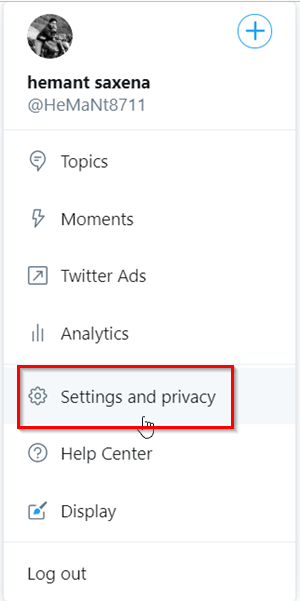
From the new window that opens, choose ‘Settings and Privacy’.
3] Check Data and Permissions
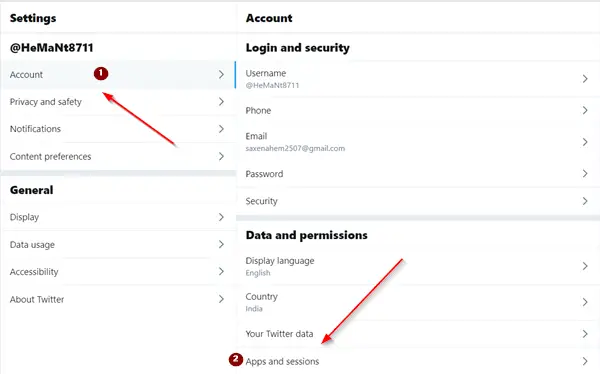
Click the ‘Account’ side arrow to expand its menu and scroll down to ‘Data and Permissions’ section.
From the list of options displayed there, select ‘Apps and Sessions’.
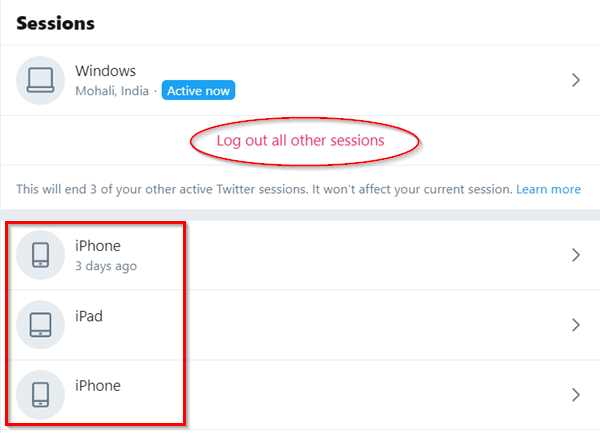
Now, scroll down to the ‘Sessions’ heading. There you will see a list of every device that you used earlier to access to your account.
4] Log out all sessions
Select ‘Log Out All Other Sessions’ to log all devices out.
When prompted with a confirmation message, select or tap the ‘Log Out’ button.
Hereafter, any other device that wishes to access your Twitter account will need to enter the login details for that account.
