
Environment Variables are responsible for storing information about the OS’s environment. Different apps and programs require different configurations, and Windows is responsible for ensuring each has the best environment. Simply put, these Environment Variables are data storage facilities. A PATH variable is one of the most useful kinds and helps you to run any executable found within the PATH without having to give the full path to the executable. In this article, we will be discussing how you can manually add or edit existing PATH environment variables on Windows 11 or Windows 10.
An Environment variable is useful because it influences how software processes run. The data stored in them plays an important role in the process. Our tutorial will help you set up PATH variables to run executables from your custom directories. These PATH variables store shortcuts, so you can create them for the programs of your choice. A prerequisite for pushing PATH variables through is granting administrative privileges, so make sure they are enabled. If you want a more detailed explanation of what System & User Environment Variables are, you can read the linked post.
How to set PATH variables manually on Windows 11/10
Without further ado, let’s see how you can add or edit a PATH Environment Variable in Windows 11/10:
- Click on the Search menu on the Taskbar and open the Windows Settings
- From the Settings panel, click on the System option from the left menu pane
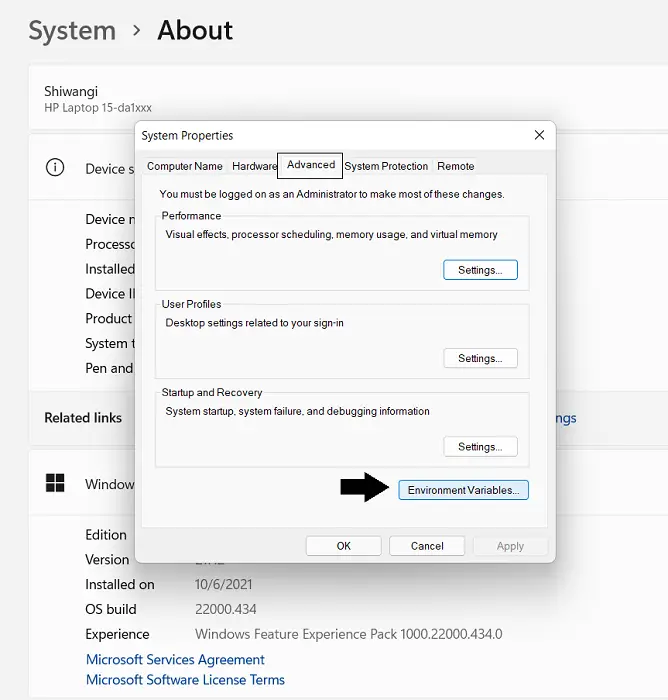
- Go to About and further click on Advanced System Settings. This will open a dialog box named System Properties
- Here, click on the Advanced tab and further click on the Environment Variables button on the bottom-right
- This will open the Environment Variables panel. Here, variables will be divided into two categories: System and User Variables. The former is applicable for system-wide changes while the latter is used to make modifications to the environment of a particular user. Make a decision based on the purpose of creating or editing a PATH variable and select PATH from a section
- Follow this by clicking on the Edit button
You can now modify the existing route lines to match the ones your computer should use. This stuff may seem overwhelming to some of you and has very deep implications for some important PC processes, so you’re advised to exercise utmost caution.
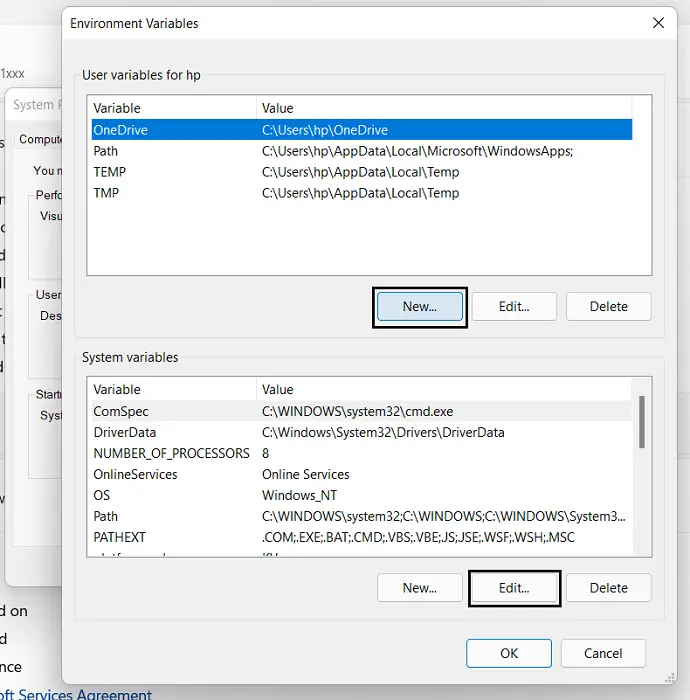
In order to add a new route, you can click on the ‘New’ button. You can delete a Path the same way. Here, you can just paste the Path of your choice, and if you’re unsure of it, then you can use the Surf option to go about searching for it. Once you’re done, click on Ok and a new PATH variable will now exist.
Our guide here explains how you can add Environment Variables to your Windows Context Menu.
Read: How to see Names and Values of Environment Variables in Windows
How do I change Environment Variables without admin rights?
Granting administrative rights may not be as easy when the PC isn’t yours, but you can still make changes to your environment variables. In the Control Panel, you can modify environment variables for a user account, but not System variables. Here’s how you can do that:
- Open the Control Panel
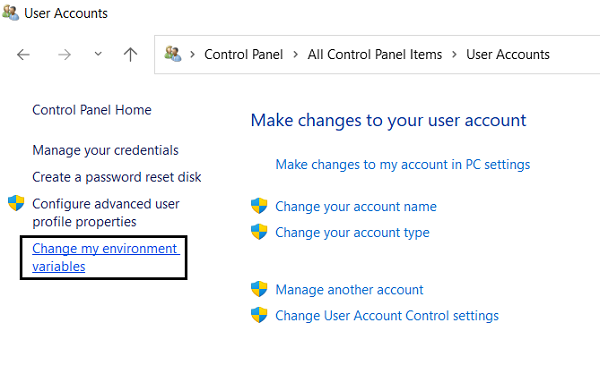
- Select to view them as ‘Small icons’ and click on User Accounts
- Here, you’ll see an option to your left named ‘Change my environment variables’
- This will open the same Environment Variables dialog box as before, except now the System Variables aren’t accessible and you can only make changes to User variables
TIPS:
- How to use Environment Variable Editor in PowerToys?
- Rapid Environment Editor is a powerful free Environment Variables Editor for Windows.
How do I change the Path in Windows Command Prompt?
A command line on your Windows Terminal (Command Prompt) can help you add a Path to your Path environment variable. The changes we discussed above can also be implemented via Command Prompt, but they are limited to the user’s environment. Here’s how:
- Search ‘CMD’ on the Taskbar search menu and select to run it as the administrator
- Enter the command ‘Pathman /au’ and follow it by the Path to the directory you want to append.
- Similarly, you can use a ‘Pathman/ru’ command to delete an existing Path to a directory
We hope this post was helpful and that you can now manage your Path environment variables with ease.
