
Google Family allows a family of six people to share almost everything, including Music, Photos, share payment methods, and YouTube Membership. It also allows parents to keep track of their kids. The last one is what makes things impressive. In this guide, we will show you how to set up Google Family on both your phone and your child’s phone.
As Smartphones have become more of a necessity, it’s also important to know how your kid uses the phone. Not all apps and content are safe on Android. This is where Google Family comes into the picture.
If you are wondering why Google developed this product, I can give you a hundred reasons. Imagine your child using a smartphone with almost no restrictions on what they can use and watch. YouTube, even though restricted, still manages to show types of content which is not suitable for kids. Chrome does well, but kids still manage to bypass it. You can’t really block apps because kids eventually learn the pattern or pin and so on.
Set up Google Family & Track Kids Activity
Google has launched “Google Family Link” in India. Google has launched the Family App in two parts. The first needs to be installed by the parent, and the second needs to be installed on the child’s phone. Once done, make sure to keep a note of your child email account.
Setup Family App for Parents and Kids
1] Launch the Google Family Parents app, and sign in with your Gmail account. You can then add up to 6 family members. The first thing I would suggest is to add your Spouse account as well so she or he can manage and track kids activity.
2] Launch the app on Parents phone, and click on the Add icon on top right of the app.
3] If your kid has a Gmail account, you can add it right away else you can create it right away.
4] When you add the kid’s account, the setup will prompt you to install Family App on Kids account. It will also display access code which you will need to enter on your kid’s phone.
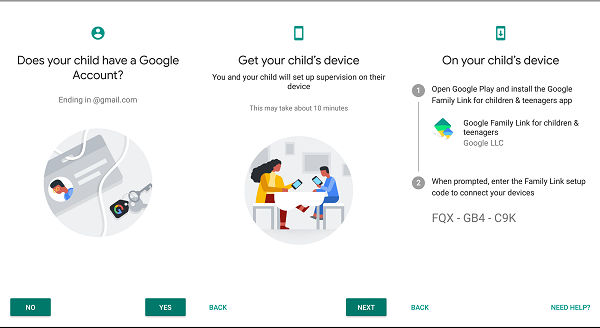
5] Switch to Kids account, and launch the app.
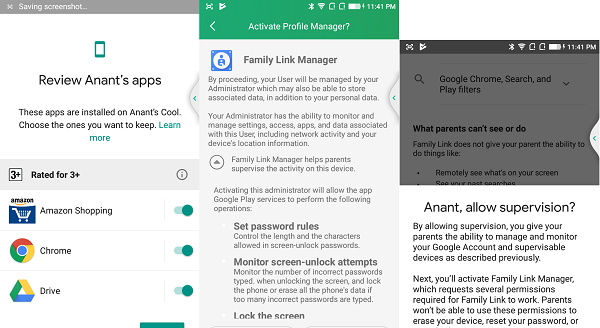
6] Choose that this phone is going to be supervised. As soon as you enter the access code, Parent’s name will appear right away and you can approve it.
7] Post-approval, You can set up how your kid will use your phone, and add access control.
Setup Access Control on Child Phone from Parent Phone
The most effective way to set up control on a child’s phone is through the Parents App. Launch the app, and select your child. Next, here is the list of things you can manage on your Childs Phone:
1] Google Play Purchase and Downloads:
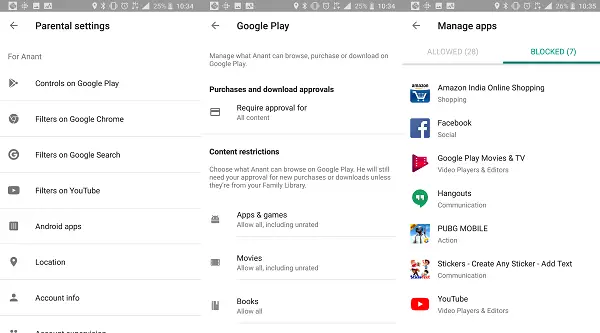
You can choose to either block everything so your kid can not download anything or you can choose “Require approval for” option. If your kid is a little mature, maybe you can allow him or her to download Music and Books. When the Kid wants to download anything, a request is sent to your account.
2] Filter on Chrome:
Mature sites are blocked by default for kids. If that’s not enough, you can choose to allow only certain websites they can visit. If the website is not on the list, your child will be able to send an access request.
3] Block Android Apps
Apps like YouTube, Games like PUBG are not suitable for young kids. Using the Manage Apps you can block system and installed apps/games on the phone.
4] See Child’s Location
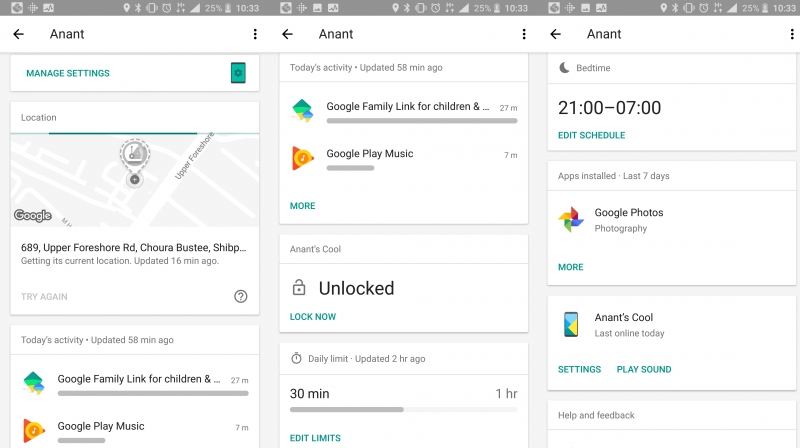
You can enable Track Live Location on phone. The system makes sure that even if the location is turned off, you can remotely turn it on.
5] Track App Usage:
The app provides daily usage statistics. You can see kids’ activity on a daily, weekly, and monthly basis. The activity gives a breakdown of time on a per-app basis. If you’re unfamiliar with the app, tap on it to view complete details from the Play Store listing. If the app should not have been on your kid’s phone, you can block it right away.
Apart from this, you can enable Safe Search in Google Search and YouTube Restricted Mode.
5] Screen Time
There are certain scenarios when you do not want your kid to access the phone. First is when its bedtime and second is if you want your kid to use the phone only for a fixed period of time. This is where Screen Time comes into the picture.
Screen Time lets you set up usage time. You can choose the duration and time for each day. If your kid maintains a bedtime, you can set up that as well so they are not allowed to use the phone during that period. If your child unlocks the phone using the phone’s pin, he will have the Locked Status Screen.
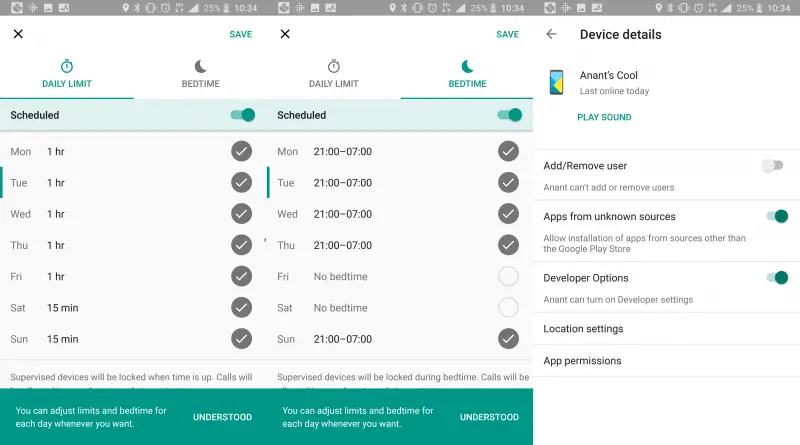
Parents Family app also offers an option to lock/unlock the phone. This comes in handy at situations where you do not want to give access to a phone at all.
6] Device Control
You can also choose to control certain aspects of the child’s device from your phone. This generation of kids has grown up with devices, and they know they can find a solution by searching on the internet. Keeping that in mind, you can choose to enable/disable few options.
- Disable add/remove users.
- Restrict the installation of apps from unknown sources.
- Make sure Developer options cannot be enabled.
- Change Location accuracy to High, Battery or Device only.
- Manage app permissions on phone.
Can the Child remove Google Family App
They can, but if they do, parents will be notified, and the device will be locked for 24 hours unless the parent unlocks it. This means they lose access to almost everything on the phone. When you set up this app on your child’s phone, I suggest getting their consent. Try to help the child understand why it’s important until they reach an age limit where no more tracking is necessary.
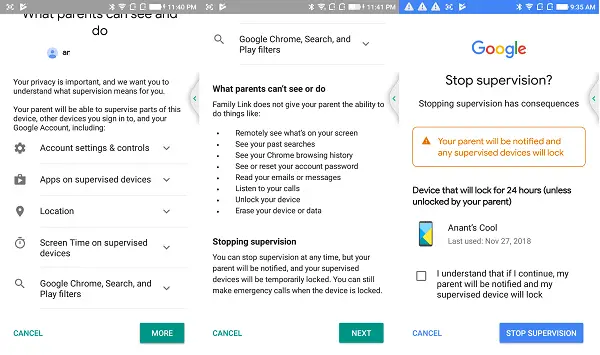
When the kid launches Family App on the phone, they will get to see what parents can see. Google has made sure there is complete transparency between parents and child about it. Location tracking, app usage, and so on.
It’s impressive how well Google has built Family App. It makes sure you get a proper Kid management on Phone, makes sure you know where he is and also monitors app usage which is very crucial. If you need to give your Kid a phone, make sure to set this up before handing over the phone. However, do take his or her consent. Go here to get started with Google Families.
